
In this guide
How it works
Open a PDF with readable text and select the desired interface language as the translation language.
Load the relevant PDF pages into the text field or paste a passage. Check the character count and start translating.
Compare names, figures, technical terms and important statements with the original.
Input, result and limits
| Property | Details |
|---|---|
| Input | PDF or typed text |
| Output | TXT |
| Important limitation | At most 12,000 characters per passage; no automatic shortening. |
The workflow in six views
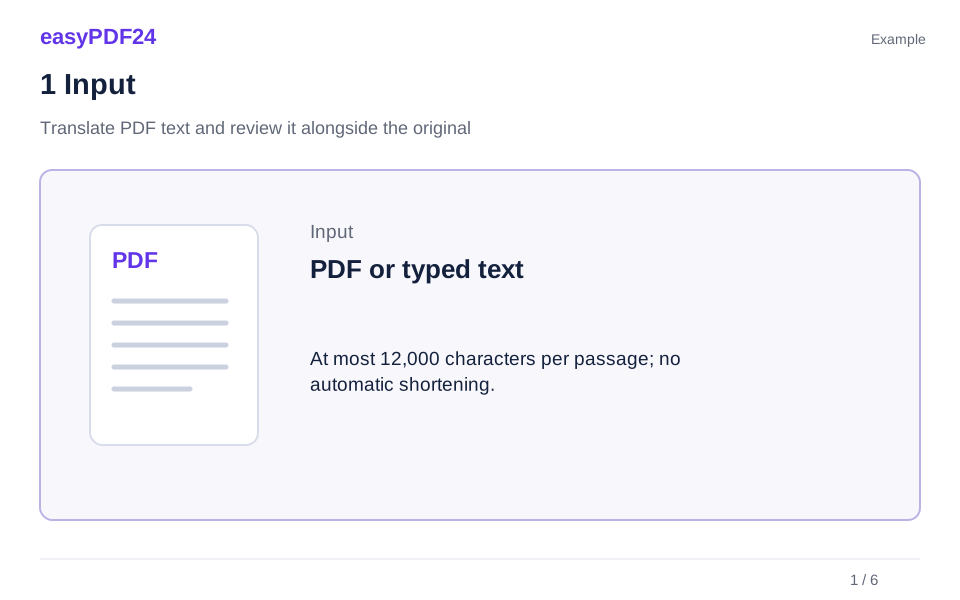
1Input
Open a PDF with readable text and select the desired interface language as the translation language.
2Settings
Load the relevant PDF pages into the text field or paste a passage. Check the character count and start translating.
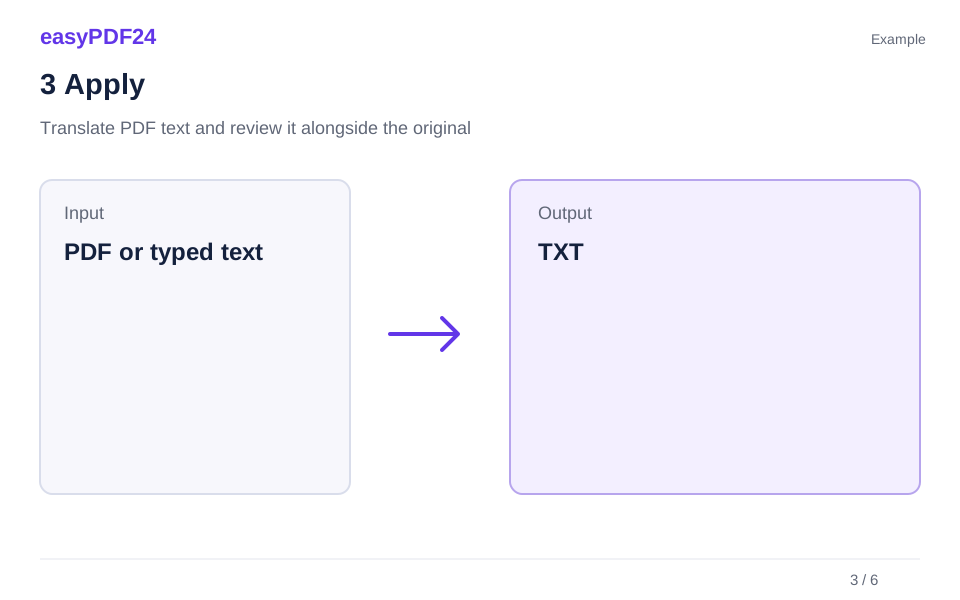
3Apply
PDF or typed text → TXT

4Before and after
Extracted text → Text draft for review
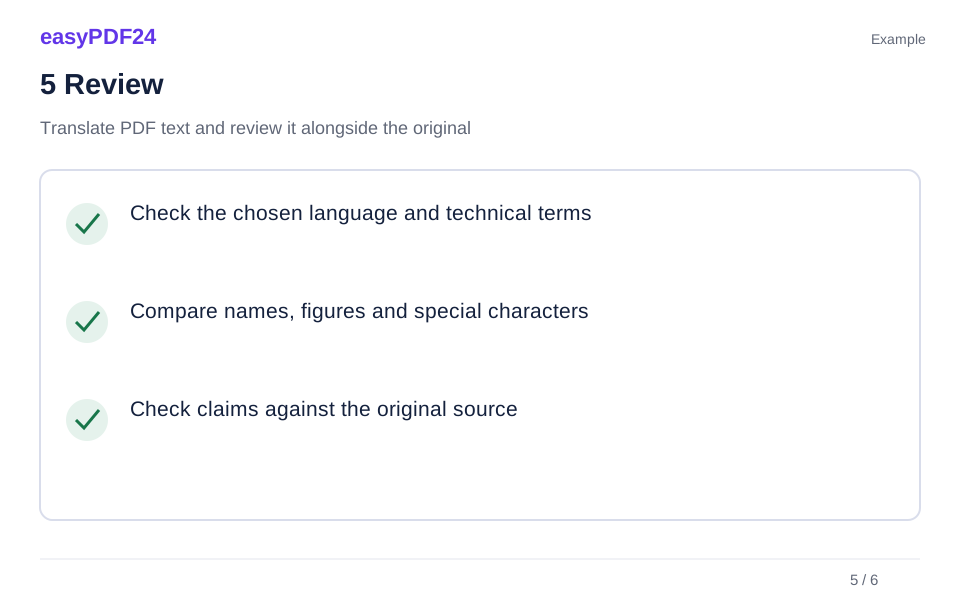
5Review
Check the chosen language and technical terms Compare names, figures and special characters Check claims against the original source

6Save
Compare names, figures, technical terms and important statements with the original.
Example
Before
Extracted text
After
Text draft for review
Check these details in the result
- Check the chosen language and technical terms
- Compare names, figures and special characters
- Check claims against the original source
Expect translated text rather than a redesigned PDF
The tool translates extracted wording, not the visual page design. It does not replace labels inside pictures or create a translated PDF with the original layout. The target follows the selected interface language, with eleven languages available. If you need a carefully formatted document to distribute, transfer the reviewed translation into an appropriate source document afterward.
Choose the relevant passage yourself
Load individual pages or a range such as 1,3-5 into the text field. Edit the passage there or paste your own text. The visible character count helps you stay within the 12,000-character limit. Longer inputs remain intact; translation becomes available when you select less text yourself. Download the reviewed result as TXT if needed. Image-only scans need OCR beforehand. Check reading order and tables because errors in the source text can carry into the translation.
Frequently asked questions
Can I choose a target independently of the interface language?
The target currently follows the interface language. Select the language you need before translating and check the task label in the AI panel.
Is the result a certified or professionally approved translation?
No. It is an AI-generated text translation for you to review. If certification or specialist approval is required, arrange that as a separate review process.