
In this guide
How it works
Open the PDF and check the positions of the pages you need.
Enter a selection such as 1,3-5; include each selected page only once.
Create the extract, check its page count and content, and save it with a clear filename.
Input, result and limits
| Property | Details |
|---|---|
| Input | |
| Output | |
| Important limitation | Up to 80 PDF pages; inputs up to 25 MB combined. |
The workflow in six views
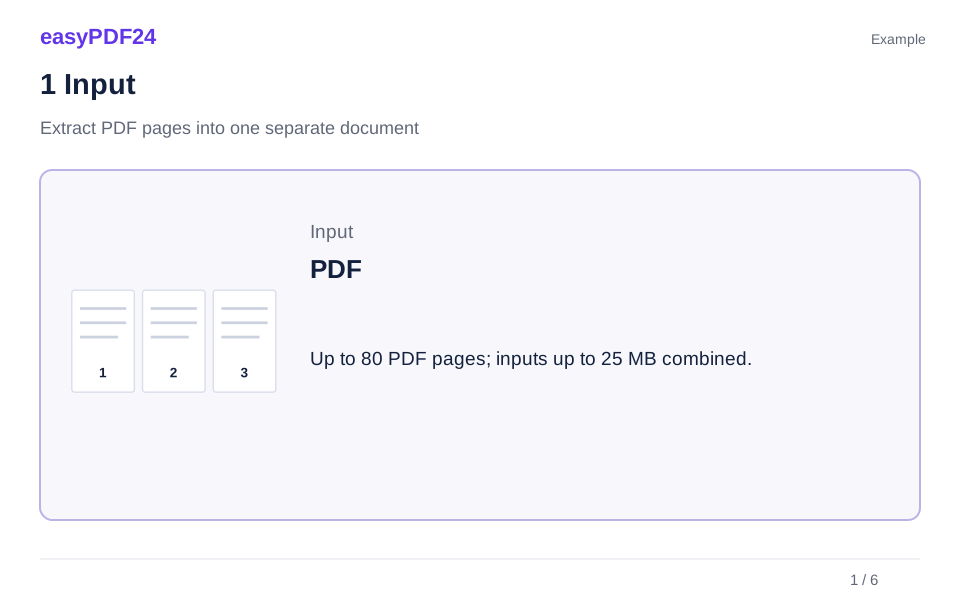
1Input
Open the PDF and check the positions of the pages you need.

2Settings
Enter a selection such as 1,3-5; include each selected page only once.
3Apply
PDF → PDF

4Before and after
Complete page set → Selected pages or order

5Review
Change only the intended pages or areas Check page count and order Reopen the downloaded file
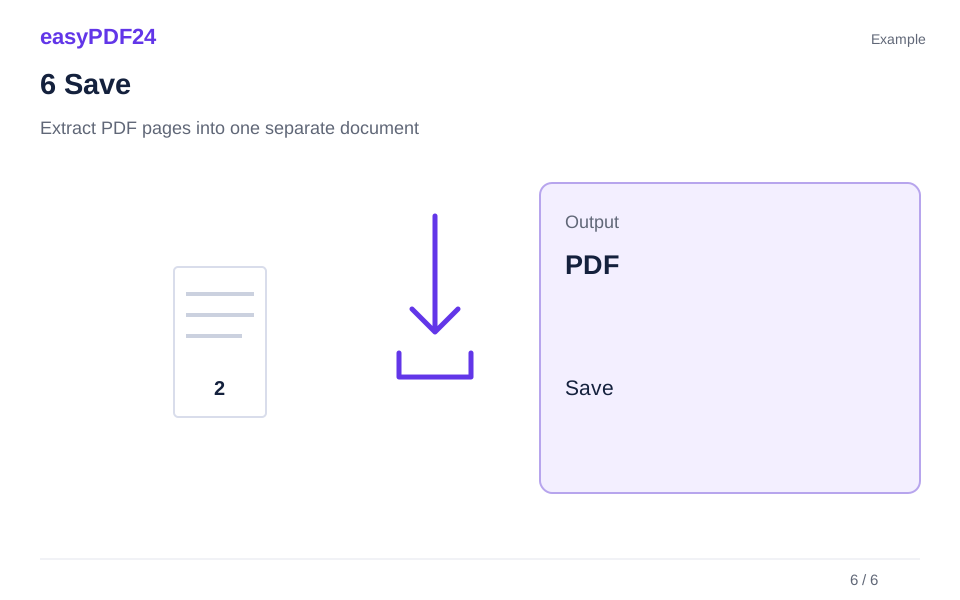
6Save
Create the extract, check its page count and content, and save it with a clear filename.
Example
Before
Complete page set
After
Selected pages or order
Check these details in the result
- Change only the intended pages or areas
- Check page count and order
- Reopen the downloaded file
Keep the extract understandable on its own
A table on page 7 may depend on a heading or legend on page 6. Before extracting it, check whether the recipient needs that context too. Include explanatory pages where necessary, and inspect the beginning and end of the resulting file. Page positions start at 1 and include covers, so they may not match the numbers printed in the document.
One extract or many separate files
Extract creates one PDF containing the selected pages. Split has a different result: it puts individual page PDFs into a ZIP archive. Choose Extract for a short attachment that should be read as a unit. Choose Split when each page needs its own file. Neither choice rewrites references or printed page numbers within the selected pages.
Frequently asked questions
Are the other pages deleted from my original?
No. Your local source file remains unchanged. The downloaded extract is a separate document containing only the pages you selected.
Can extraction remove private details on a selected page?
No. It keeps the page's content. If a selected page contains information you need to remove, use redaction and inspect the resulting file before sharing it.