
In this guide
How it works
Open the PDF and enter a short watermark label.
Select the pages to label, or leave the page field empty for the whole document.
Apply the watermark and review pages with both dense text and large images before downloading.
Input, result and limits
| Property | Details |
|---|---|
| Input | |
| Output | |
| Important limitation | Added text does not replace the existing text layer. |
The workflow in six views
1Input
Open the PDF and enter a short watermark label.
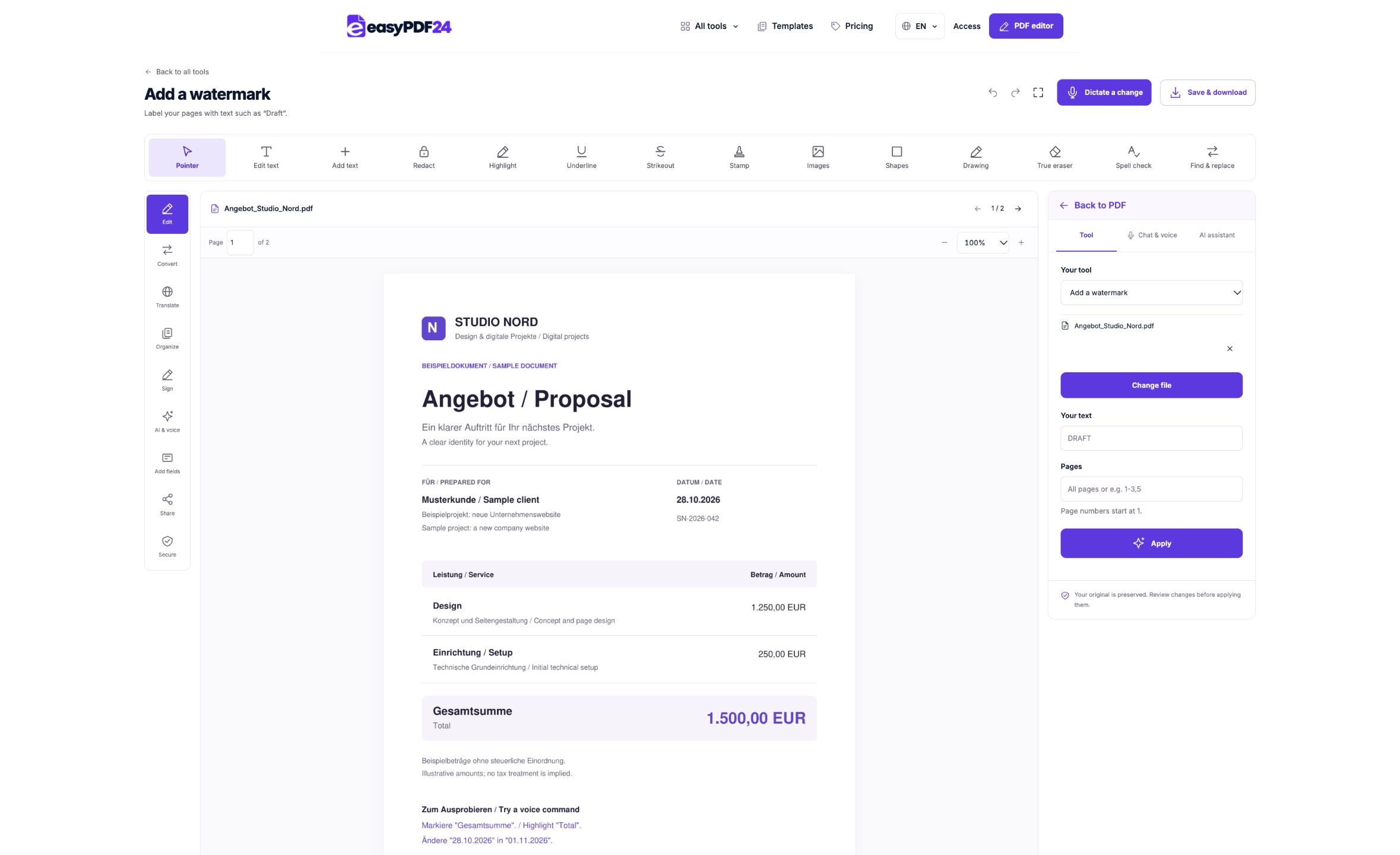
2Settings
Select the pages to label, or leave the page field empty for the whole document.
3Apply
PDF → PDF
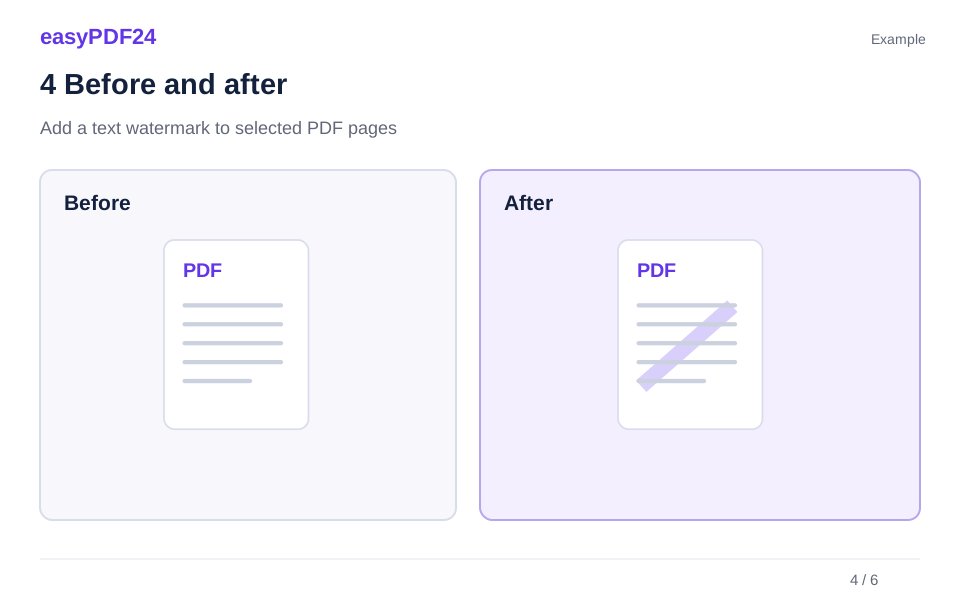
4Before and after
Original file → Edited copy
5Review
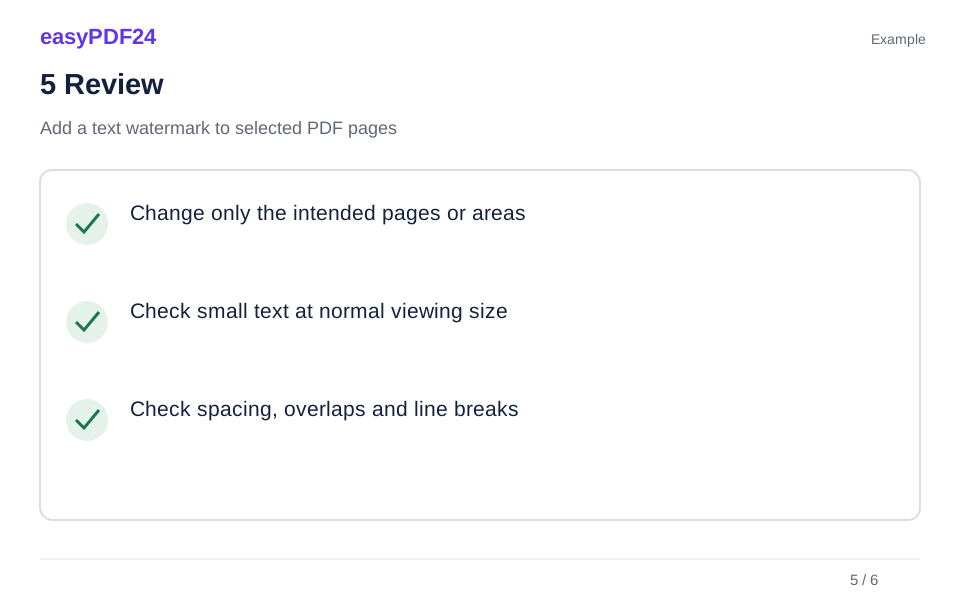
Change only the intended pages or areas Check small text at normal viewing size Check spacing, overlaps and line breaks
6Save
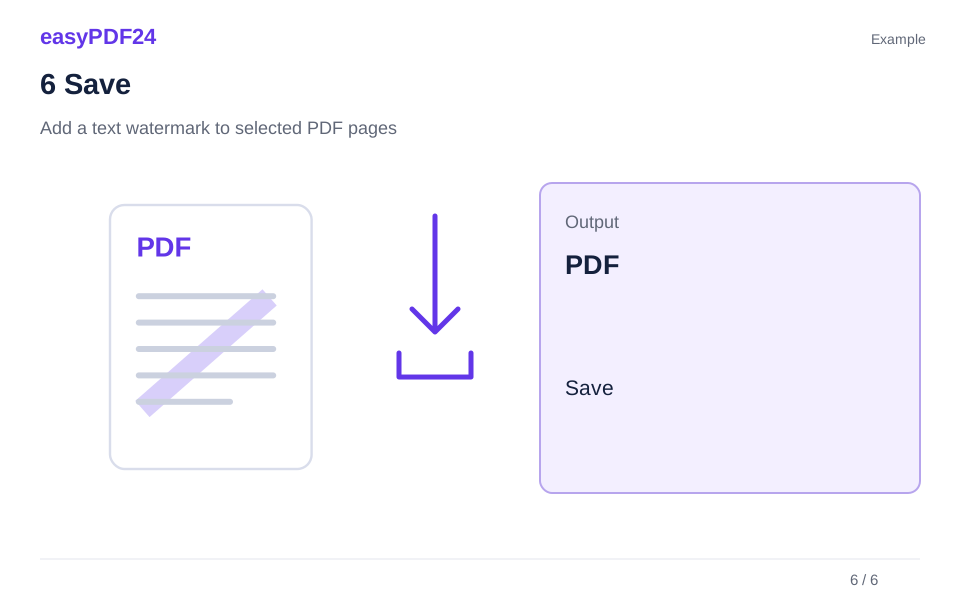
Apply the watermark and review pages with both dense text and large images before downloading.
Example
Before
Original file
After
Edited copy
Check these details in the result
- Change only the intended pages or areas
- Check small text at normal viewing size
- Check spacing, overlaps and line breaks
Use a label that explains the document's status
DRAFT helps distinguish a review copy from an approved version. A project name can identify a handout when pages are separated. Keep the wording short: the tool places light text across the middle of the selected pages, and a long phrase may not fit. Check landscape pages and narrow formats individually because their available space differs from a standard portrait page.
Check visibility without hiding information
A subtle label can blend into a photograph or overlap important table entries. Review the actual output at a normal reading size and, if it will be printed, inspect a representative printed page. A watermark communicates status visually; it does not prevent copying, establish ownership or remove content beneath it. Use a separate redaction operation when information must disappear from the result.
Frequently asked questions
Can I add a logo as the watermark?
This tool adds text. Use Add image in the editor to place a logo, then check its size and position on the relevant pages.
Can I exclude the cover?
Yes. Enter only the pages to label, such as 2-8. The selection follows PDF page positions, including any cover or divider.