
In this guide
How it works
Open your PDF and go to the page you want to change.
Choose Edit text or another toolbar tool, then select the text or draw the area you want to work on.
Review the planned change and choose Apply changes above the document. Check the updated page before continuing.
Input, result and limits
| Property | Details |
|---|---|
| Input | |
| Output | |
| Important limitation | Direct replacement needs supported PDF text and enough space. |
The workflow in six views

1Input
Open your PDF and go to the page you want to change.
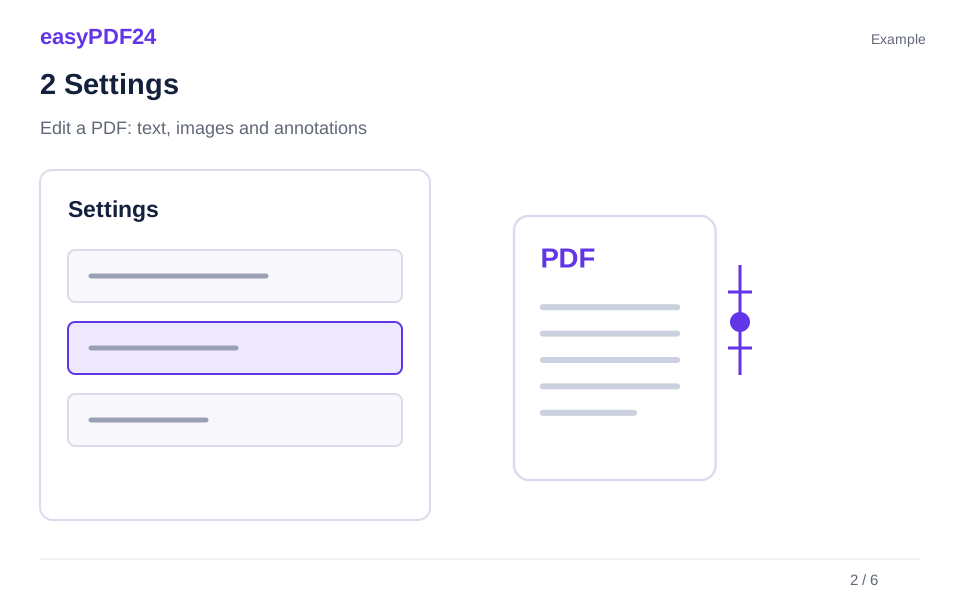
2Settings
Choose Edit text or another toolbar tool, then select the text or draw the area you want to work on.
3Apply
PDF → PDF

4Before and after
Original file → Edited copy

5Review
Change only the intended pages or areas Check spacing, overlaps and line breaks Reopen the downloaded file

6Save
Review the planned change and choose Apply changes above the document. Check the updated page before continuing.
Example
Before
Original file
After
Edited copy
Check these details in the result
- Change only the intended pages or areas
- Check spacing, overlaps and line breaks
- Reopen the downloaded file
Choose the smallest change that solves your problem
A PDF keeps a page looking consistent when it travels between applications and devices. That is useful for finished documents, but it also means that editing behaves differently from writing in a word processor. Text may be stored as many separate pieces, an illustration may contain several objects, and a scanned page may be one large picture. Begin by deciding what must actually change: a date, an address, a paragraph, a logo or the order of the pages. That decision helps you choose the right tool and avoids unnecessary conversions.
For example, a one-line correction to a meeting handout usually needs direct text editing. Adding an explanatory comment needs a new text box. Moving a whole chapter into another file needs page extraction. Rewriting several pages with new headings and flowing paragraphs is usually easier in the original source document. If you have that source, keep it as the master version and export a fresh PDF when substantial layout changes are necessary. easyPDF24 is particularly useful when the PDF is the available working copy and the required changes can be reviewed on the existing page.
Inspect the document before editing
Open the file and look at a representative page before choosing a command. Try selecting the text you intend to change. If you can select separate words, the file probably has a usable text layer. If selecting the page behaves like selecting a picture, it may be a scan. OCR can add recognized text to supported German or English scans, but it does not reconstruct the original Word document or turn every printed feature into an independently editable object. Poor image quality and complex layouts still require careful checking.
Next, inspect the surrounding space. A short date often fits into its existing area; a much longer company name may collide with a neighboring label. Check the page counter as well as any number printed on the page. A cover can make those numbers different. Before starting a series of corrections, make a brief list of the affected pages and the intended replacement text. Keeping this list outside the PDF gives you a simple way to verify the final result without relying on memory or repeating the same search.
Edit existing text or add a separate text box
Use Edit text when the existing wording itself is wrong. Select the supported text on the page, enter the replacement and examine the preview. PDF paragraphs do not automatically reflow like Word paragraphs, so nearby content will not move down to make space. For supported text, easyPDF24 reuses the original font, including its weight, size, color and baseline, without painting a white rectangle behind the replacement. If the original font or text arrangement cannot be reproduced reliably, the operation returns a clear error instead of silently substituting another style. Complex mixed text spans, unsupported characters and replacements that do not fit may require a different editing workflow.
Use Add text for an extra note, a missing date or information that belongs in an empty area. Decide on the position and size before applying it, and check that the new text remains readable at a normal viewing scale. Adding text over old text is not the same as replacing or removing it: the original content may still exist beneath the new object. If the original wording must disappear, use the appropriate edit or redaction operation and verify the output. For a large change that requires a matching font and flexible line wrapping, return to the source application when possible.
Use annotations for review rather than rewriting
Highlighting, underlining and striking through are useful when you want to draw attention to existing wording. They communicate a review decision without pretending that the underlying sentence has been rewritten. Choose a small, precise area and avoid covering several lines when only one amount or phrase needs attention. A recipient should be able to understand the original passage and the reason it has been marked. When a highlight seems misplaced, review the page at a larger scale and adjust the selected region before accepting it.
Shapes and drawing can help explain a process or mark a diagram, but they also add visual weight. Use a consistent color and line thickness for related comments. A rectangle around a table entry should not overlap the next row, and a handwritten-style mark should not hide a decimal point. If you are preparing a clean final document after a review round, consider whether annotations still belong in that version. Keep a separate review copy when you need to preserve feedback. Removing confidential information calls for redaction; a colored box or a strike-through is not a substitute for removing the underlying content.
Place images without disturbing nearby content
An inserted logo or illustration should have a clear purpose and enough space around it. Upload a suitable PNG, JPG or WebP file through the image controls, select the intended page and position the image in the preview. The editor provides frame handles and adjustment controls for moving and resizing. Keep the aspect ratio locked when the image must retain its proportions. A logo that is stretched to fit a narrow gap can look wrong even when its edges align neatly with the surrounding text.
For a replacement, first identify the old image occurrence and remove it with the appropriate operation. A logo may be an embedded image, part of a full-page scan or a collection of vector shapes; these cases can require different selections. Inspect the frame closely before applying an area removal, especially when text is printed next to the graphic. Inserting a new image does not automatically erase the old one. Transparent PNG or WebP artwork can be helpful on a colored background, but the file must actually contain transparency. A white background in a JPG remains part of the image when it is placed on the page.
Review planned changes where you are working
easyPDF24 shows planned changes above the editing area so you can compare the instruction with the visible document. Treat that moment as a short review: confirm the page, the selected object or rectangle, and the content of the replacement. Then apply the change and inspect the updated page. For a complicated document, several small, checked edits are easier to control than a long set of unrelated changes applied together. If a result is not what you intended, use Undo before building more changes on top of it.
Chat and voice provide another way to describe an edit in all eleven supported languages. Choose the command language in chat and be specific about the page and the target text. An attached screenshot can help identify an image, but you still need to inspect the selection in the actual PDF. A successful interpretation of a sentence does not prove that the selected area is correct. Keep the document visible while reviewing the proposed operation and use manual controls when the command leaves any ambiguity about what should change.
Check the downloaded PDF as a recipient would
The editor preview is valuable, but the downloaded document is the file that another person will receive. Open that file in a PDF viewer after completing your edits. Visit every changed page and check line endings, spacing, image edges and page orientation. Search for the new wording when the change involves text. If something was supposed to be removed, search for the old wording as well and inspect nearby material for accidental loss. A clean appearance at a small scale can conceal a missing character or a clipped replacement.
Review the document in its intended context. A handout needs readable text when printed; a screen presentation needs clear labels at the display size; an attachment needs a meaningful filename. Keep the original and the edited file distinguishable, for example with a project name and version date. Avoid filenames such as final-final-new when several people will work with the document. The file on your device is not overwritten by the editor. Saving the output in a deliberate location helps you avoid sending the untouched original or an intermediate version that still contains earlier mistakes.
Handle difficult files and choose a useful next step
If an edit fails, narrow the problem before repeating it. Check whether the text is selectable, whether the replacement fits, and whether the page contains rotated or unusually encoded text. Try a shorter replacement in a working copy if length is the issue. For a scanned source, inspect recognition quality before using the recognized text in another operation. If a font or layout mismatch is unacceptable, a fresh export from the original application may be the more reliable route. Do not keep adding layers to hide a result that already looks incorrect.
easyPDF24 accepts PDFs within its file and page limits: up to 25 MB and 80 pages. A smaller extracted section can make a focused task easier to manage. Use the related tools for the next real requirement: replace text for repeated wording, add image for a new graphic, or OCR for a supported scan.
Work through a concrete correction in a sensible order
Suppose a two-page event sheet contains yesterday's date, an obsolete contact name and a logo that has changed. Start with the date because it is a small, easily checked edit. Select the date, enter the correct value and make sure the spacing still works. Next, replace the contact name. If the new name is longer, inspect the neighboring telephone number before applying the result. Finally, remove the old logo and position the new image in the available space. This order keeps the tasks separate and gives you a clear visual reference after each operation.
Now check whether the same information appears on the second page. A heading on the cover and a footer on the schedule may need separate attention. Do not assume that selecting one text span changes every matching phrase in the file. If repeated wording needs an intentional broader replacement, use Find & replace with an appropriate page selection. After the content changes are complete, review the overall appearance again: the new logo might now align poorly with the revised contact block even though each individual edit looked acceptable. A final whole-page review catches these relationships between otherwise correct changes.
Choose a readable result rather than an invisible-looking patch
A successful edit should remain understandable when someone reads the document normally. Look at contrast, text size and the amount of space around the changed content. A replacement that is technically present but too small to read is not a useful correction. Similarly, adding a note in the middle of a dense table may obscure the relationship between values. Prefer an available margin or a clear empty area when the note belongs outside the original structure. If there is no suitable space, consider whether the source document needs a layout change instead.
Where accessibility matters, check more than the visual page. Select and copy relevant text to see whether it remains usable, and consider how the recipient will navigate the document. Visual editing does not automatically rebuild a PDF's reading order, headings or accessibility tags. If the document must meet a specific accessibility requirement, it needs a separate assessment with suitable tools. For everyday use, even a simple check of search, copying and readable contrast can reveal problems that a quick glance misses. Keep your editing objective concrete: correct the information while preserving the surrounding content's clarity and usefulness.
Frequently asked questions
Can I edit a PDF without converting it to Word?
Yes. Supported text, image and page changes can be made directly in the browser. You do not need to create a Word document first.
Does editing overwrite my original file?
The file on your device stays unchanged. easyPDF24 creates a separate edited version that you can download.
Should I edit the PDF or return to its source file?
Use direct PDF editing for focused corrections that can be checked in their existing space. Return to the source file when you need to rewrite long sections, change the page layout or preserve a specialized typeface precisely. Keeping the source and PDF versions in sync also prevents the same old mistake from reappearing in a later export.