
In this guide
How it works
Open your PDF and the Chat & voice panel. Allow microphone access if you want to record a command.
Give a specific instruction in your selected command language, such as “Rotate page 1 by 90 degrees”. Check the transcription; you can also type the same command.
Check the planned steps and the affected page. Apply the change once the selected content and instruction are correct.
Input, result and limits
| Property | Details |
|---|---|
| Input | PDF and microphone |
| Output | |
| Important limitation | Review spoken changes as planned steps before applying them. |
The workflow in six views
1Input
Open your PDF and the Chat & voice panel. Allow microphone access if you want to record a command.
2Settings
Give a specific instruction in your selected command language, such as “Rotate page 1 by 90 degrees”. Check the transcription; you can also type the same command.
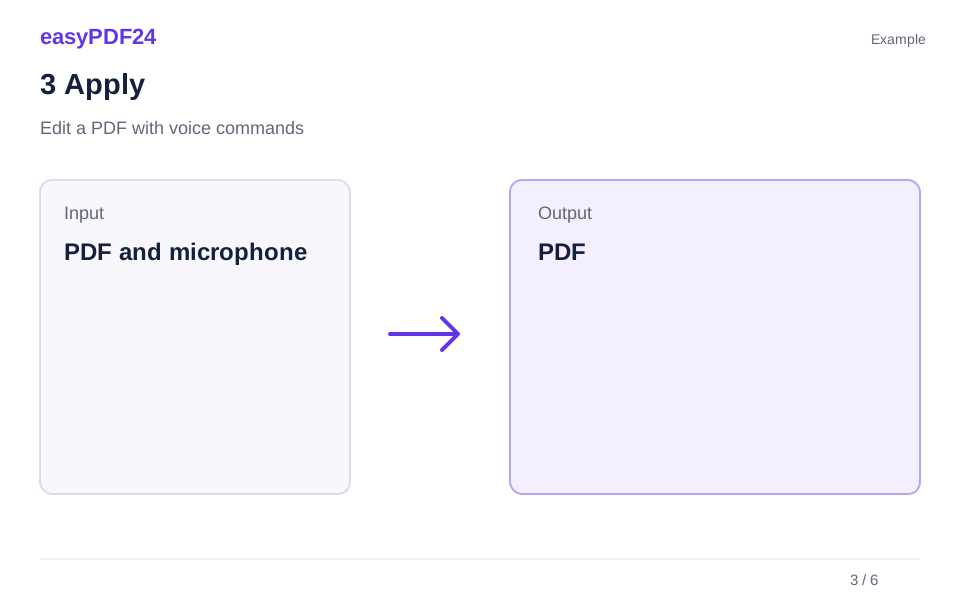
3Apply
PDF and microphone → PDF
4Before and after
Original file → Edited copy
5Review
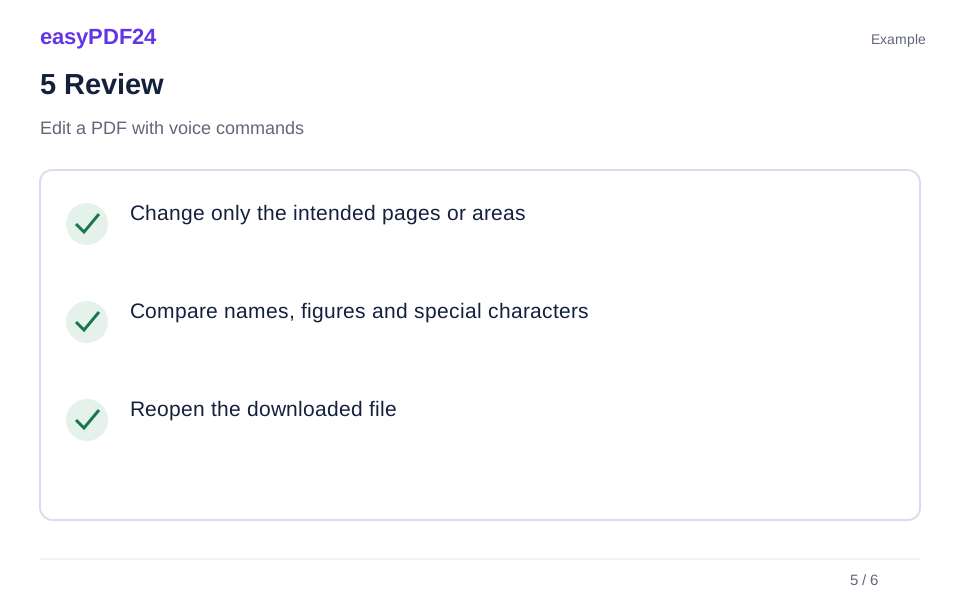
Change only the intended pages or areas Compare names, figures and special characters Reopen the downloaded file
6Save
Check the planned steps and the affected page. Apply the change once the selected content and instruction are correct.
Example
Before
Original file
After
Edited copy
Check these details in the result
- Change only the intended pages or areas
- Compare names, figures and special characters
- Reopen the downloaded file
Start with a clear editing intention
Voice control is useful when you already know what needs changing but do not want to search through the toolbar for every operation. A useful instruction describes an action, a target and a location. For example, “Rotate page 1 by 90 degrees” gives the editor a concrete operation to prepare, while a vague request to fix the document leaves the target unclear. The same principle applies when you type into chat. You do not need a long explanation of the document; you need enough detail to distinguish the intended change from other similar content. Choose the matching command language and inspect the proposed page and action before applying them.
Before speaking, look at the page and decide whether you are changing text, removing an image or organizing pages. These are different operations even when they contribute to the same overall task. A request to update a letterhead could mean replacing a company name, deleting a logo and inserting a new address. Work through those changes in a sensible sequence and review each result. A broad instruction can be interpreted differently from what you intended. Breaking it into clear steps also makes it easier to correct one misunderstanding without undoing an entire editing session.
Know which languages and input methods are available
easyPDF24 supports spoken and typed PDF commands in all eleven interface languages: German, English, Spanish, French, Italian, Portuguese, Dutch, Polish, Turkish, Indonesian and Swedish. Choose the command language in chat before recording or typing; it can differ from the language of the interface. Use that language for the instruction, while keeping the exact document text you want to find or replace unchanged inside quotation marks. This support applies to the available editing actions, not every imaginable request. Review the interpreted operation and its target before applying it. Names, numbers and unfamiliar wording can still be misheard, so inspect the transcription and correct it when necessary. OCR is a separate capability and currently recognizes German and English.
You can type an instruction instead of recording it. Typed input is often convenient for exact dates, reference numbers and replacement phrases that would be awkward to dictate. Voice can be more comfortable for a simple action such as rotating a page. The two approaches can be combined: dictate the main instruction, inspect the transcription and correct a number before submitting it. If microphone access is unavailable, the editing workflow remains usable through chat and the toolbar. Recording is an additional input method, not a requirement for opening, reviewing or editing a PDF.
Give text commands that can be checked precisely
When replacing wording, identify both the existing text and the intended replacement. Distinctive phrases are easier to locate than a common word that appears throughout the document. A request involving “May” might refer to a month, a person or part of a sentence, so add context and restrict the page when necessary. For a single occurrence, selecting the text directly with Edit text can be more precise than asking for a broad replacement. Check the prepared action rather than assuming that the system has inferred your preferred scope.
Numbers deserve particular care. A spoken date can be interpreted in more than one format, and a decimal point can be mistaken for a pause. Review account references, quantities and amounts character by character in the transcription and in the proposed replacement. If the exact format matters, type it. Longer replacement text also needs room on the PDF page: the document does not automatically reflow like a Word paragraph. Voice input changes how you request an operation, not the physical limits of the page or the behavior of the underlying text editing tool.
Use screenshots to clarify image requests
An image reference is helpful when a page contains several graphics or the logo you want to remove is hard to describe. Attach a screenshot or image in chat, then explain how it relates to the PDF. For example, state that the attached crop shows the logo in the upper left corner of page 1. The reference supports the conversation; it does not replace checking the actual image occurrence selected inside the document. Similar images can appear on several pages or more than once on the same page.
After an image is proposed, inspect its highlighted position. If the logo is embedded as a separate image, you may be able to remove that occurrence directly. If it is part of a scanned page or vector artwork, an area selection may be necessary. Adjust the frame with the handles and movement or size controls. Keep adjacent text outside the removal boundary. Removing an area does not reconstruct a patterned or photographic background behind an object. For that kind of visual repair, prepare an appropriate replacement graphic separately and review how it fits into the document.
Separate the instruction from the final application
A spoken request prepares an editing action for review. The important checkpoint is the planned changes area above the document. Read the action, confirm the page and inspect any selected rectangle or object. Apply the change only when those details match what you wanted. The resulting working version appears in the preview, allowing you to see whether the logo is gone, the new text fits or the page now faces the correct way. This review step is what makes a conversational workflow controllable.
If the proposed action is wrong, correct the instruction or switch to a manual tool. Repeating the same vague phrase is unlikely to resolve an ambiguous target. Instead, add the page number, use exact wording or select the area yourself. If an already applied result is unsuitable, use Undo and inspect the restored version before trying again. For several related edits, it is often sensible to make a small change, check it and then continue. A clear sequence keeps the conversation aligned with the document version currently shown on screen.
Build a practical workflow for a recurring document
Consider a monthly report that needs a new date, an updated title and removal of an outdated sponsor logo. Begin by checking that you opened the correct report and note the page positions of the three changes. Give the date replacement as an exact instruction and review the result. Then update the title, allowing for the available space. Finally, identify the logo with a screenshot or a direct image selection and inspect the removal frame. Each action has a distinct target and an observable result.
After applying these changes, review the report as a whole. The old date might also appear in a footer, and a logo on the cover might be repeated in an appendix. A command aimed at one occurrence does not necessarily update the others. Use search and page navigation to verify the intended scope. Keep a short external checklist for recurring tasks, especially when several pages must be updated every month. That checklist helps you confirm completeness without assuming that a conversational assistant knows your publication process or remembers changes from a previous document.
Resolve microphone and recognition problems methodically
If recording does not start, check the browser's microphone permission and the selected input device. Another application may be using a different microphone, or the browser may have been denied access earlier. Make a short test instruction after changing the setting. Speak at a normal pace and reduce background noise where possible. A clear recording helps transcription, but it does not eliminate ambiguity in names, abbreviations or numbers. Always inspect the resulting text before treating it as a precise editing instruction.
If the recording is understandable but the planned operation is not, the issue may be the command rather than the microphone. Simplify the request to one supported action. Replace “clean up this page” with an instruction that identifies a particular image, phrase or rotation. If a command remains unsuitable, use the visible editing tools. There is no benefit in spending several attempts on speech when a direct selection would be quicker. The goal is a correct document; voice is one convenient path to that result alongside typing, image references and manual controls.
Finish with a document check and save your result
Before downloading, revisit every page changed through chat or voice. Inspect the result at a normal reading size and zoom in on small text or a tightly bounded removal. Search for replaced wording when applicable, and open the output PDF in a viewer after download. The spoken instruction and the assistant's response are not evidence that all intended changes were applied correctly; the actual output is the final reference. Give the file a clear name that distinguishes it from the original and any earlier working copies.
For the next task, move to the specific tool that fits it: Find & replace for repeated wording, image removal for a selected graphic, or the general editor for a combination of precise manual changes. Keep checking the document as the conversation progresses.
Keep page instructions aligned with the working version
Page numbers in a command refer to positions in the PDF you are currently editing. If you delete a cover or reorder pages, later positions can change. A page originally shown as page 4 may become page 3 after a deletion. Before giving the next command, inspect the counter in the preview again. The printed number on a page can also differ from its position in the file, especially in reports with covers, contents pages or separately numbered appendices. Naming the actual position removes a common source of mistakes.
Consider organizing pages before making many location-specific content edits. Once the structure is settled, your remaining instructions can refer to stable positions. If you prefer to edit first, finish and review those changes before rearranging the document. Neither sequence is universally required; the useful point is to avoid alternating between both without checking where the target has moved. A conversation can contain earlier references that are no longer valid for the current working copy. The visible document is the reference for the next operation, not a page number remembered from several steps earlier.
Match a spoken request to what the PDF contains
A request can be perfectly clear while the source file still prevents a straightforward edit. A scanned sentence is initially part of a picture, so asking to replace one word does not make it ordinary selectable text. Supported OCR may provide a text layer, but recognized characters need checking and the original scanned appearance still matters. Likewise, a logo drawn from vector shapes may not appear in the list of embedded images. In that case, a carefully selected area can be more appropriate than repeating a request to remove an image that the PDF does not store separately.
The available controls let you resolve these differences visibly. Inspect a text selection, choose a specific image occurrence or adjust the removal rectangle before applying anything. For a tight logo beside an organization name, move the boundary away from the letters and inspect the enlarged preview. If the intended operation would remove neighboring content, stop and choose a smaller selection or another editing route. Voice should reduce the effort of giving an instruction while leaving you in control of its scope. The most useful response to a difficult file is often a clearer manual selection followed by a short, precise command.
Frequently asked questions
Can I use the editor without a microphone?
Yes. Type a command into chat or use the toolbar. Voice is an additional way to give instructions.
Are spoken changes applied immediately?
easyPDF24 prepares edits for review. Check the proposed steps, then choose Apply changes to update the working PDF.
Can I describe several unrelated edits in one message?
For a predictable workflow, give one clear operation at a time and inspect its proposed scope. A long message can contain ambiguous references such as “that image” or “the next page,” particularly after earlier edits have changed the document. Complete the first operation, check the updated page and then give the next instruction. This also makes Undo easier to use when only one result needs correction. For repeated text, choose a deliberate replacement scope instead of assuming that a single spoken reference means every occurrence in the file.
Which languages support voice and typed commands?
Spoken and typed PDF commands are supported in German, English, Spanish, French, Italian, Portuguese, Dutch, Polish, Turkish, Indonesian and Swedish. Choose the command language in chat before recording or typing. It can differ from the interface language. Allow microphone access for recording, check the transcription and review the planned changes. You can correct the message, type exact values or use the manual controls. OCR is a separate tool and currently supports German and English.