
In this guide
How it works
Open your document in PDF to images.
Choose all pages or enter a selection such as 1,3-5, then start the PNG export.
Extract the downloaded ZIP and open the images you need to check the result.
Input, result and limits
| Property | Details |
|---|---|
| Input | |
| Output | PNG · ZIP |
| Important limitation | The output is pixels; text and forms are no longer interactive. |
The workflow in six views
1Input
Open your document in PDF to images.
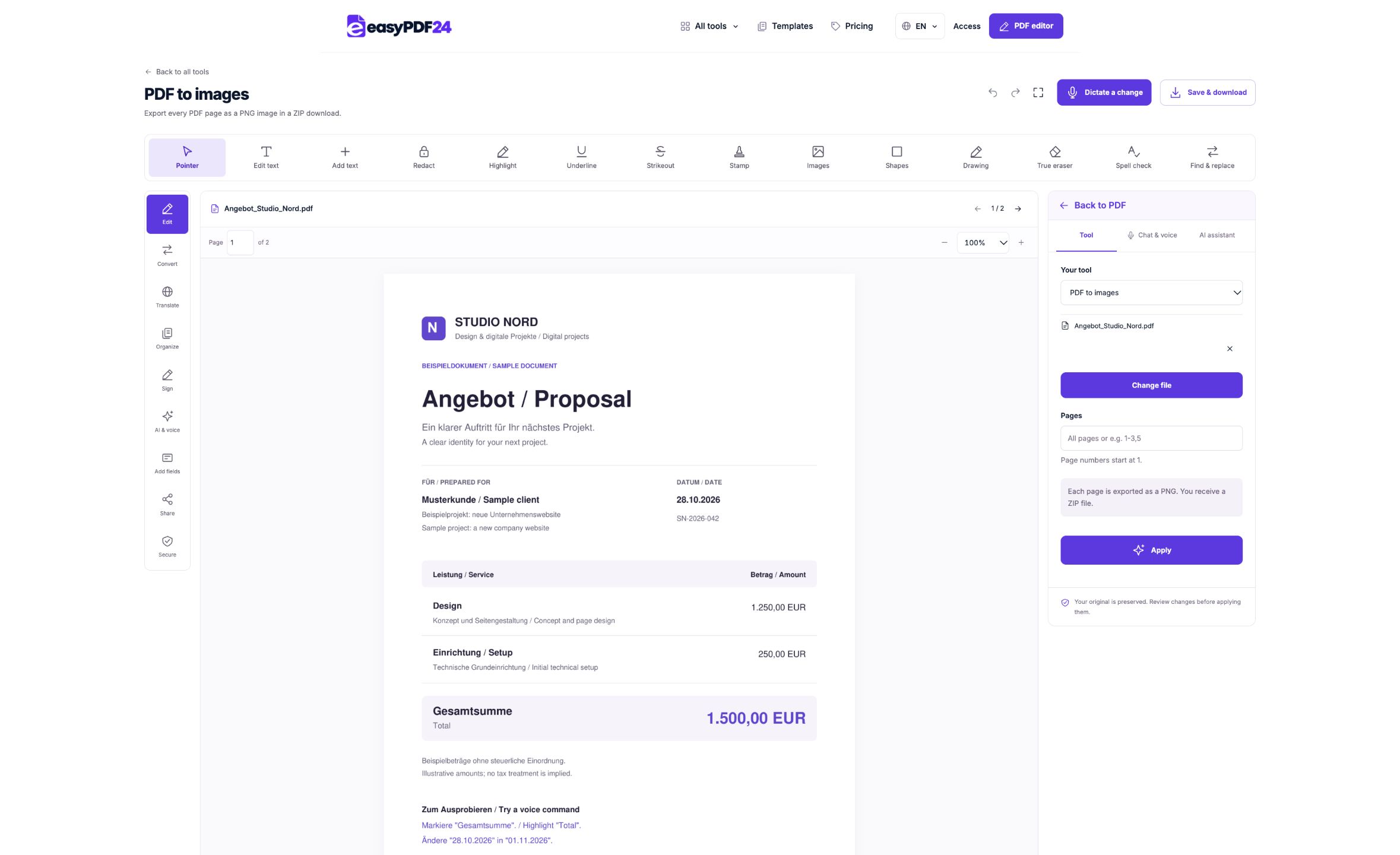
2Settings
Choose all pages or enter a selection such as 1,3-5, then start the PNG export.
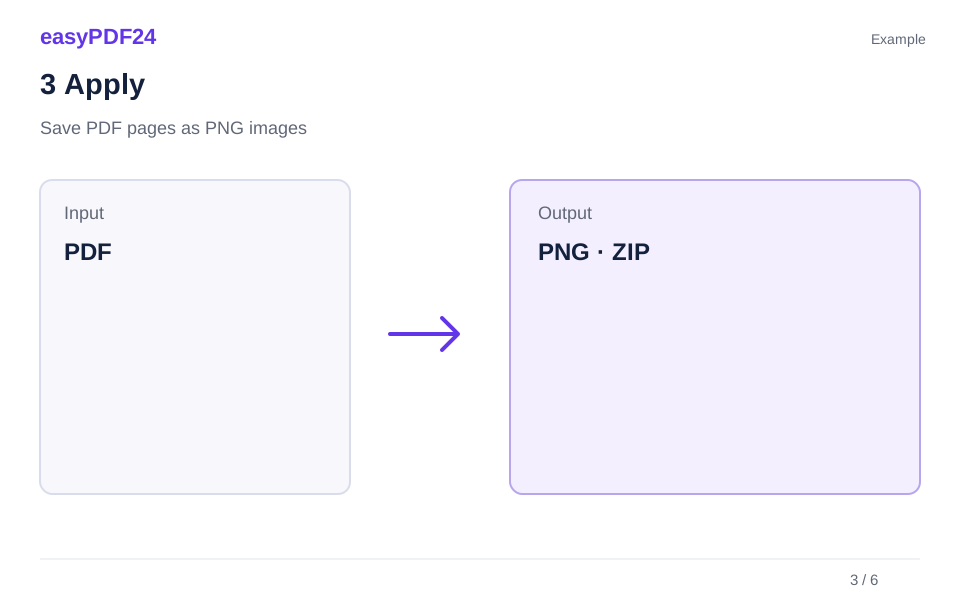
3Apply
PDF → PNG · ZIP
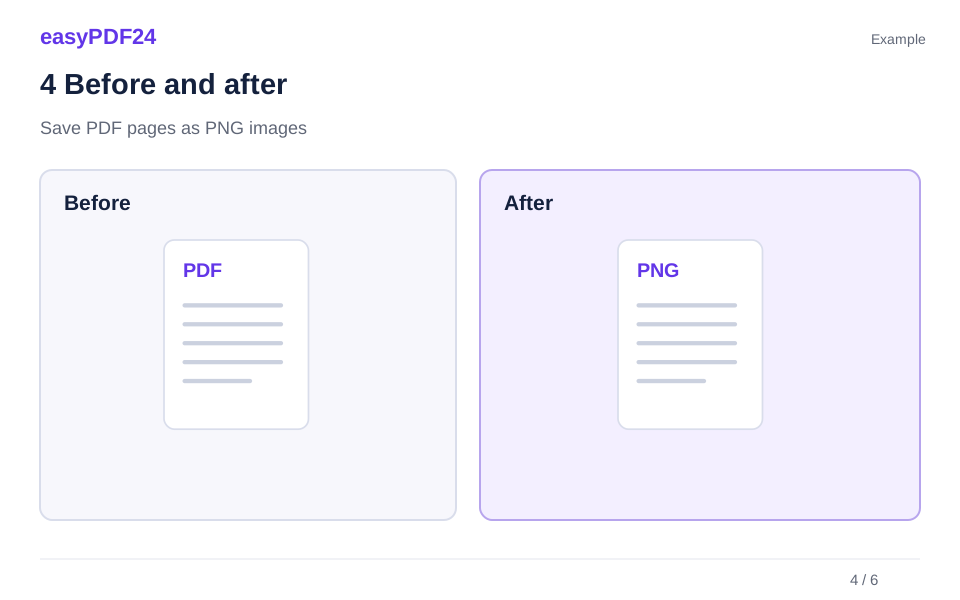
4Before and after
Visual page → Fixed page appearance
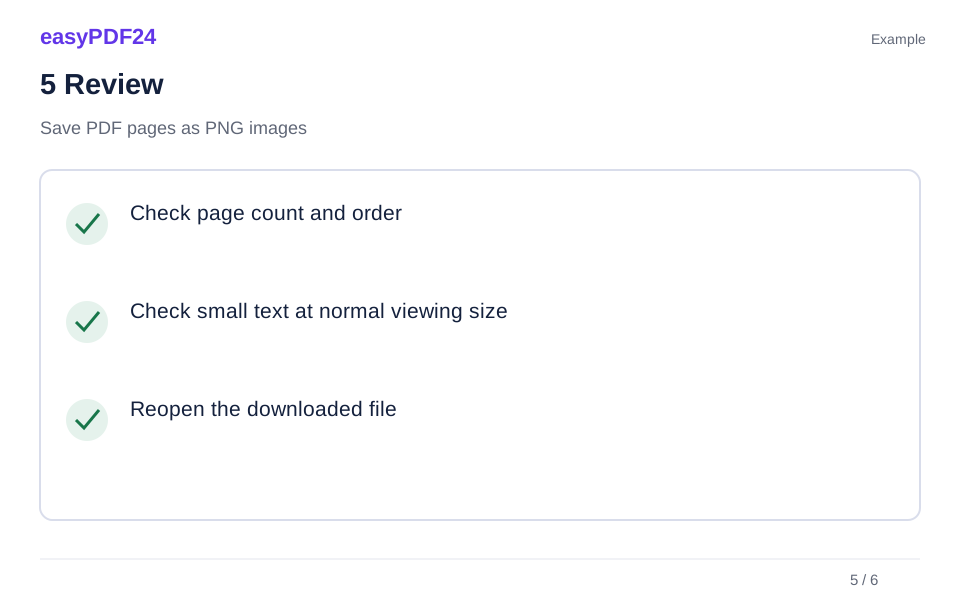
5Review
Check page count and order Check small text at normal viewing size Reopen the downloaded file
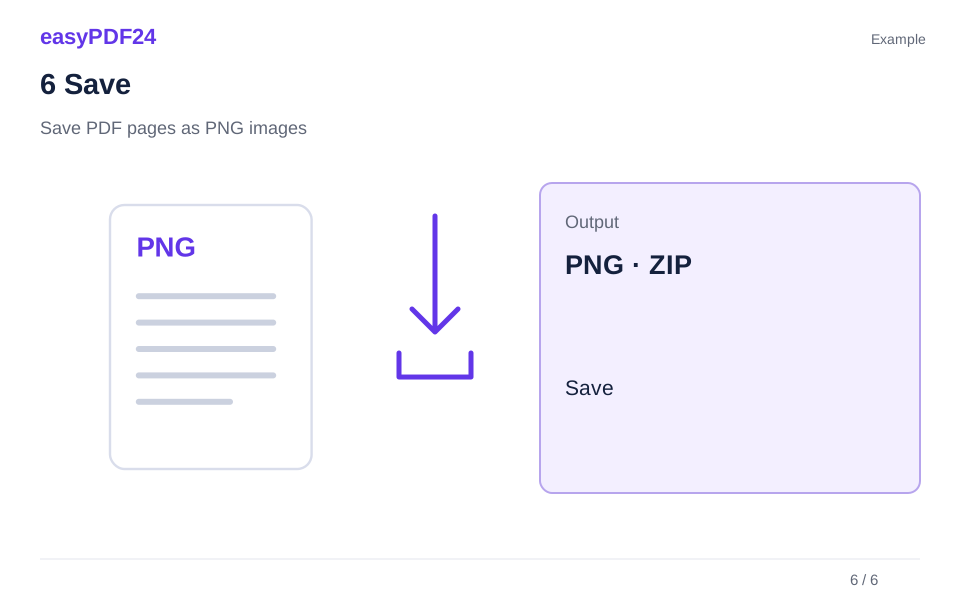
6Save
Extract the downloaded ZIP and open the images you need to check the result.
Example
Before
Visual page
After
Fixed page appearance
Check these details in the result
- Check page count and order
- Check small text at normal viewing size
- Reopen the downloaded file
Decide whether a page image is the right result
A PDF page can be useful as a picture when you need to show its appearance inside a presentation, a reference document or a visual review. The image keeps the visible arrangement of text, pictures and shapes together. The recipient does not need to open the original PDF just to see that page. Before exporting, decide whether appearance is the main requirement or whether the recipient also needs document features such as searchable text, links or fillable fields.
An exported PNG is a rendered picture of the page. It is not an editable copy of the PDF's text and objects, and it is not an extraction of each original photograph contained in the document. If you only need the logo in one corner, this tool will still export the whole selected page. For changes to an embedded image, use the editor's image controls. For a separate PDF containing a few pages, choose page extraction instead of converting those pages to pictures.
A practical example is a slide that shows an approved brochure layout. A page image may be appropriate because viewers need to see the arrangement. A colleague who must update the brochure's wording has a different need and should receive a suitable editable source or the PDF with the required editing workflow. Choosing the format according to the recipient's next action avoids giving them a picture when they expected reusable text. Keep the original PDF alongside the images so you retain the document version from which the visual reference was produced.
Identify the correct pages before exporting
Open the PDF and use the page counter to identify each page you want to render. The selection field refers to actual positions in the file, starting at one. A printed page number may be different because the file contains a cover, a contents page or an unnumbered appendix. Check the preview rather than entering numbers from a printed reference without comparison. This is especially important when the page you want is near the beginning of a report with several introductory pages.
You can leave the page field empty to export all pages, or enter a selection such as 1,3-5. That example selects the first page and pages three through five. Use a narrow selection when only a few pages are needed. It makes the output easier to review and avoids creating a folder of images that you will immediately discard. If the document has already been edited, confirm the current page positions again because deleting or reorganizing pages can change them.
Suppose a report has a cover at position one and a contents page at position two, while the printed numbering begins on position three. The printed page labelled four would then be position six if the sequence remains uninterrupted. Verify that relationship in the preview before using it. Do not assume the same offset applies after an inserted appendix or another numbering section. A short note of the selected page titles can be more reliable than a list of numbers alone when you check the extracted images later.
Understand what is preserved and what becomes pixels
Rendering combines the visible elements on a PDF page into one image. Ordinary text, lines, photographs and visible form content become pixels in the PNG. You can display and resize that picture in another application, but its components are no longer independent PDF objects. Selecting a word in the original PDF and copying it is therefore a different operation from opening the exported PNG and looking at the same word on screen.
Interactive behavior is not preserved as image functionality. A picture of a link does not itself provide the original clickable link, and a pictured form field cannot be filled in as a PDF field. The same distinction applies to document navigation and other PDF features. If those functions are important, provide the PDF as well as the visual export. The image is a convenient representation of a page, not a replacement for every purpose the original document can serve.
Check the working PDF before rendering it. If you have edited text, removed an image or applied a redaction, make sure the preview shows the version you intend to export. A PNG faithfully showing an outdated page is still the wrong reference. For a layout review, it may help to identify the version in the destination presentation or accompanying explanation. That prevents a reviewer from mistaking an earlier page image for the latest document simply because both pictures share the same heading and overall design.
Check resolution at the intended display size
The current exporter creates PNG files at a bounded rendering resolution. It does not offer a choice of JPG, TIFF or a custom DPI setting in this workflow. That makes it important to inspect the generated image at the size where you will actually use it. A page that looks clear when fitted into a thumbnail may show soft small text when enlarged, while a high-detail page may become unreadable when reduced to a small area on a slide.
Inspect small type, thin lines and detailed charts. Those elements reveal limitations sooner than a large heading or photograph. If you plan to use the page in a presentation, place a sample PNG on the slide and view the slide at normal presentation size. If the information is too dense, consider showing fewer details or adding an explanation in the presentation rather than enlarging the whole page until it extends beyond the available space. The export cannot decide which parts your audience needs to read.
Avoid repeated conversions between image formats when you do not need them. Keep the PNG returned by the tool as your visual source for the destination application. Resizing an image larger does not recover detail that was not present in the rendered output. If an application or print workflow has a specific resolution requirement that this exporter cannot meet, use a suitable export process for that requirement. Retaining the original PDF gives you a better starting point for another rendering workflow than taking a screenshot of an already resized page image.
Download and unpack the ZIP in a useful way
The export packages the PNG page images into a ZIP download. A ZIP is a container for the separate files, not a new image format. After downloading it, use your device's file manager to extract the contents into a folder. Open the actual PNG files to review them. Some applications display a preview of a ZIP without fully extracting its files, so make sure the images are available as ordinary files before trying to insert them into another application.
Compare the number of images with the number of selected pages. If you requested four pages, confirm that you have the four expected page views rather than assuming the first file represents the entire export. Open the first and last image and any page with an unusual layout. When order matters, keep filenames or a folder arrangement that makes the sequence clear. Do not rely on a destination application's sorting behavior until you have checked how it places the files.
For example, you might export the cover, a comparison table and the final recommendation from a report. Store those three images in a folder associated with that report version. When you insert them into a presentation, inspect the visible title or content of each image rather than choosing files only by their position in a file picker. If you create a second export after changing the PDF, keep the versions distinguishable. Reusing the same destination folder without checking filenames can leave old and new page images beside one another and lead to the wrong image being used.
Use page images without losing context
A whole-page image can contain more information than the destination needs. When inserting it into a document or presentation, decide how the reader will understand it. A short heading, a page reference or an explanation of the relevant detail may help. Avoid shrinking a dense page so far that it becomes decorative rather than informative. If readers need to inspect the full text, provide access to the PDF through the sharing method appropriate to your work, rather than expecting them to read tiny lettering inside a slide.
Consider accessibility as part of that decision. An image of text does not provide the same selectable text layer as the PDF. In a destination application that supports image descriptions, describe the purpose of the page image and provide necessary information in surrounding text. A description such as “page from report” may be too vague when the image is being used to communicate a particular conclusion. The useful explanation depends on why the page is included, not merely on its file type.
Do not remove context that changes the meaning of a figure or statement. A table image may need its column headings, units and footnote to remain understandable. If you crop the PNG in another application, check those details after cropping. For an internal review of layout, the page edges may matter; for a discussion of one chart, a focused view may be clearer. Preserve the original PNG so you can return to the complete page if a later reviewer needs to see what was outside the cropped view.
Choose another tool when the task is different
If you need a separate PDF page that still behaves like a document, use Split PDF or Extract pages. Split creates one PDF per selected page and packages the files together. Extraction keeps the selected pages in a single PDF. Those operations are more suitable when the recipient needs to search existing text or continue using PDF features. The image export is intended for a visual representation of the pages, so choose it when that representation is what you need.
If you want text rather than pictures, use a text-oriented workflow. Existing selectable PDF text can be exported as text or converted into a basic Word document. A scanned page may need OCR first. In easyPDF24, OCR supports German and English and requires checking the recognized result; it does not guarantee a faithful editable reconstruction of every layout. Converting the scan into a PNG by itself will not recognize the words or fix a missing text layer.
You can create a PDF from the exported PNGs with Images to PDF, but that is a new image-based document. It does not automatically restore the original text objects, links or form fields. Repeated PDF-to-image-to-PDF conversion is therefore not a general method for preserving document functionality. Use it only when a document made from pictures is acceptable for the intended task. Keep the original PDF if you may later need to edit its text, inspect its interactive fields or create a different kind of export.
Troubleshoot missing detail and verify the final selection
If the exported image shows the wrong page, return to the PDF and compare the actual page position with the number you entered. If a wanted page is missing, check the selection syntax and whether the working document's order changed after an edit. If the whole page appears sideways, rotate the PDF page before exporting again. Rotating an already exported PNG in another application may also change its display, but correcting the PDF is useful when you will produce additional exports from the same document.
If text is difficult to read, compare the image with the PDF at a similar display size. The source itself may contain small or blurred content, especially if it came from a scan. The exporter cannot reconstruct missing detail from that source. For a dense digital page, the bounded rendering resolution may be the limiting factor when you enlarge it substantially. In either case, choose a presentation size and export workflow that suit the information rather than assuming that further enlargement will solve the problem.
Before finishing, open the saved PNGs from the extracted folder and confirm their contents, orientation and sequence. Keep the ZIP if it is useful for moving the collection, and retain the original PDF as the document source. Save the reviewed files on your device so you can use them independently of that temporary editing session.
Frequently asked questions
Does the tool export JPG or PNG?
The current tool exports PNG files. This workflow does not provide JPG output.
Can I copy text from the exported image?
A PNG has no selectable PDF text layer. Keep the original PDF or use PDF to Text for existing text. For scanned pages, OCR may help.