
In this guide
How it works
Open Text to PDF and type or paste the text into the input field.
Separate paragraphs with line breaks and create the PDF.
Review every page in the editor, check special characters and download the finished document.
Input, result and limits
| Property | Details |
|---|---|
| Input | Typed text |
| Output | |
| Important limitation | Content is reflowed; the original layout may differ. |
The workflow in six views
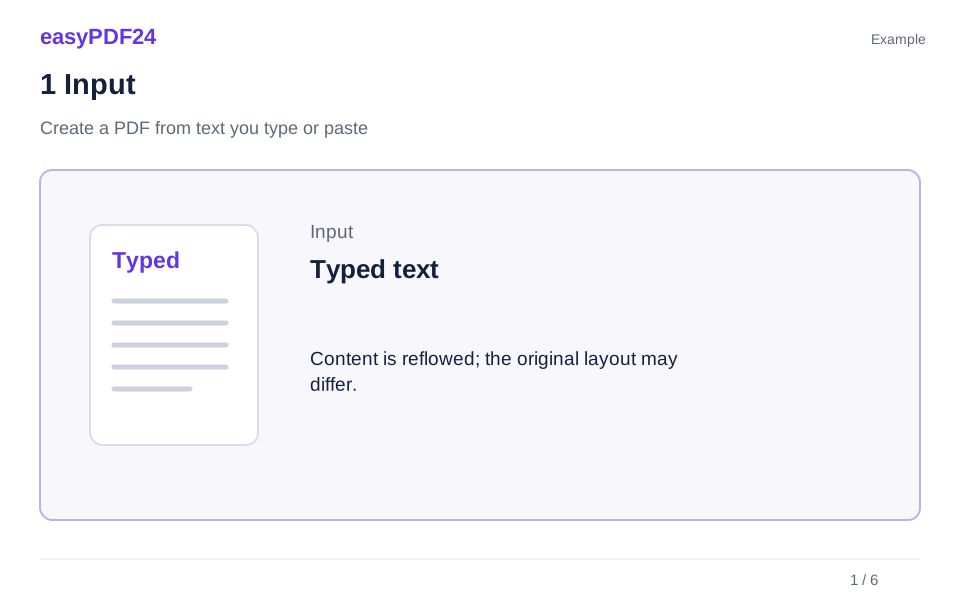
1Input
Open Text to PDF and type or paste the text into the input field.
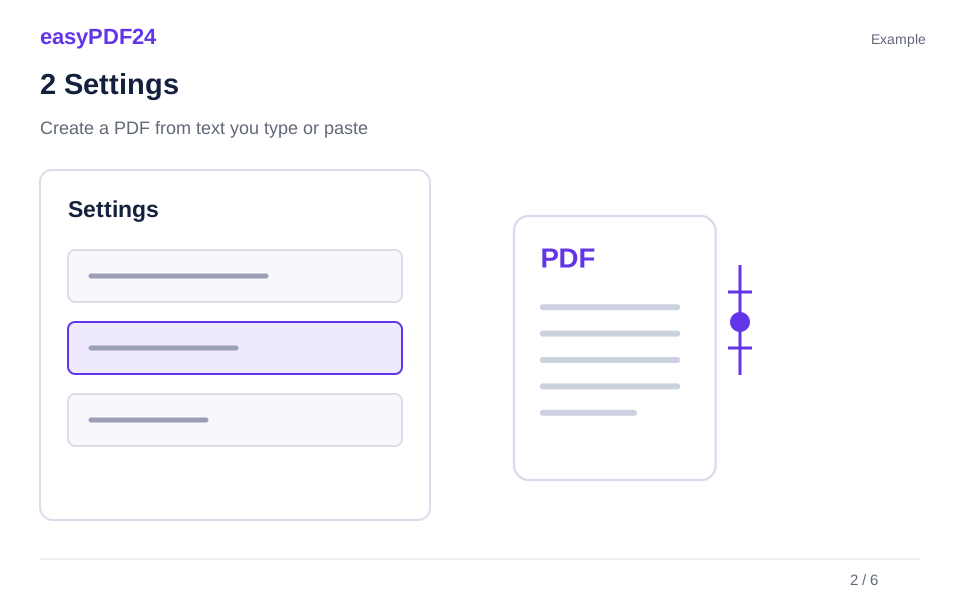
2Settings
Separate paragraphs with line breaks and create the PDF.
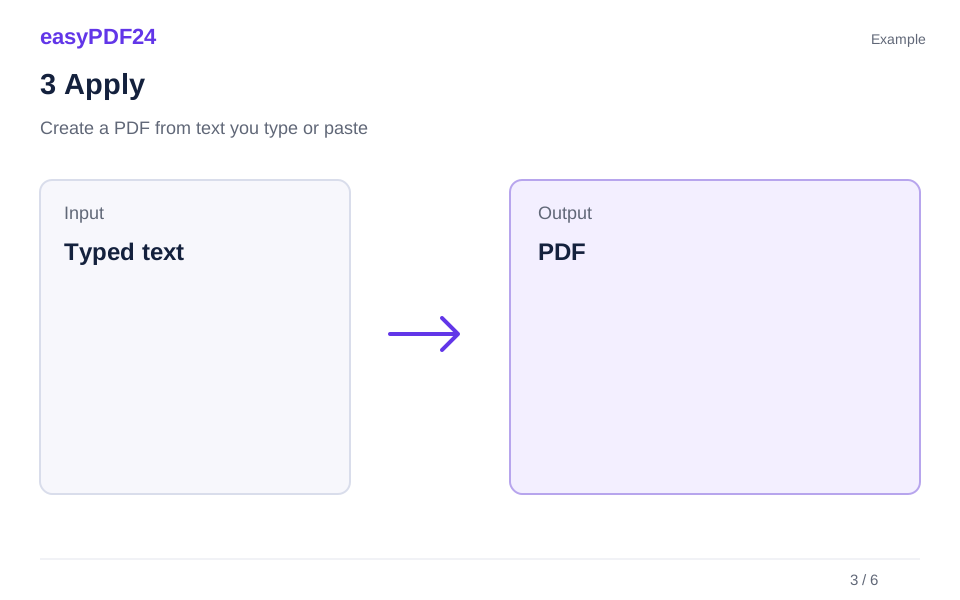
3Apply
Typed text → PDF

4Before and after
Extracted text → Fixed page appearance

5Review
Compare names, figures and special characters Check page count and order Reopen the downloaded file
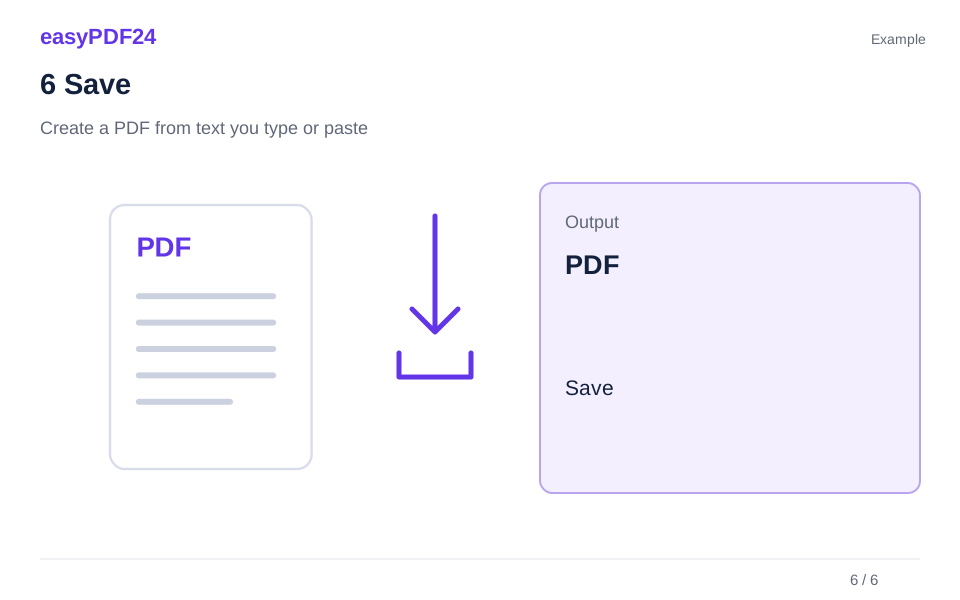
6Save
Review every page in the editor, check special characters and download the finished document.
Example
Before
Extracted text
After
Fixed page appearance
Check these details in the result
- Compare names, figures and special characters
- Check page count and order
- Reopen the downloaded file
Prepare the text before creating the file
Remove copied navigation labels, unwanted line breaks and duplicated headings before generating the PDF. The tool uses a simple layout with a standard font and automatic pagination. Short headings and clear paragraphs help readers follow the content. Rich formatting from the source is not preserved, and typed HTML is treated as text rather than a way to design the document.
Know when a source document is more suitable
This workflow suits straightforward text, not a complex brochure or a precisely aligned table. If you need several fonts, headers, images or tightly controlled page breaks, prepare an Office document and convert that instead. The text input accepts up to 150,000 characters, and the generated result must remain within 80 pages. Check unusual symbols and non-Latin characters because the standard font may not cover them.
Frequently asked questions
Do I need to upload a PDF first?
No. The entered text is the starting material. Once the new PDF is created, you can review it and use the editor for further supported changes.
Will copied bold text and tables keep their formatting?
No. This tool starts from plain text. Use the original Word, Excel or PowerPoint file when its formatting is an essential part of the document.