
In this guide
How it works
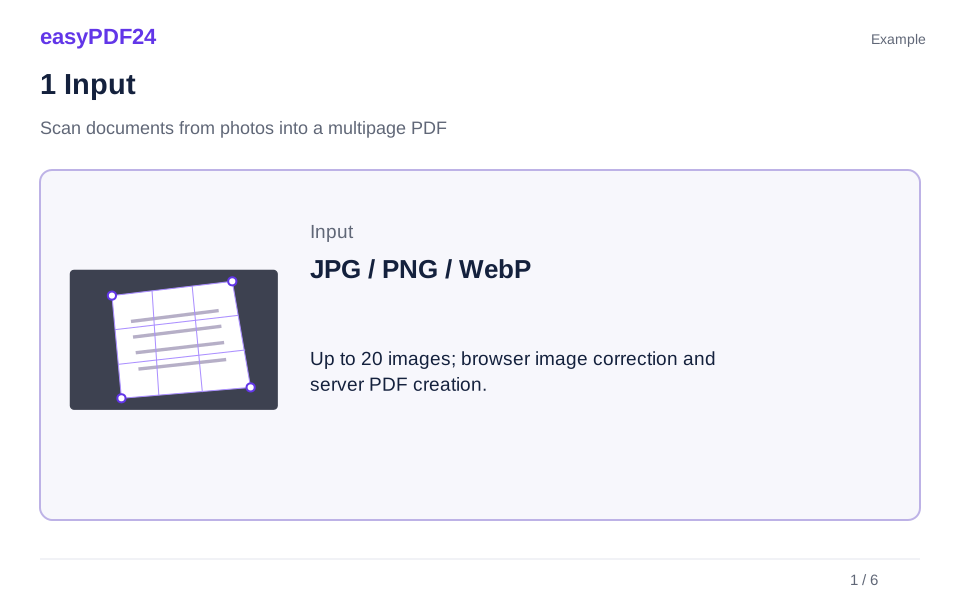
Take photos with the available camera control or choose document images from your device.
Check the four corners, apply the alignment and choose a suitable appearance for each page.
Rotate or reorder pages as needed, then create the PDF and review it in the editor.
Input, result and limits
| Property | Details |
|---|---|
| Input | JPG / PNG / WebP |
| Output | |
| Important limitation | Up to 20 images; browser image correction and server PDF creation. |
The workflow in six views
1Input
Take photos with the available camera control or choose document images from your device.

2Settings
Check the four corners, apply the alignment and choose a suitable appearance for each page.

3Apply
JPG / PNG / WebP → PDF
4Before and after
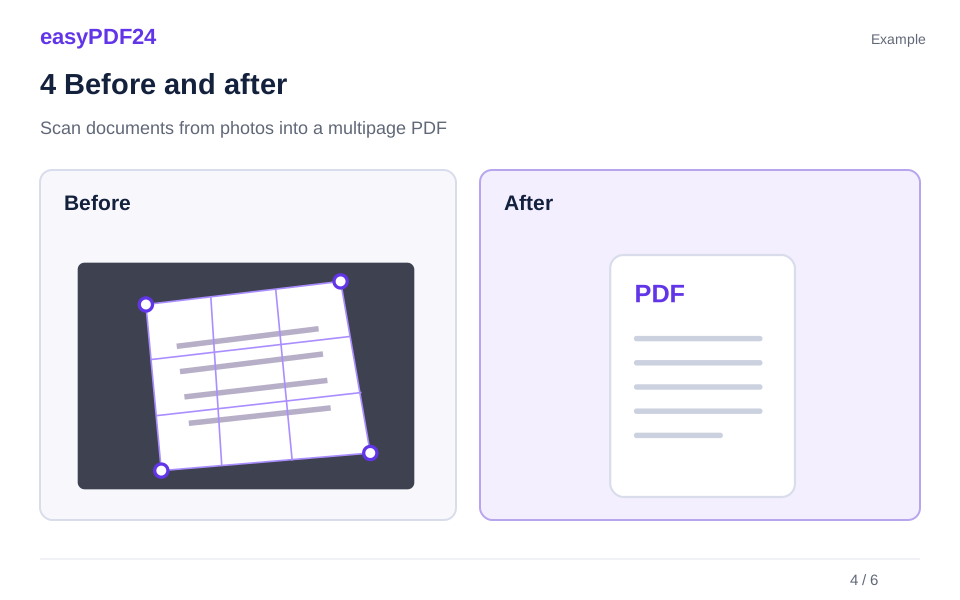
Document photograph → Aligned document page
5Review
Check corners, perspective and complete edges Check small text at normal viewing size Check page count and order

6Save
Rotate or reorder pages as needed, then create the PDF and review it in the editor.
Example
Before
Document photograph
After
Aligned document page
Check these details in the result
- Check corners, perspective and complete edges
- Check small text at normal viewing size
- Check page count and order
Capture readable pages and check the corners
Place the paper on a contrasting background with even light and keep all four corners visible. Automatic edge detection can struggle with shadows or low contrast; adjust the corners manually if needed. Perspective correction straightens the selected area, but it cannot recover blurred letters or details lost in glare. Inspect small print after alignment before accepting the page.
Choose filters and understand the processing
Color, grayscale and black-and-white appearances suit different originals. Compare fine lines, stamps and faint writing before choosing a stronger filter. Image correction happens in your browser; the processed images are sent to the server to create the PDF. The result contains scanned page images, not automatically recognized text. Use OCR as a separate step when you need searchable wording.
Frequently asked questions
Do I have to use the camera?
No. You can choose existing images instead. Camera availability depends on your device, browser and permission settings, so image selection is also useful on a desktop.
Can I change the order before creating the PDF?
Yes. Move, rotate or remove pages in the scanner. It supports up to 20 pages; check the final sequence before creating the combined PDF.