
In this guide
How it works
Select exactly two PDF files in the intended order as versions A and B.
Start the comparison and download the PDF report.
Review highlighted areas and verify important details in both original documents.
Input, result and limits
| Property | Details |
|---|---|
| Input | PDF × 2 |
| Output | |
| Important limitation | Visual pixel comparison; no semantic or metadata check. |
The workflow in six views

1Input
Select exactly two PDF files in the intended order as versions A and B.

2Settings
Start the comparison and download the PDF report.

3Apply
PDF × 2 → PDF
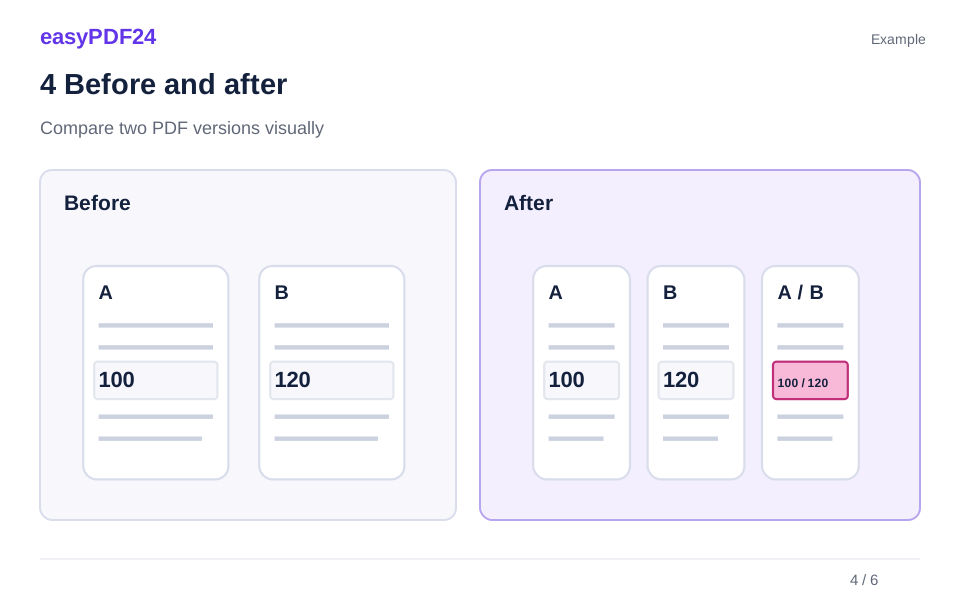
4Before and after
Separate files → Edited copy
5Review
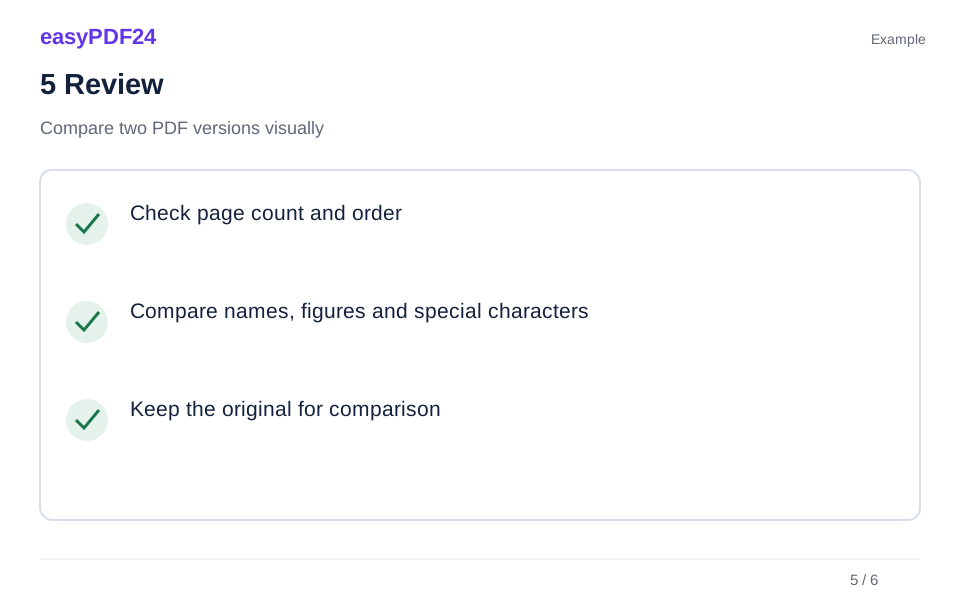
Check page count and order Compare names, figures and special characters Keep the original for comparison

6Save
Review highlighted areas and verify important details in both original documents.
Example
Before
Separate files
After
Edited copy
Check these details in the result
- Check page count and order
- Compare names, figures and special characters
- Keep the original for comparison
Useful for changes in page appearance
A moved logo, changed number or different line break may stand out in the visual comparison. Pages are paired by their position. If one version has extra pages near the beginning, later pairs may no longer correspond. Align the order first when you need to compare a specific section. This makes the marked areas easier to interpret.
A visual report is not a complete content audit
The tool compares rendered page images at up to 1,200 pixels. Very small text differences can be difficult to see, while different font smoothing can itself produce marks. Hidden text, form logic, metadata and the meaning of a change are not checked. Read important amounts and wording directly in the original files as well.
Frequently asked questions
Does every pink area identify a content error?
No. Layout movement and rendering differences can also produce changed pixels.
Does the tool create a combined revised document?
The output is a PDF comparison report. The two original versions remain separate source documents.