
In this guide
How it works
Open a video and enter start and end times in seconds.
Choose 0, 90, 180 or 270 degrees of rotation and set the volume.
Play the result to check framing, sound and excerpt boundaries.
Input, result and limits
| Property | Details |
|---|---|
| Input | MP4 / MOV / WebM / MKV |
| Output | MP4 / WebM |
| Important limitation | One local file up to 25 MB and 10 minutes; play back the output. |
The workflow in six views

1Input
Open a video and enter start and end times in seconds.

2Settings
Choose 0, 90, 180 or 270 degrees of rotation and set the volume.

3Apply
MP4 / MOV / WebM / MKV → MP4 / WebM

4Before and after
Recording or media file → Output in the chosen format

5Review
Check the start, end and duration Listen to or play the complete output Source file: up to 25 MB and 10 minutes
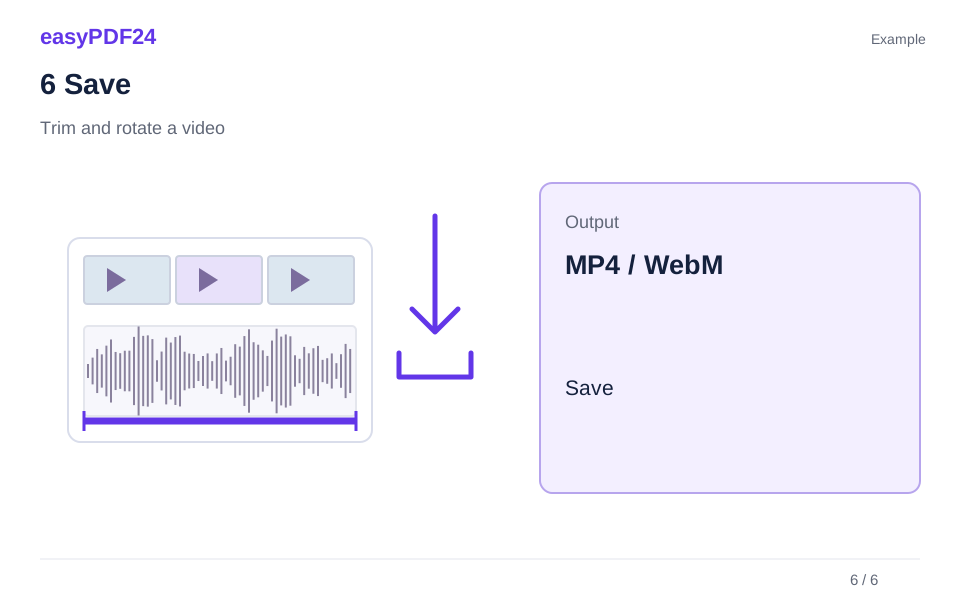
6Save
Play the result to check framing, sound and excerpt boundaries.
Example
Before
Recording or media file
After
Output in the chosen format
Check these details in the result
- Check the start, end and duration
- Listen to or play the complete output
- Source file: up to 25 MB and 10 minutes
Keep the scene understandable
Leave enough time around a sentence or action to preserve its context. Rotation is clockwise. Check the proportions and small text in the picture afterwards. This tool selects one continuous time range; it does not assemble separate scenes into a montage.
Listen to the adjusted sound
Volume one leaves the level unchanged, while zero makes the track silent. A large increase can cause distortion. The server processes one source file up to 25 MB and ten minutes. The original remains available if you want a different excerpt or settings.
Frequently asked questions
Can I create a silent video?
Yes. Set volume to zero, then play the output to check that it is actually silent.
Can I join several separate excerpts?
This operation uses one continuous range. It does not concatenate different scenes or files into a sequence.