
In this guide
How it works
Open the PDF and inspect the pages you want to remove.
Enter their actual positions in the file, for example 2,5-7.
Run Delete pages, then check the new page count and the transitions between remaining pages.
Input, result and limits
| Property | Details |
|---|---|
| Input | |
| Output | |
| Important limitation | Up to 80 PDF pages; inputs up to 25 MB combined. |
The workflow in six views
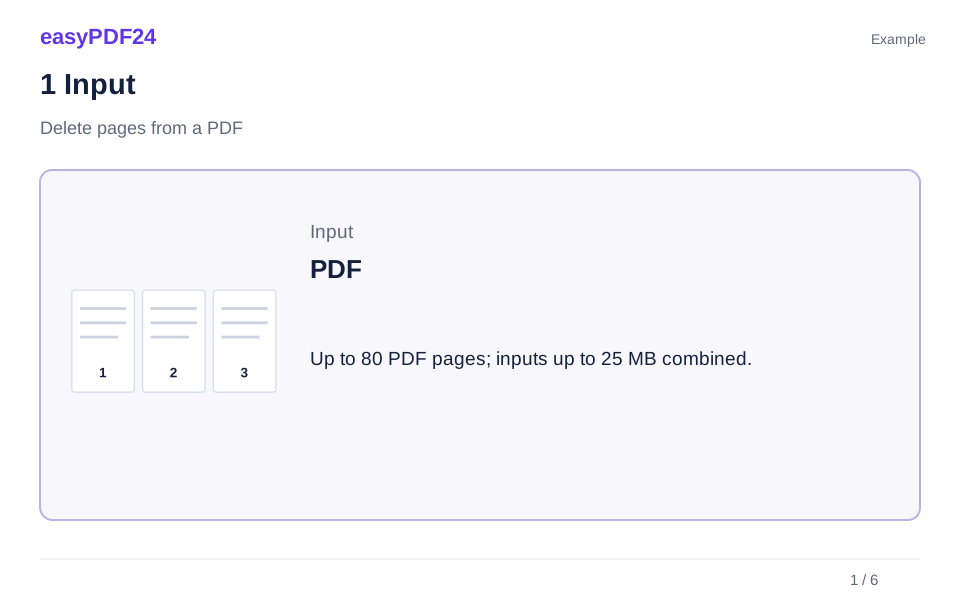
1Input
Open the PDF and inspect the pages you want to remove.
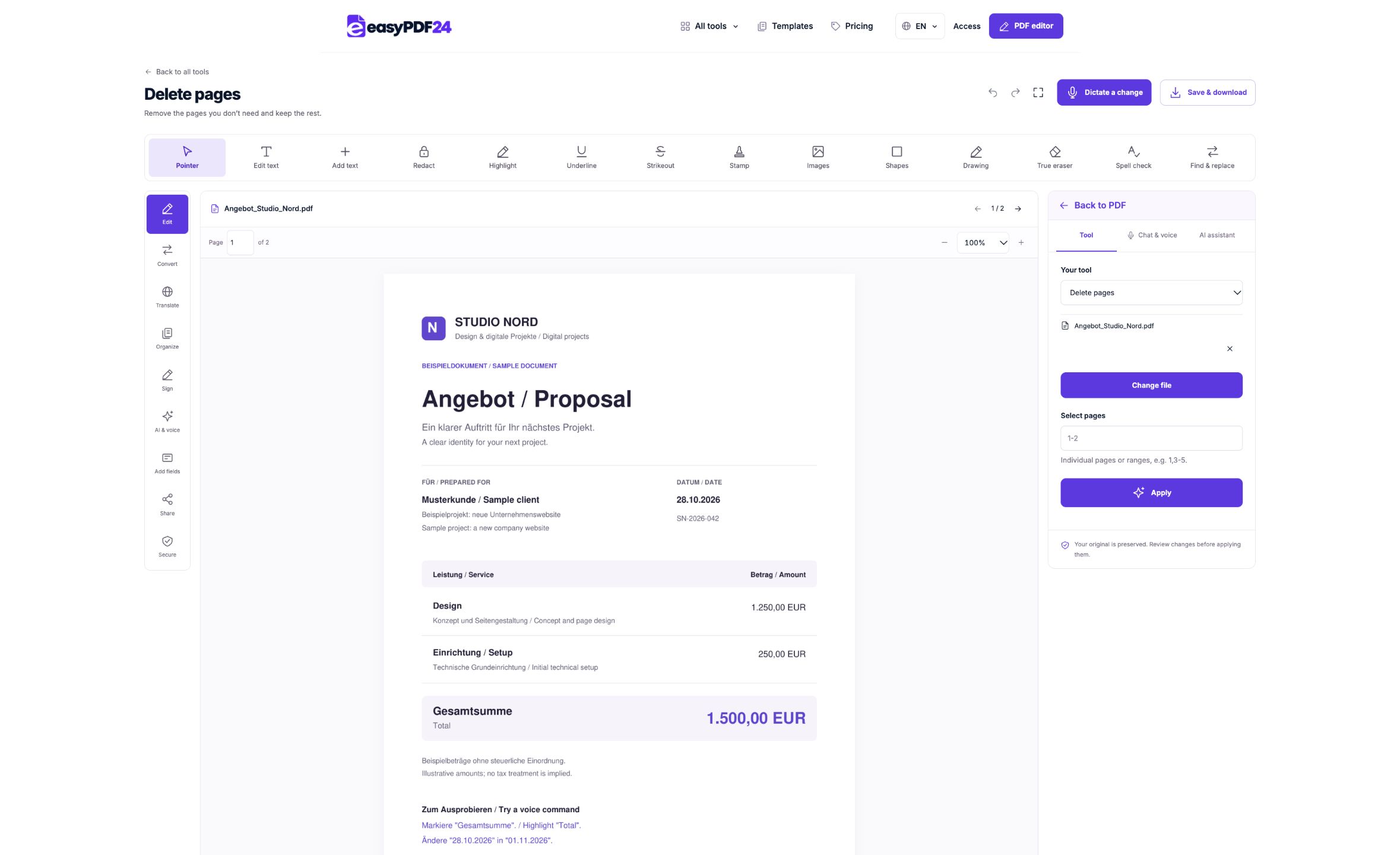
2Settings
Enter their actual positions in the file, for example 2,5-7.
3Apply
PDF → PDF
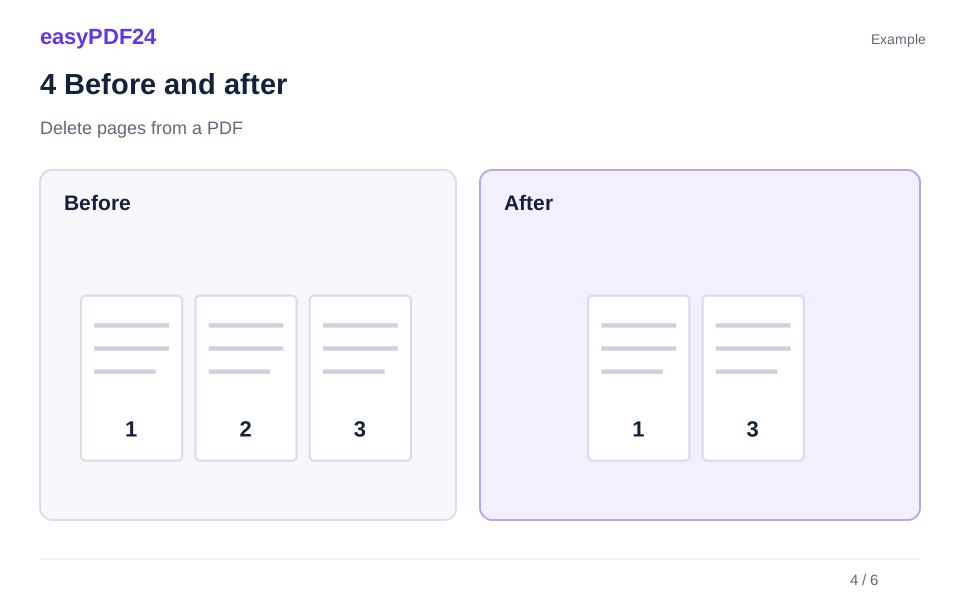
4Before and after
Complete page set → Selected pages or order
5Review
Change only the intended pages or areas Check page count and order Keep the original for comparison
6Save
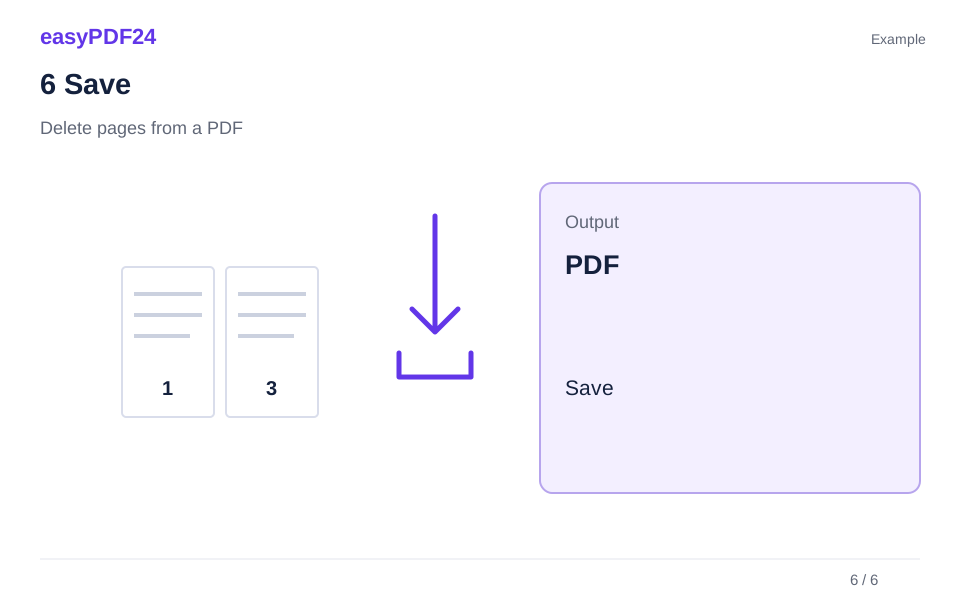
Run Delete pages, then check the new page count and the transitions between remaining pages.
Example
Before
Complete page set
After
Selected pages or order
Check these details in the result
- Change only the intended pages or areas
- Check page count and order
- Keep the original for comparison
Decide whether to remove a page or only part of it
Page deletion is useful when an entire sheet does not belong in the document you want to share. Common examples include a duplicate cover, an empty scan, an outdated appendix or a page added by mistake during merging. Before selecting it, check whether the whole page is unnecessary. If only a logo, paragraph or personal detail needs to go, use a targeted editing or redaction operation instead. Deleting the page would also remove everything on it that you may still need.
Read the pages immediately before and after the proposed deletion. A page that appears unimportant by itself may carry a heading, a continuation of a table or an explanation needed by the next page. Think about the result as a readable document rather than a shorter file. The remaining pages should still make sense in sequence. Removing material is useful when it simplifies the document's actual task, not merely when it lowers the page count.
For example, a merged report may contain both an original cover and a second cover from an attachment. If the attachment's cover explains the following section, it may be useful to keep it. If it is a blank separator introduced during scanning, deletion may be appropriate. Compare the content before deciding. A page that contains only a small note or a faint stamp can look empty in a thumbnail, so enlarge it before removing it as a blank page. The editor follows your selected positions and does not decide which content is meaningful.
Map printed page numbers to actual file positions
The page selection uses positions in the PDF, starting at one. Printed numbers inside the document can follow another sequence. A cover without a printed number still occupies the first position. Contents pages, introductory sections and appendices can create further differences. Use the editor's page counter to identify the position you want to delete, and compare it with a recognizable heading or other content on that page.
Do not assume that one offset works throughout the document. A report may use Roman numerals in its introduction, restart numbering in an appendix or include a scanned attachment with its own printed numbers. The actual PDF positions remain the reference for the deletion field. When several pages are involved, inspect both ends of each proposed range. That helps detect a missing or inserted page that would make a range based only on printed numbers incorrect.
Suppose a PDF contains an unnumbered cover at position one and a contents page at position two, followed by the printed page numbered one at position three. If you want to delete printed page four, locate it in the preview and confirm its actual position instead of entering four automatically. In this simple sequence it would be position six, but later sections may differ. A note such as “remove the duplicate cover showing the old date” can be a useful cross-check alongside the position, especially when several pages have almost identical layouts.
Enter a precise selection and check it before applying
Open Delete pages and enter the positions that should be removed. A selection such as 2,5-7 identifies page two and the consecutive pages five through seven. The numbers describe the pages to delete, not the pages to keep. That distinction is important when your goal is to retain only a small portion of a long document. In that situation, Extract pages may express the intended result more directly and reduce the chance of selecting the inverse set by mistake.
Review each individual number and each range against the preview before running the operation. For a range, inspect its first and last page and confirm that every page between them belongs in the removal. Do not combine unrelated pages into a broad range just because it is shorter to type. A slightly longer selection is preferable to deleting a page that happens to sit between two unwanted pages. Keep at least one page, because the output must remain a usable PDF document.
For example, you may want to remove a duplicate cover at position two and three blank scan pages at positions five through seven. Check that page four and page eight contain the material you expect to remain. After applying, those pages will become neighbors where the range was removed. Looking at that future transition before you confirm can reveal whether the selected range is correct. It also helps you predict the expected page count, which gives you another simple check once the operation finishes.
Distinguish blank pages, duplicates and necessary separators
A blank-looking page can have several explanations. It may be an accidental scanner output, a deliberate separator, the reverse of a sheet, or a page with very faint content. Inspect it at a useful zoom before deleting. Check the corners, header and footer as well as the center. A small page label or annotation may explain why the sheet was included. Decide based on the document's purpose rather than treating every mostly white page as unnecessary.
Duplicates also need a closer comparison. Two pages may share a heading and layout while containing different dates, totals or notes. Compare the actual content before removing one as a duplicate. If one is an older revision, decide which version belongs in the final document and verify the neighboring pages from that revision as well. A report assembled from several exports can contain more than one outdated page, so removing the obvious duplicate cover may not resolve all version differences.
A separator page can help a reader recognize the start of an attachment or a different section. If you remove it, inspect whether the remaining transition is still clear. You may prefer to retain the separator or prepare a more useful heading in the source document. For a simple personal copy, a blank separator might be unnecessary; for a package intended for another reader, its structural role may matter. The tool does not classify pages as accidental or intentional, so use the preview to make that distinction deliberately before changing the file.
Recheck numbering and references after deletion
Deleting pages changes the positions of the pages that remain after them. If you perform another deletion afterwards, use the updated preview and page counter. A number from the original document may now identify a different page. This is a common source of mistakes when cleaning up a file in several rounds. Either prepare one carefully checked selection for the current version or recalculate your next selection from the newly updated document before applying it.
Printed page numbers and textual references are not automatically rewritten to match the shortened file. A contents page may still say that a section starts on page eight, and a paragraph may refer to an appendix you removed. Review those references according to how the document will be used. If the file needs a fully revised table of contents or extensive renumbering, correcting the source document and generating a new PDF may be more suitable than making many isolated repairs in the PDF.
Imagine removing two introductory pages from a twenty-page report. The remaining content may be complete, but the PDF positions will be two places earlier than before. A printed numbering scheme may still be internally meaningful, while a link or instruction based on the old file position may not be. Check the actual navigation and references you expect the recipient to use. Do not assume that a lower page count alone means the document is ready. Its remaining instructions and structure should still guide the reader to the right material.
Use extraction or splitting when the goal is different
Deletion is one way to create a shorter PDF, but it is not always the clearest way to describe what you want. If you know exactly which pages should remain together, Extract pages lets you choose that set and create a single PDF from it. This can be easier than listing every page to remove from a much longer file. Compare the intended output first: a shortened copy, a selected group kept together, or individual page files.
Split PDF creates a separate PDF for each selected page and packages those files in a ZIP download. It does not keep a selected range together as one multipage file. If you need pages three through six as a single attachment, extraction is the appropriate distinction to consider. If you want each of those pages as its own file, splitting matches that need. Choosing the correct operation at the start avoids having to merge the pages again after an unnecessary split.
For example, a reader may ask for only the two-page summary from a large report. Extracting those pages is a direct way to prepare the attachment, while deleting every other page could achieve a similar visible result with a more complicated selection. If the reader asks for a separate file for each summary page, use splitting instead. In every case, inspect the output and confirm that the selected material contains enough context to stand on its own. A page that depends on a missing chart or definition may need additional supporting content.
Review the shortened document as a complete result
After applying deletion, compare the new page count with your expected count. If you removed four distinct pages from a twelve-page document, you should expect eight pages to remain. A count mismatch is a reason to revisit the selection and inspect the result. The count alone does not prove that the correct pages were removed, however. Also check the content at each boundary where a deletion occurred and confirm the first and last pages of the remaining document.
Read across those boundaries. A paragraph should not lose its continuation, a table should not begin without its headings, and a section should not end abruptly because its final page was removed. Check that an attachment still includes the pages needed to interpret it. If the document contains a visible signature or completed form section, verify that the necessary surrounding pages remain. The editor cannot infer which pages are required by the process in which you will use the file.
If you removed pages to exclude particular information, inspect the remaining document for other occurrences of that information. Deleting one page does not automatically remove a repeated name, reference or image elsewhere, and it is not a complete metadata-cleaning operation. Use targeted redaction or other appropriate preparation where needed, then review that output as well. Treat the shortened file as a new sharing version with its own checks, rather than assuming that everything not explicitly selected is automatically suitable for the recipient.
Recover a mistake and save the version you actually reviewed
If you notice that the wrong page was deleted, use the available undo or restore workflow while the editing session is available. Your original file on the device remains unchanged, so it also provides a starting point if you need to repeat the operation. Avoid continuing to apply further edits to a version whose page structure you no longer trust. Returning to a known source and using a corrected selection can be clearer than trying to repair several uncertain changes in sequence.
Download the shortened PDF after checking it, then open the saved file from your device. Confirm the page count, opening page and a known transition where material was removed. This helps distinguish the reviewed output from an earlier download or the unmodified original. Give it a meaningful filename that identifies its purpose, such as a summary or a selected attachment, without implying that it contains the full source document when it does not. Keep the original separately if you may need to recover the omitted content later.
It is not a permanent backup of the original or the edited copy. Save the files you need during the session and check the actual attachment before sending it through your chosen channel. The useful result is a correctly shortened, readable document that matches the task you intended to complete.
Frequently asked questions
Can I delete every page?
The output PDF must contain at least one page. Select pages for removal only when a usable document will remain.
Is the original PDF deleted from my device?
No. Your local file stays in place. easyPDF24 creates a separate edited version.