
In this guide
How it works
Choose one audio file or a video with sound.
Select an output format and noise reduction from 1 to 30.
Compare both recordings and check that voices still sound natural.
Input, result and limits
| Property | Details |
|---|---|
| Input | MP3 / WAV / M4A / OGG / FLAC / MP4 |
| Output | MP3 / WAV / M4A / OGG / FLAC |
| Important limitation | One local file up to 25 MB and 10 minutes; play back the output. Denoising may alter speech; it does not guarantee voice or music separation. |
The workflow in six views

1Input
Choose one audio file or a video with sound.
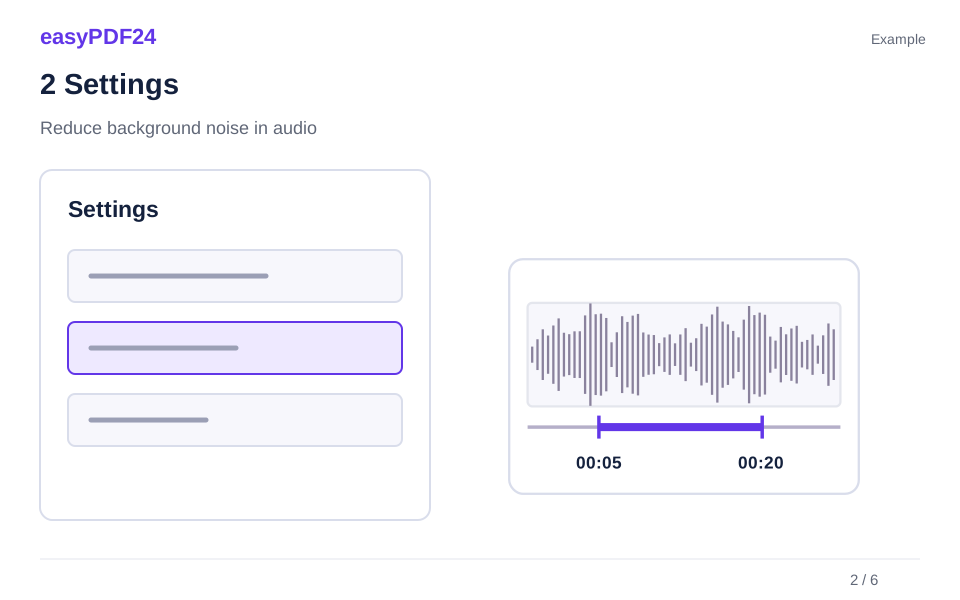
2Settings
Select an output format and noise reduction from 1 to 30.
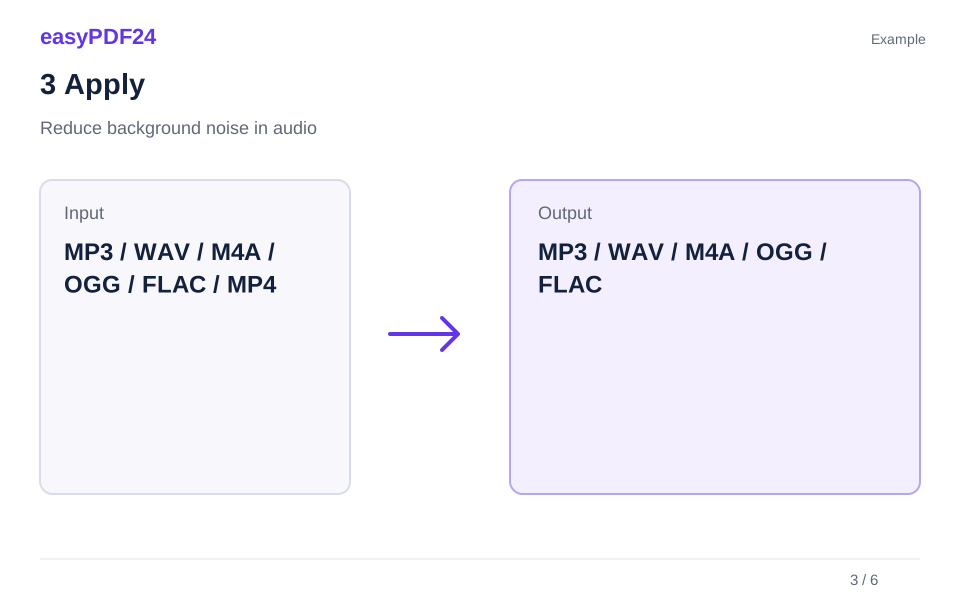
3Apply
MP3 / WAV / M4A / OGG / FLAC / MP4 → MP3 / WAV / M4A / OGG / FLAC
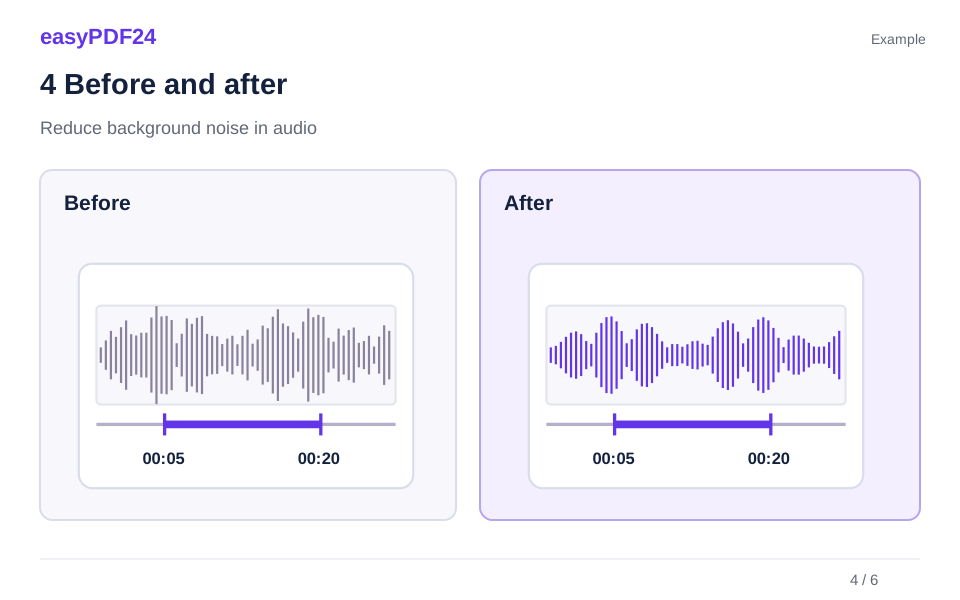
4Before and after
Recording or media file → Output in the chosen format
5Review
Listen to or play the complete output Keep the original for comparison Source file: up to 25 MB and 10 minutes

6Save
Compare both recordings and check that voices still sound natural.
Example
Before
Recording or media file
After
Output in the chosen format
Check these details in the result
- Listen to or play the complete output
- Keep the original for comparison
- Source file: up to 25 MB and 10 minutes
Start with a moderate setting
The filter is mainly intended for relatively steady noise. Stronger processing is not always better: quiet speech details may disappear or sound artificial. Listen to pauses and word beginnings and endings. Keep the lowest setting that produces a useful improvement for your purpose.
Assess what remains
Changing noises, other voices and music may remain. The tool does not create separate vocal and instrumental tracks. Processing takes place on the server for one file up to 25 MB and ten minutes. You can choose a time range and export MP3, WAV, OGG, FLAC or M4A.
Frequently asked questions
Will all background noise disappear?
That is not guaranteed. Results depend on the recording and the disturbance, and need to be assessed by listening.
Can I transcribe the recording afterwards?
Yes. Use the checked output for transcription and still compare the recognized words against the sound.