
In this guide
How it works
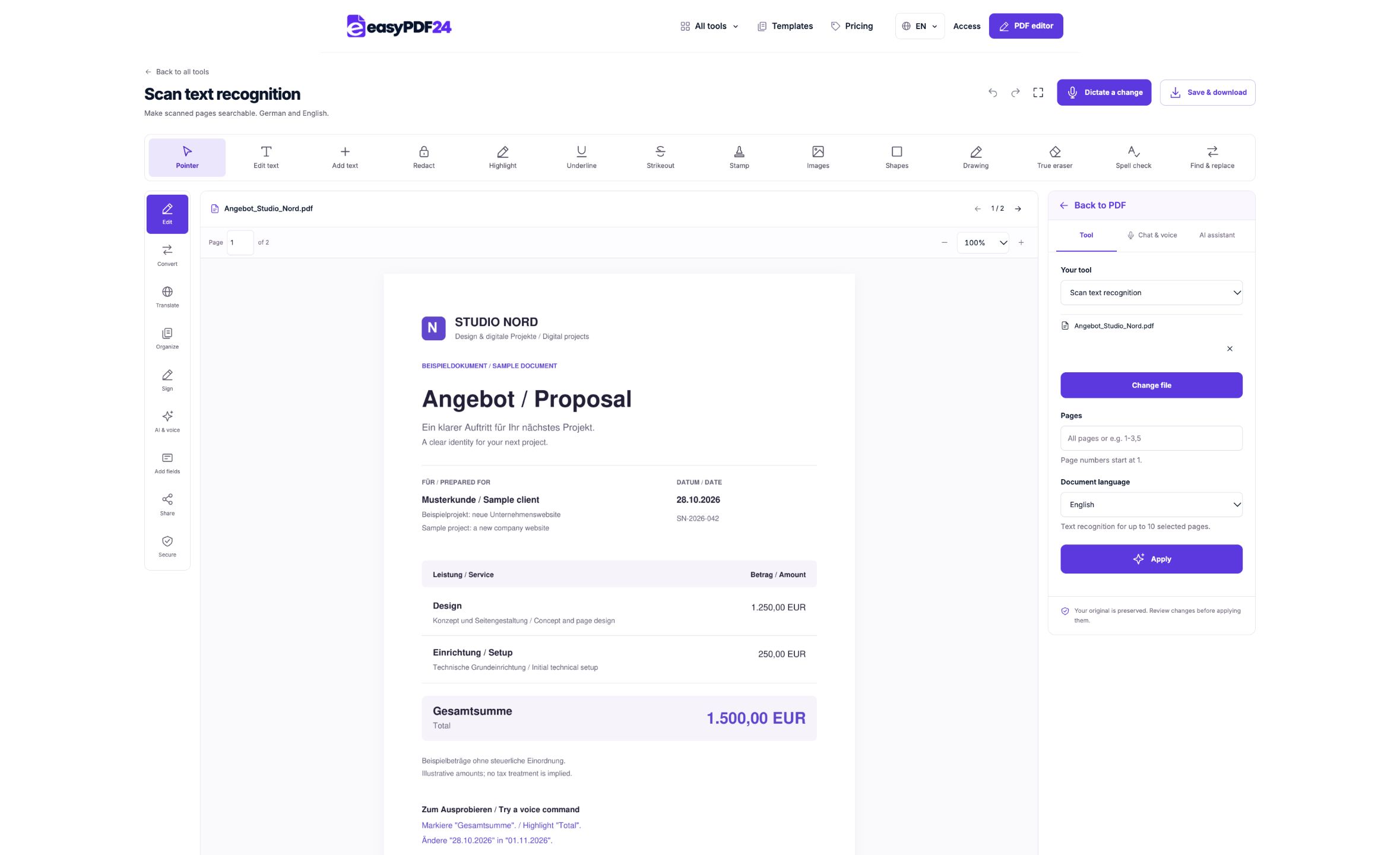
Open a readable scanned PDF. Select up to 10 pages for this OCR operation; the source PDF may contain up to 80 pages.
Choose German or English as the recognition language and run OCR.
Search for a word you know is on the page. Check names, numbers and special characters against the visible scan.
Input, result and limits
| Property | Details |
|---|---|
| Input | |
| Output | |
| Important limitation | German or English OCR; up to 10 selected pages. |
The workflow in six views

1Input
Open a readable scanned PDF. Select up to 10 pages for this OCR operation; the source PDF may contain up to 80 pages.
2Settings
Choose German or English as the recognition language and run OCR.
3Apply
PDF → PDF

4Before and after
Visual page → Extracted text

5Review
Compare names, figures and special characters Check reading order and paragraphs Reopen the downloaded file

6Save
Search for a word you know is on the page. Check names, numbers and special characters against the visible scan.
Example
Before
Visual page
After
Extracted text
Check these details in the result
- Compare names, figures and special characters
- Check reading order and paragraphs
- Reopen the downloaded file
Decide whether the PDF needs text recognition
OCR is useful when a page contains a picture of writing rather than usable text. A scan of a printed letter is a common example. The letters look readable to a person, but ordinary search may find nothing because the PDF stores pixels. OCR attempts to recognize those shapes and adds text that a PDF viewer can search or select.
Try a simple check before processing the document. Search for a distinctive word visible on the page and attempt to select a short sentence. If both work sensibly, the page may already contain a usable text layer. A failure to find one word does not prove that all pages are images: spelling, unusual encoding or a different stored character can also affect a search. Inspect more than one location.
A mixed PDF can contain both digital pages and scanned attachments. easyPDF24 skips pages that already contain text rather than adding a second layer to them. This helps avoid duplicate text, but it also means OCR is not a general repair tool for an existing poor text layer. Identify which pages need recognition and check the result on those pages instead of expecting every part of the file to be rebuilt.
Prepare a readable scan before running OCR
Recognition starts with what is visible. Clear printed letters, a reasonably straight page and consistent contrast give the tool better material to work with. Blurred text, a shadow across a number or a folded corner can leave ambiguity that software cannot reliably resolve. If you have access to the paper or a better source scan, improving the input can be more effective than repeatedly processing the same poor image.
Check the entire page, including small print at the edges. A camera photograph may look sharp in the center but lose detail near a curved page binding. A stamp can cover part of a word, and a pale pencil note may disappear into the background. Record which areas need special review so you do not assume that a successful search in the heading proves that the footer was recognized correctly.
Use the rotation tool if a page faces the wrong direction. Quarter-turn rotation is different from straightening a slightly skewed image or correcting camera perspective. easyPDF24 does not promise to repair every capture problem automatically. Prepare the clearest practical input and retain the visible original for comparison. OCR output should be checked against that source, especially when you intend to reuse names, dates or amounts.
Choose the supported language and page selection
The OCR tool supports printed German and English. The language of this guide, the navigation or the checkout does not expand the recognition languages. Choose the language that matches the scanned text. For a document containing several languages, work with appropriate selections where possible and inspect mixed-language passages carefully; unsupported language recognition is not a promised feature.
A source PDF can contain up to 80 pages, but one OCR operation accepts no more than ten selected pages. Use the page selection field to choose the pages you need, such as “1-5,8”. The positions are the actual page numbers in the PDF, starting with its first page, rather than numbers printed inside the document. A cover can shift those two numbering systems.
For a longer source, process another selection after checking the first result. Keep track of which working version contains the completed selections. Small batches also make review more manageable: if a poor scan produces mistakes, you discover that before relying on the remaining pages. There is no benefit in processing pages that are irrelevant to your task merely because they are included in the original file.
Understand the visible page and its text layer
After recognition, the page should still be checked visually against the scan. The searchable text is an additional representation of what the tool thinks the image says. It is useful for finding a paragraph or copying a passage, but it is not an independent confirmation that every character has been read correctly. The visible image remains your reference for checking uncertain readings.
This distinction matters for sensitive details. A search result may jump to the expected place while the copied sentence contains a mistaken digit. A line of text can also be recognized in an awkward order when it spans columns or sits beside a caption. Compare both the position and the actual extracted characters. A search hit alone measures whether something was found, not whether the entire page is accurate.
OCR does not automatically turn a complex scanned layout into a fully editable source document. It does not rebuild every table cell, recreate the original font collection or provide a guaranteed reading order for intricate page designs. If your next task is substantial rewriting, use the recognized text as material for a document you review and format. Keep the PDF available while doing that work so references remain easy to verify.
Work through a practical recognition example
Imagine an eight-page scanned report in English. You need to locate three project references and copy a short paragraph from page 6. First verify that the references and paragraph are legible in the images. Search the existing PDF; if the required pages have no usable text, select those pages for OCR instead of assuming that every page needs processing.
Run recognition with English selected. In the result, search one project reference exactly as printed, then inspect the corresponding page. Copy the paragraph into a temporary text field and compare it line by line with the scan. Check punctuation around dates, the order of clauses and any reference code. A code such as a letter followed by several numbers deserves individual attention because a plausible-looking mistake may be easy to overlook.
If the paragraph crosses a page boundary, inspect both sides of that boundary. A missing final line can change the meaning even when the main paragraph looks correct. Save the recognized PDF when it meets the task, and keep a separate note of any characters you corrected in reused text. That makes your later document easier to trace back to the visible source without pretending that OCR verified the content for you.
Review numbers, names and reading order
Prioritize the content where a small error has a large effect. Names, reference identifiers, quantities, percentages, dates and decimal separators should be checked character by character when they matter to the next action. Similar shapes such as zero and the letter O, or one and a lowercase l, are common sources of ambiguity in low-quality scans. The correct reading comes from the source context and image, not from how fluent the output sounds.
For tables, inspect one complete row across all columns. Text extraction can put a value beside the wrong heading even when every individual number was recognized. Do not infer a reconstructed spreadsheet from the appearance of tabular text. If you need calculations, rebuild and verify the table in an appropriate application rather than treating a plain text export as a trustworthy data structure.
For columns and footnotes, read the copied passage from start to finish. Check whether the text follows the intended column before moving to the next one, and whether a footnote has been inserted into the middle of a sentence. These are reading-order problems rather than simple spelling mistakes. They require editorial review of the passage, not just a search for unusual characters.
Choose the right next step after OCR
If you only need to locate information inside the PDF, a checked searchable version may be enough. You can search distinctive terms and read the original page at each result. Avoid converting to another format without a reason, because every additional representation introduces another result to review. A PDF with useful search can already solve an archive or reference task.
If you need reusable text, the PDF-to-Word tool exports supported selectable text into a simple DOCX document. It does not promise to reproduce the original page layout, tables or images. Open the DOCX in a compatible editor, organize headings and paragraphs, then compare important passages with the recognized PDF. Recognition and document formatting are separate stages, each with its own checks.
For a small correction, investigate the editor’s supported text operations, but do not assume every visible word in an image is now freely editable in place. Scanned appearance and text-layer behavior can differ. When an image itself needs changing, use an appropriate area or image operation and inspect the visual result. OCR is a route to searchable text, not a universal substitute for every kind of PDF editing.
Troubleshoot an empty or disappointing result
If recognition yields little useful text, first inspect the source at a larger zoom. Is the print actually sharp enough to read? Is the chosen language supported? Does the page contain handwriting, unusual lettering or a dense table rather than ordinary printed paragraphs? These questions help identify whether the input is suitable before you repeat the same operation with identical settings.
If a page already contains text, it may be skipped. That can explain why OCR does not improve a previously recognized but inaccurate layer. Check the result of selecting and copying text from the original page. A small text element can also make a page different from an entirely image-only scan. Do not promise a new recognition pass will replace every existing text representation.
If only some pages are wrong, isolate those pages for review rather than discarding a useful result elsewhere. Recheck your selection against the editor’s page counter, then compare the expected pages in the output. For consistently unreadable areas, obtain a better scan when possible. Manual verification of a short necessary passage can be more reliable than using a long, unchecked transcription simply because it was generated automatically.
Keep corrections and source material distinguishable
When OCR supports research, administration or document preparation, separate what the source visibly says from any wording you later correct or rewrite. The recognized text may contain a machine reading error, while the source itself may contain an original typo. Fixing those two things serves different purposes. Keep enough context to understand whether your new wording is a faithful transcription or an editorial revision.
Use clear file names for the source scan, the searchable copy and any later Word draft. You do not need a complicated archive system to avoid confusion; a consistent descriptive suffix and date can be sufficient. What matters is being able to identify which file contains the source image and which one includes your subsequent changes. Do not replace your only copy of the original with an unchecked export.
Save a result you intend to keep on your own device. OCR is not a permanent storage service. If the document contains information that should not be uploaded to easyPDF24, choose a suitable alternative workflow before processing it rather than treating recognition as something that necessarily happens only inside your browser.
Verify the document for its intended use
A useful final check is based on what you plan to do with the output. For search, test several distinctive words on different processed pages. For copying, compare a full paragraph and a difficult line containing numbers. For a later conversion, open that converted file as well and inspect the order and completeness of its content. Each check answers a different practical question.
Do not use a single successful word search as a quality score for an entire document. A clear title can be easy to recognize while small footnotes remain inaccurate. Sample different parts of the page, then inspect all details that your task depends on. Where accuracy is essential, the necessary review can be more extensive than a quick sample; the tool cannot decide which mistaken character would matter most to you.
Once the selected pages are satisfactory, download the searchable PDF through the available checkout flow and reopen the saved file. Confirm that search works in the viewer you will use next. You then have a checked working document for a defined purpose, rather than an unverified transcript whose appearance alone suggests it must be correct.
Frequently asked questions
Which languages does this OCR tool support?
easyPDF24 supports German and English. A guide written in another language does not mean OCR supports that language.
Can I process a document longer than 10 pages?
Yes, within the 80-page document limit. Choose no more than 10 pages per OCR operation, then process another selection if needed.