
In this guide
How it works
Finish merging, deleting or reordering pages before adding the numbers.
Open Page numbers and choose the pages to mark, or leave the selection empty for all pages.
Apply the operation and check the bottom margin on the first, middle and final pages.
Input, result and limits
| Property | Details |
|---|---|
| Input | |
| Output | |
| Important limitation | Added text does not replace the existing text layer. |
The workflow in six views
1Input
Finish merging, deleting or reordering pages before adding the numbers.
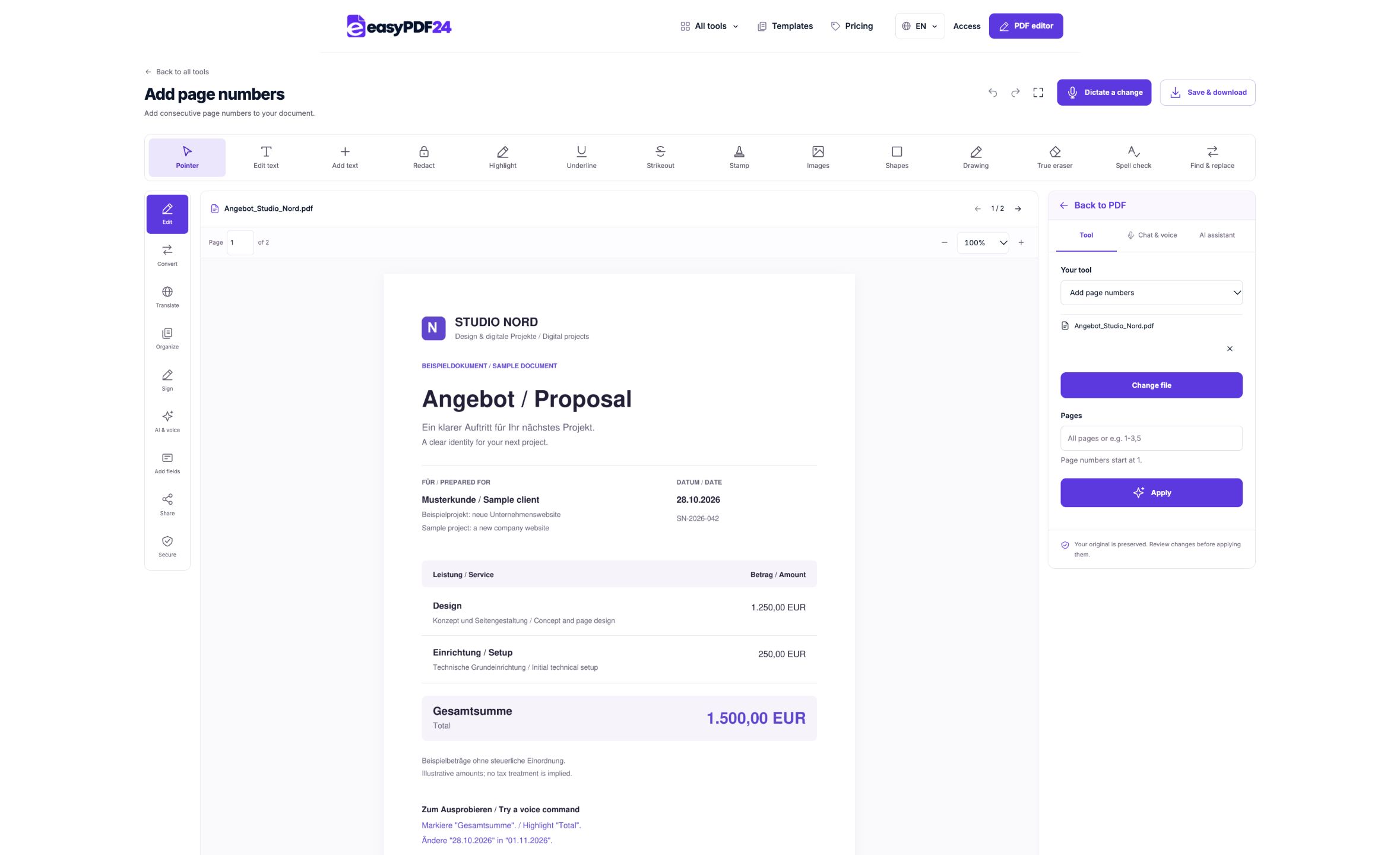
2Settings
Open Page numbers and choose the pages to mark, or leave the selection empty for all pages.
3Apply
PDF → PDF
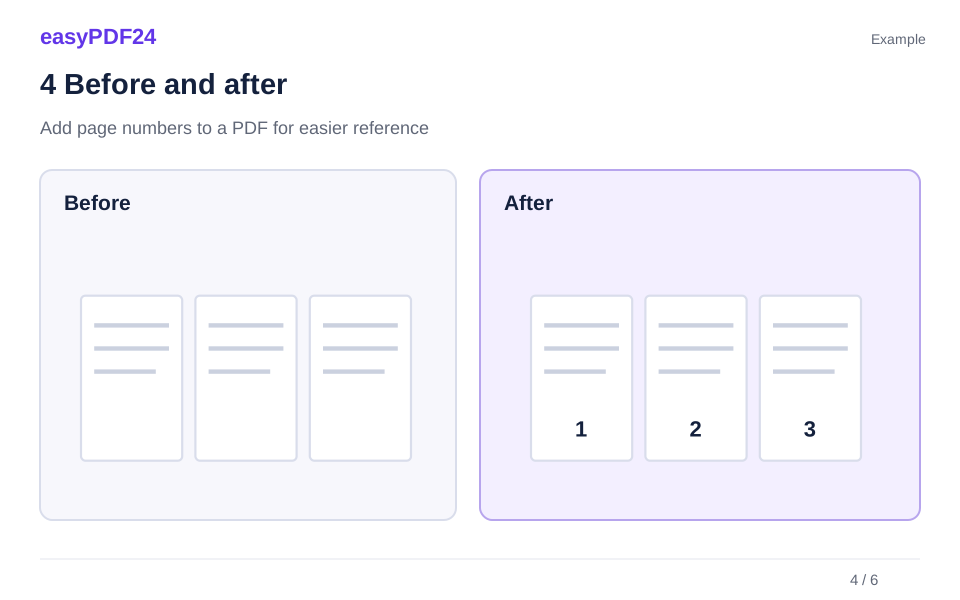
4Before and after
Original file → Edited copy
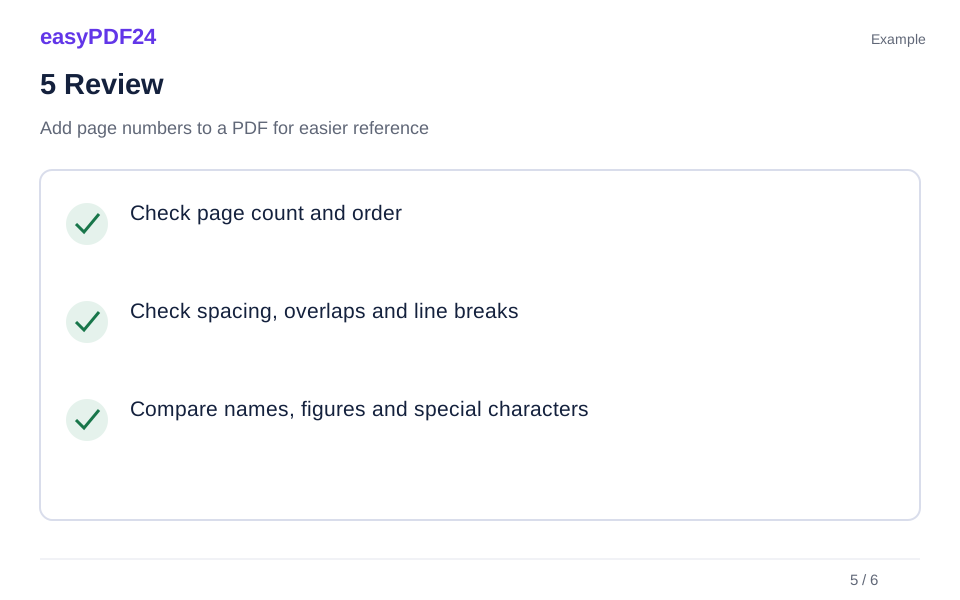
5Review
Check page count and order Check spacing, overlaps and line breaks Compare names, figures and special characters
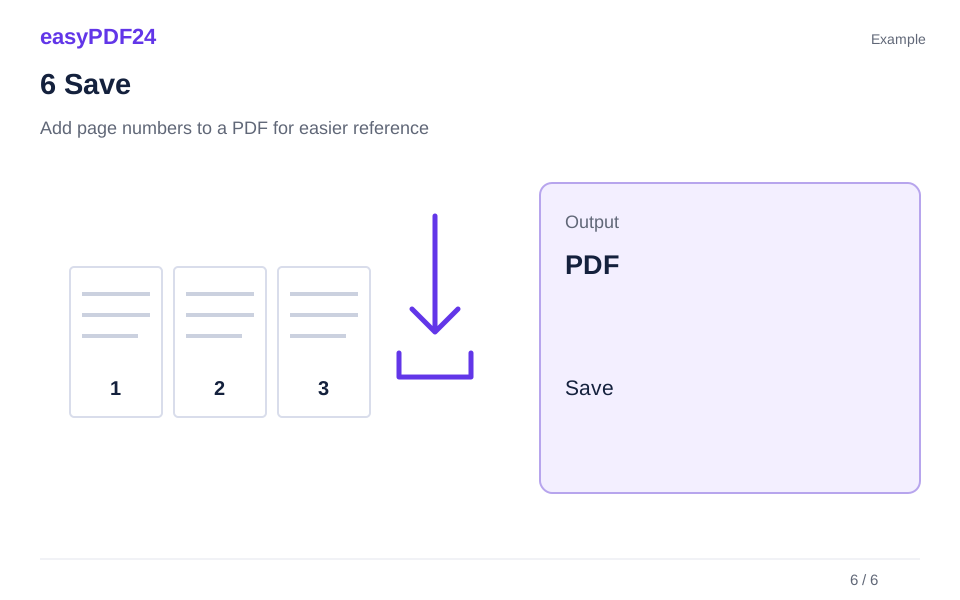
6Save
Apply the operation and check the bottom margin on the first, middle and final pages.
Example
Before
Original file
After
Edited copy
Check these details in the result
- Check page count and order
- Check spacing, overlaps and line breaks
- Compare names, figures and special characters
Understand what the numbers represent
The label combines the page's position with the total page count, for example 3 / 12. Selecting only pages 2-12 does not restart numbering at 1: the second PDF page still receives 2 / 12. This is useful when you want to leave a cover unmarked while keeping references aligned with the PDF viewer's page counter.
Add numbering after arranging the document
Printed numbers are page content and will not automatically recalculate after later page edits. Complete the document order first and keep a version without the added numbers if further rearrangement is likely. Inspect existing footers, signatures and drawings near the bottom edge. The tool places a centered label there and does not remove numbers already printed in the original.
Frequently asked questions
Can I choose a starting number or Roman numerals?
The current tool uses the page position and total count. It does not offer a custom starting number, chapter numbering or Roman numeral style.
Will it update my table of contents?
No. A table of contents and written page references remain as they were. Check them separately if the document's page order has changed.