
In this guide
How it works
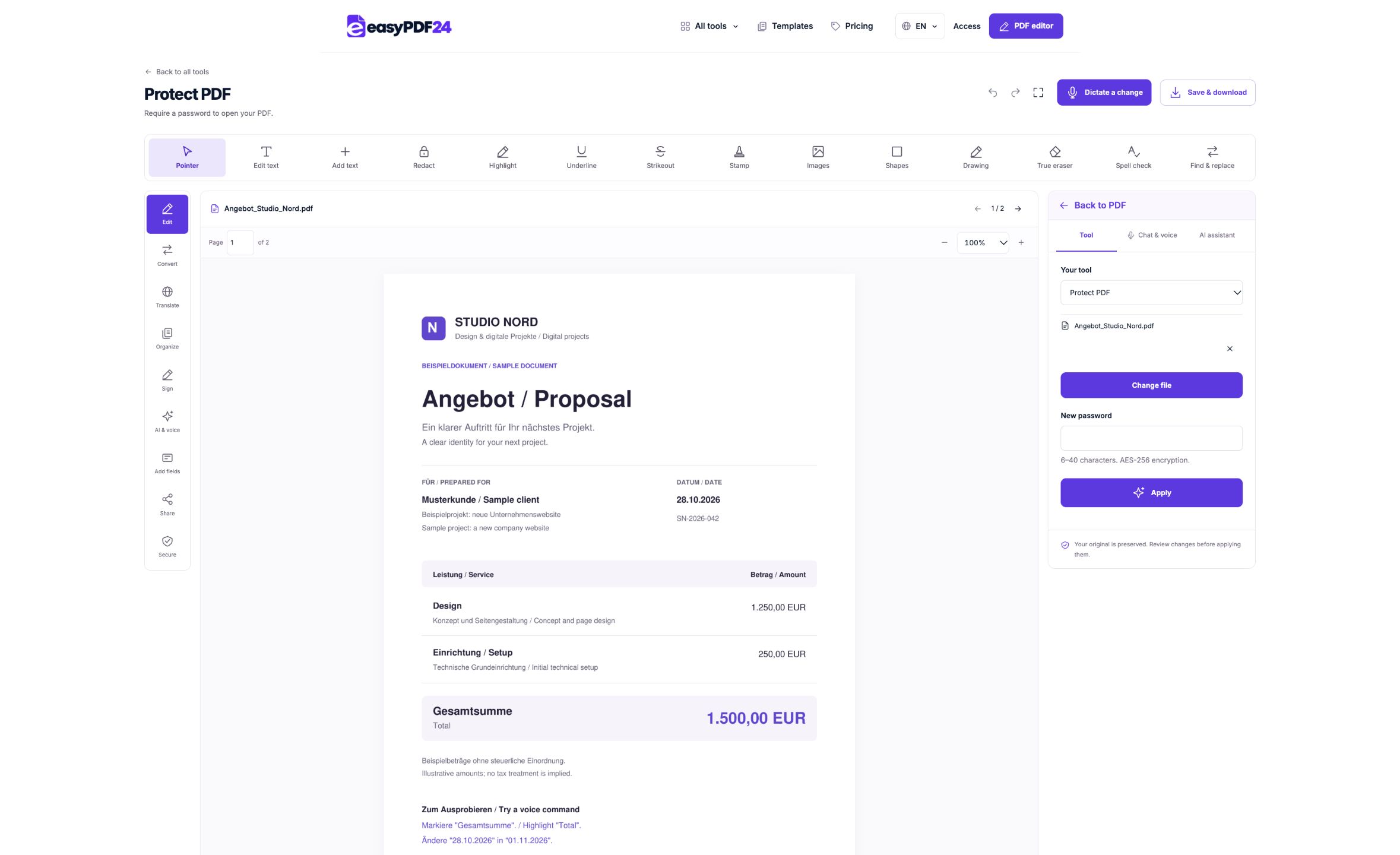
Open the completed PDF and choose Password protection.
Enter a new password containing 6–40 characters and apply the operation.
Download the protected copy, close any open copy and test the password prompt in a PDF viewer.
Input, result and limits
| Property | Details |
|---|---|
| Input | |
| Output | |
| Important limitation | The new password must contain 6 to 40 characters. |
The workflow in six views

1Input
Open the completed PDF and choose Password protection.
2Settings
Enter a new password containing 6–40 characters and apply the operation.
3Apply
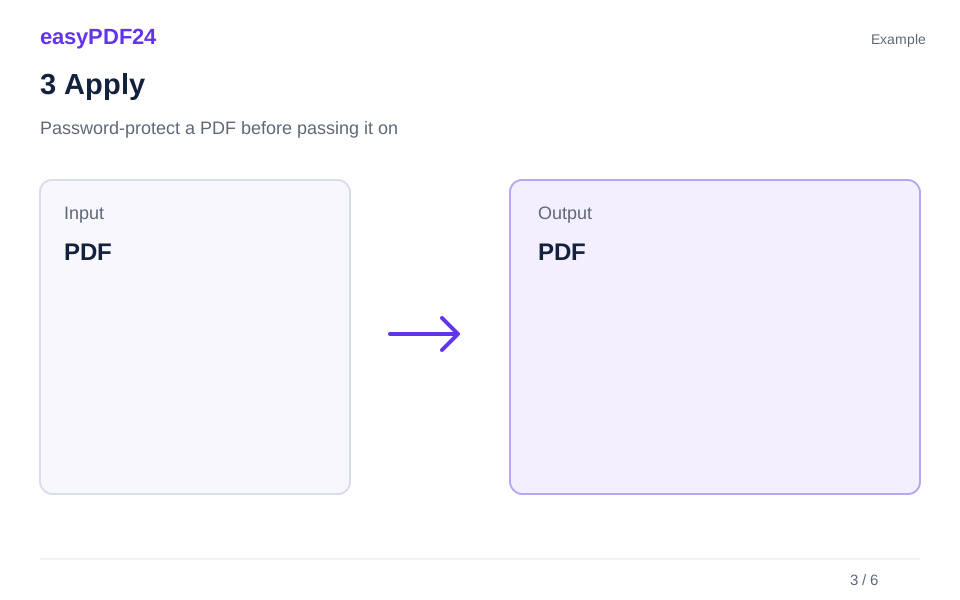
PDF → PDF

4Before and after
Original file → Edited copy
5Review
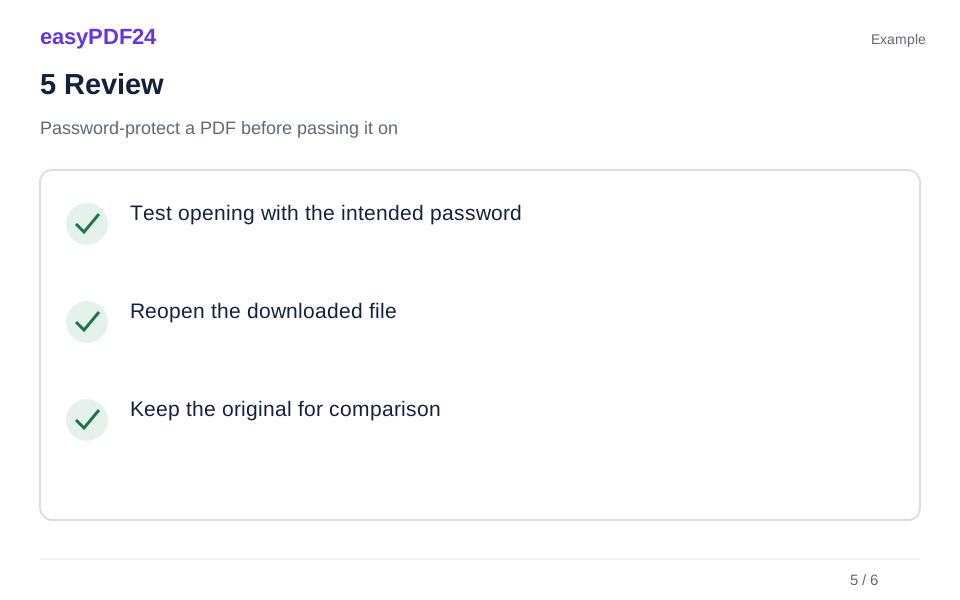
Test opening with the intended password Reopen the downloaded file Keep the original for comparison

6Save
Download the protected copy, close any open copy and test the password prompt in a PDF viewer.
Example
Before
Original file
After
Edited copy
Check these details in the result
- Test opening with the intended password
- Reopen the downloaded file
- Keep the original for comparison
Protect the file you intend to send
Finish content corrections and page changes before producing the protected version. The output uses AES-256 encryption with a password required to open it. Give the downloaded file a clear name so you do not accidentally attach the unprotected original. The editor's working preview can remain visible; checking that preview alone does not confirm how the downloaded protected file opens.
Keep the password and document workflow clear
Choose a password the recipient can receive and retain through an appropriate separate channel. Keep a source copy you can still access, because this tool does not recover a forgotten opening password. Password protection is different from redaction: once someone opens the file, its included information remains visible. Remove details that do not belong in the shared version before applying protection.
Frequently asked questions
Does this certify the document or prevent every edit?
No. An opening password is not a certificate-based digital signature and does not establish the author's identity or guarantee that an authorized reader cannot alter content.
Can I remove the password later?
Yes, using the Unlock PDF tool with the correct current password. That produces a separate copy without the opening protection.