
In this guide
How it works
Open your PDF in Split PDF.
Enter the pages you need, for example 1,3-5. Check their positions in the preview.
Run the tool, then extract the downloaded ZIP file to use the individual PDFs.
Input, result and limits
| Property | Details |
|---|---|
| Input | |
| Output | PDF · ZIP |
| Important limitation | Up to 80 PDF pages; inputs up to 25 MB combined. |
The workflow in six views
1Input
Open your PDF in Split PDF.
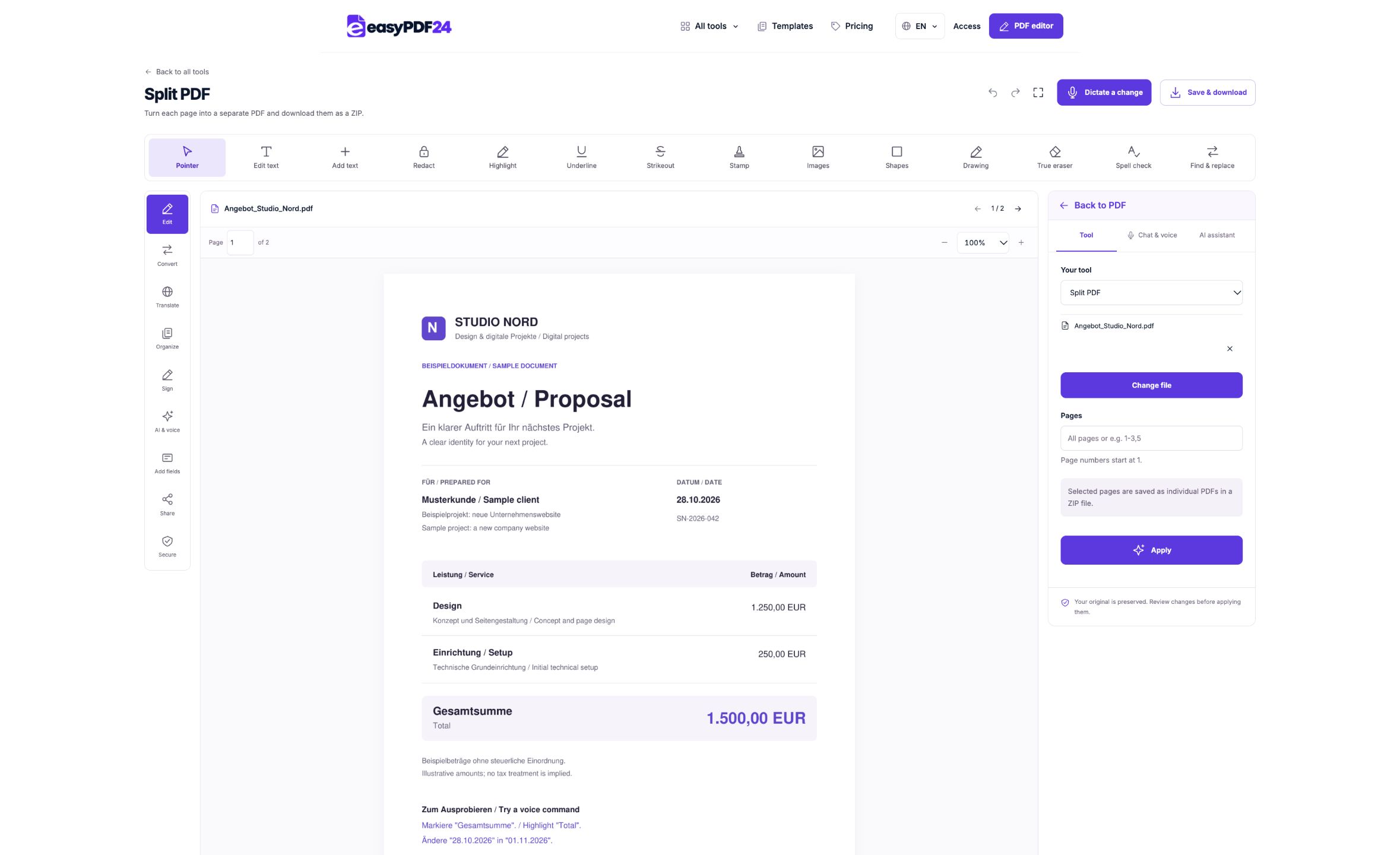
2Settings
Enter the pages you need, for example 1,3-5. Check their positions in the preview.
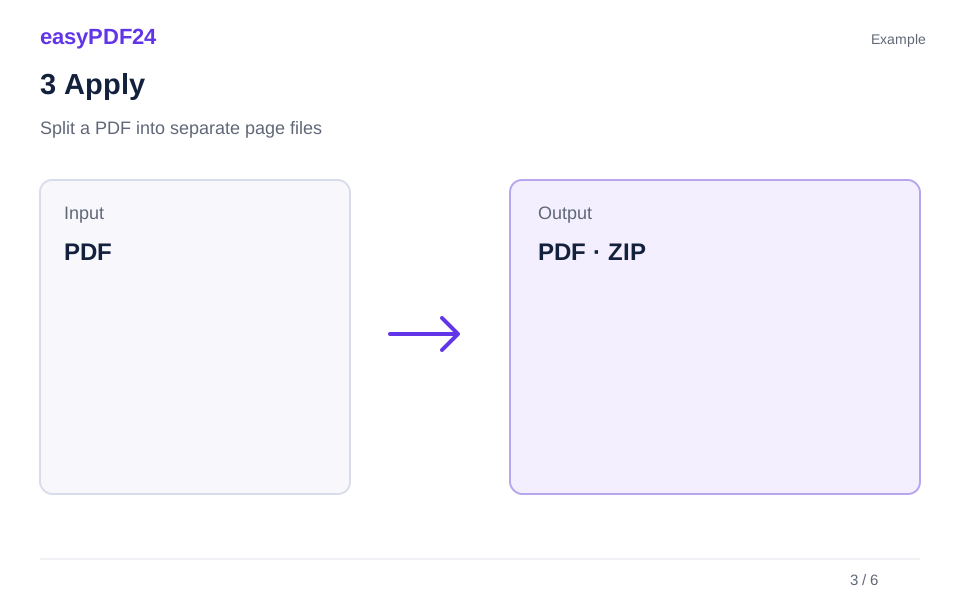
3Apply
PDF → PDF · ZIP

4Before and after
Complete page set → Selected pages or order

5Review
Change only the intended pages or areas Check page count and order Reopen the downloaded file

6Save
Run the tool, then extract the downloaded ZIP file to use the individual PDFs.
Example
Before
Complete page set
After
Selected pages or order
Check these details in the result
- Change only the intended pages or areas
- Check page count and order
- Reopen the downloaded file
Choose between splitting and extracting pages
The first decision is the shape of the result you need. Split PDF creates a separate PDF for every selected page and places those files in a ZIP download. If you choose pages 2, 3 and 4, you receive three individual PDFs. Extract pages serves a different purpose: it keeps the selected pages together in one new PDF. Choose extraction when a three-page section should remain a single attachment, and splitting when each page needs to be handled independently.
This distinction prevents unnecessary extra work. For example, separate certificates may need one file per person, while a chapter from a report usually belongs in one file. A collection of scanned receipts can be split into individual pages, but a receipt that spans two pages may require extraction instead. Look at the content before selecting the operation. The page boundaries stored in the source PDF determine what the split tool separates; it does not identify individual receipts, chapters or people automatically. If two receipts share one scanned page, splitting that page produces a PDF containing both receipts, rather than one file for each visible item.
Identify the correct page positions
Page selection uses the actual position in the PDF, starting with 1. That position may differ from the number printed on the page. A report with a cover and contents page can have printed page 1 at the third position in the file. An appendix may restart numbering, and a scanned booklet may include blank reverse sides. Use the preview's page counter as your reference when entering a selection, rather than copying numbers from a printed contents list without checking them.
A practical method is to open the first and last page of the section you need and note their actual positions. Then inspect a page in the middle to confirm that the range contains the expected material. If you want only a few scattered pages, write their positions as a short list. This is particularly useful when neighboring pages look almost identical, such as monthly statements or forms with the same layout. Verify a distinguishing detail such as the date, heading or reference number. Choosing the correct positions is more important than typing the range quickly, because a valid range can still select the wrong content.
Enter a selection that matches your intended output
The page field accepts individual positions and ranges, such as 1,3-5. That example selects page 1 and pages 3, 4 and 5. In the split tool, those four selected pages become four separate PDF files. Use a range when you need a continuous group and a comma-separated selection when you need isolated pages. Keep the selection easy to read so that you can compare it with your notes before running the operation.
Check that every selected position exists in the source document. A range copied from an earlier version may no longer be correct if pages have been added or removed. If you have already edited the document's structure, navigate through the current working version again. Do not assume that the original file's page positions still apply. For a complex selection, begin with a small, easily verified set and inspect the output before processing the rest. This can reveal a numbering misunderstanding early. The purpose is not to create as many files as possible, but to produce the exact set of independent pages you need for the next task.
Prepare a useful set of independent documents
Before splitting, consider whether each page will make sense on its own. A page containing only the second half of a table may lose its column headings. A continuation page may not identify the customer, project or period to which it belongs. If that context is necessary for the recipient, extracting a larger section can be better than splitting a single page. Another option is to retain a clearly named companion document that explains the relationship between the separate files.
For administrative work, independent pages are often useful when each represents a complete item: a one-page certificate, a signed acknowledgment or a separate delivery note. Check that the identifier is visible on every selected page. If it appears only on a cover sheet, a filename alone may not provide enough context once the files are moved or renamed. Do not add identifying information casually when the source requires careful handling; instead, decide what context the recipient actually needs. A good split produces smaller documents that remain understandable, rather than fragments that require the recipient to reconstruct the original sequence to interpret them.
Understand what the ZIP download contains
A ZIP file packages the individual PDF outputs into one download. It is a container, not a different document format. After downloading, use your device's file manager to extract the ZIP contents into a folder. You can then open, rename and share the separate PDFs. If an application shows only the ZIP file, look for its extract or uncompress action rather than trying to edit the archive as though it were a PDF page.
Keep the extracted files together while checking the result. Count them and compare the total with the number of pages you selected. For the example 1,3-5, you should expect four outputs. Open a representative file and inspect its page content, then check any outputs that contain important or easily confused material. Avoid distributing the ZIP before confirming that it contains the intended pages. Some recipients prefer separate attachments, while others find one archive easier to download. Choose the delivery method that suits the task, and make sure the recipient knows that the archive needs to be extracted before its PDFs can be used individually.
Name files so their content stays recognizable
Splitting changes one larger document into several files, so naming becomes part of the workflow. A sequence number may preserve the original order, but it may not explain what a page contains. After checking the outputs, use clear names based on the document purpose and a distinguishing detail that is appropriate to share. For a training handout, that could be the topic. For a project pack, it could be the section name and date. Keep the names consistent across the set.
Avoid relying on the order in which files happen to appear in a folder. Different applications can sort names differently, especially when numbers have inconsistent lengths. If order matters, a clear numbering convention can help, but still inspect the contents before merging or distributing them later. Keep the original source PDF separately so that you can trace an individual page back to its context. Renaming a file does not change the text printed inside it, and a descriptive filename does not correct an outdated heading. Review both the external name and the visible page when preparing files for someone else to use.
Check a realistic splitting example
Suppose a twelve-page PDF contains a cover, eight one-page workshop worksheets and a three-page appendix. You want to distribute worksheets individually. First confirm where the worksheets begin in the actual file: in this example they occupy positions 2 through 9. Select 2-9 in Split PDF. The expected output is eight individual PDFs packaged in one ZIP. After extraction, inspect the first and last worksheet and count all eight files.
Then check that the worksheets genuinely work independently. A worksheet might refer to instructions on the cover or a diagram in the appendix. If participants need those materials, provide them deliberately rather than assuming that splitting has carried their context into every output. You might distribute the appendix as one extracted PDF and the worksheets as separate files. If you later decide that each participant needs a worksheet followed by the same reference page, that is an assembly task involving extraction and merging. The split tool itself does not automatically duplicate a reference page into each file. Understanding the desired package first helps you choose a short and reliable sequence of operations.
Preserve quality and review interactive behavior
Splitting a PDF separates pages; it is not an image conversion. The result remains a PDF page rather than a PNG screenshot. That distinction matters if you need selectable text or want to keep working with the page as a document. If you need a page image for a slide or visual preview, use PDF to images instead. If you need to rewrite its text in a word processor, a text-oriented export is a different operation again.
After splitting, test the features your recipient actually needs. Open the page in a PDF viewer, search for a word if the source had selectable text, and inspect any relevant form fields or links. Document processing can affect specialized PDF features, so do not assume that every interactive or integrity-dependent workflow will behave exactly as it did in the source. A digitally signed file or a document with a required submission format deserves particular care before alteration. Keep the source intact and check the receiving system's requirements. For ordinary page separation, a visual review plus the relevant search or form check gives you a practical basis for deciding whether the output is usable.
Troubleshoot wrong pages and incomplete results
If an output contains the wrong page, return to the page-position check before changing other settings. The most common source of confusion is a mismatch between printed numbering and the actual file order. Compare the preview counter with a visible heading on the target page. If the document was edited after you noted the selection, update the positions. Running the same range again without checking the current page order will reproduce the same mistake.
If the number of output files is unexpected, compare it with the number of selected positions rather than the number of range expressions. The expression 3-5 describes three pages, not one output in the split tool. If you wanted those three pages together, switch to extraction. If a PDF will not open or process, verify that the source is readable and within the preview limits of 25 MB and 80 pages. Use an accessible, authorized copy when restrictions are involved. Keep a small test selection until you understand the problem, then repeat the final operation with the corrected scope and verify the resulting archive.
Finish the task and keep the right source material
Once the separate PDFs are checked, store them in a folder that makes their relationship clear. Keep the source PDF alongside your working records if you may need more pages later, but avoid mixing it with the final files you plan to distribute. A separate output folder reduces the chance of accidentally sending the complete source when only selected pages were intended. Before sharing, open the exact file or archive you will send and confirm its contents one final time.
easyPDF24 creates new outputs and does not overwrite the file on your device. If the next requirement changes, choose the tool accordingly: merge to assemble separate PDFs, delete to remove unwanted pages from a copy, or rotate to correct orientation. Splitting is complete when the selected pages are not only separated, but also correctly identified, usable and ready for their intended destination.
Frequently asked questions
Why is the download a ZIP file?
A ZIP packages the separate PDFs into one download. Extract it using your device’s file manager.
Can I save just one page?
Yes. Enter that page number. If you want several pages kept together in one PDF, use Extract pages instead.
Can I separate two items that are printed on the same page?
Splitting works at PDF page boundaries. If two receipts, photographs or forms occupy one page, that page remains one output PDF. The tool does not detect and crop those individual items automatically. Decide whether you need a separate image-editing or source-document workflow to prepare them individually. If the complete page is acceptable, keep it intact and give the output a name that reflects both items. Check the receiving requirement before removing surrounding context merely to make the file appear shorter.