
In this guide
How it works
Upload a UTF-8 .csv or .tsv file.
Choose automatic delimiter detection or specify the separator and header row.
Convert, check the columns and download the PDF.
Input, result and limits
| Property | Details |
|---|---|
| Input | CSV · UTF-8 |
| Output | |
| Important limitation | UTF-8 with an explicit delimiter; spreadsheet formulas are not executed. |
The workflow in six views

1Input
Upload a UTF-8 .csv or .tsv file.

2Settings
Choose automatic delimiter detection or specify the separator and header row.

3Apply
CSV · UTF-8 → PDF

4Before and after
Extracted text → Fixed page appearance
5Review
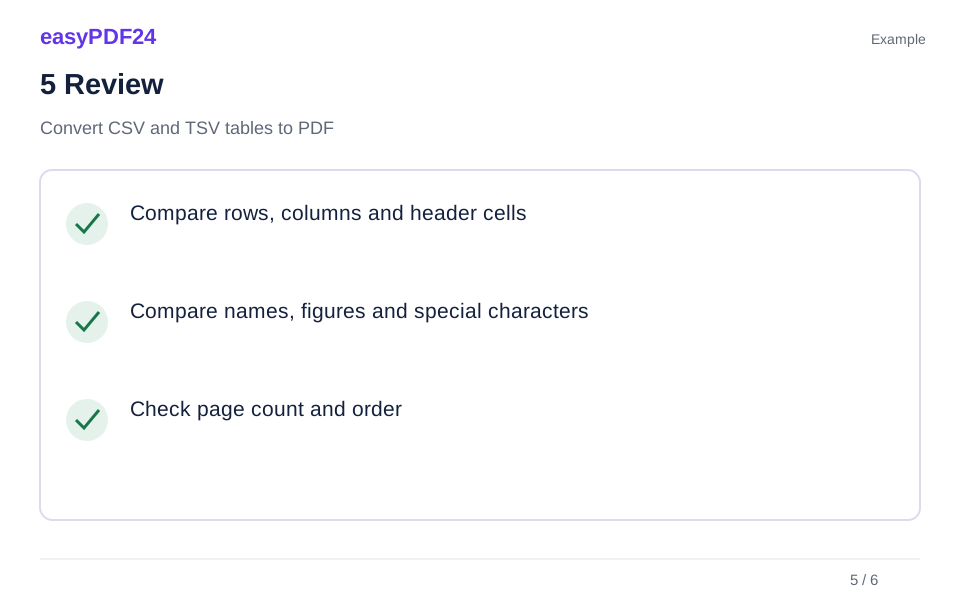
Compare rows, columns and header cells Compare names, figures and special characters Check page count and order

6Save
Convert, check the columns and download the PDF.
Example
Before
Extracted text
After
Fixed page appearance
Check these details in the result
- Compare rows, columns and header cells
- Compare names, figures and special characters
- Check page count and order
Match the separator to your data
Comma, semicolon, tab and vertical bar are supported. Correctly quoted separators and line breaks remain inside their cells. If every value appears in one column, select the actual delimiter and convert again. The first row is treated as headings only when that option is enabled.
Keep the table manageable
The input is limited to 2 MiB, 20 columns, 10,000 rows and 100,000 cells. More than six columns use landscape pages; the result cannot exceed 80 pages. Very long or wide content can exceed the page layout. Values are printed as text: formulas are not calculated or executed.
Frequently asked questions
Does the PDF retain spreadsheet formatting?
CSV contains cell values, not workbook formatting. The PDF uses a simple table layout.
Can I use a different text encoding?
Save or export the file as UTF-8 first. Check accented characters, dates and decimal separators in the preview.