
In this guide
How it works
Choose one audio file or a video containing sound.
Select MP3, WAV, OGG, FLAC or M4A and an optional time range.
Listen to the output, including its beginning and end.
Input, result and limits
| Property | Details |
|---|---|
| Input | MP3 / WAV / M4A / OGG / FLAC / MP4 |
| Output | MP3 / WAV / M4A / OGG / FLAC |
| Important limitation | One local file up to 25 MB and 10 minutes; play back the output. |
The workflow in six views
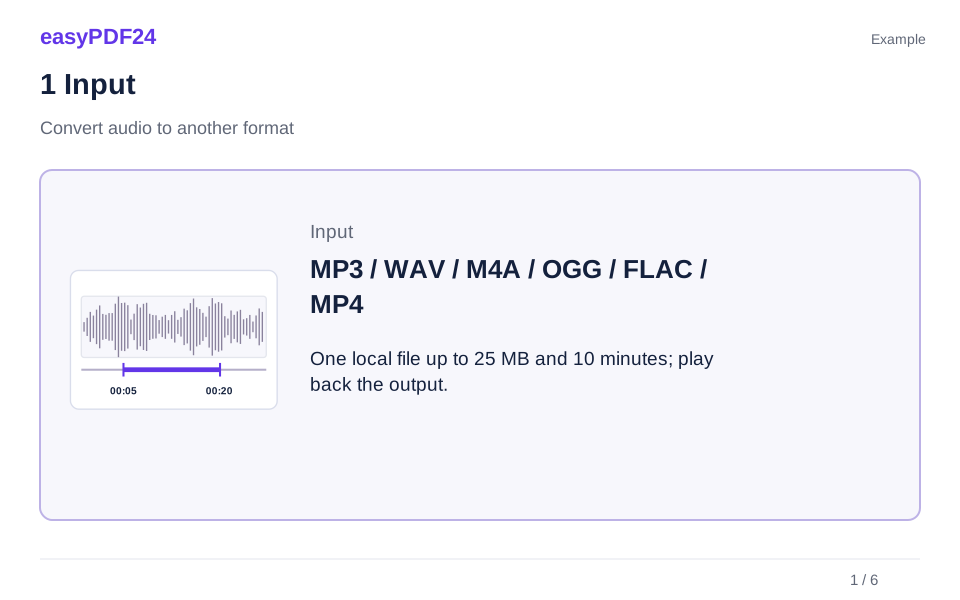
1Input
Choose one audio file or a video containing sound.

2Settings
Select MP3, WAV, OGG, FLAC or M4A and an optional time range.

3Apply
MP3 / WAV / M4A / OGG / FLAC / MP4 → MP3 / WAV / M4A / OGG / FLAC
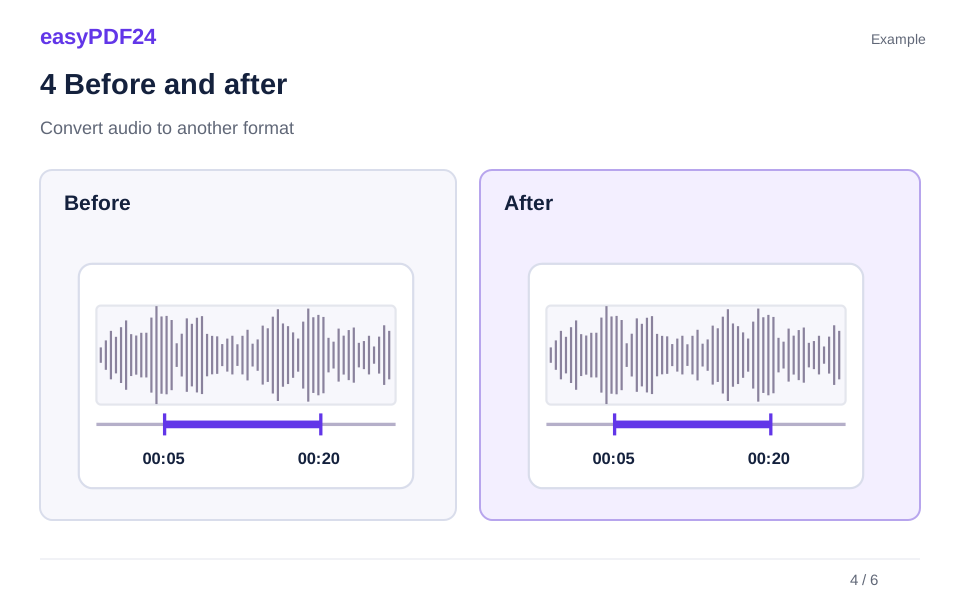
4Before and after
Recording or media file → Output in the chosen format

5Review
Listen to or play the complete output Check the start, end and duration Source file: up to 25 MB and 10 minutes
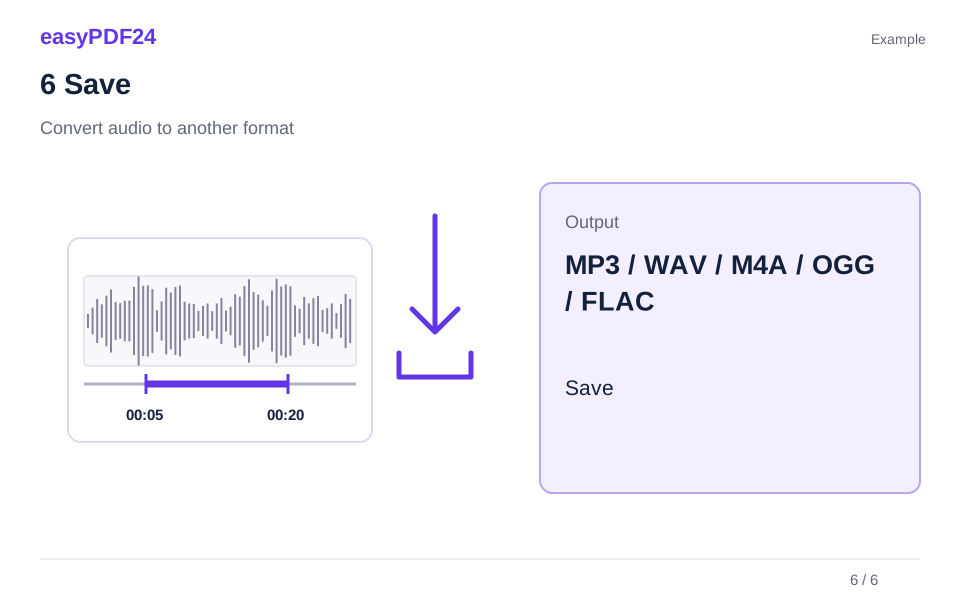
6Save
Listen to the output, including its beginning and end.
Example
Before
Recording or media file
After
Output in the chosen format
Check these details in the result
- Listen to or play the complete output
- Check the start, end and duration
- Source file: up to 25 MB and 10 minutes
Choose for your intended use
WAV and FLAC can suit further audio work; MP3, OGG and M4A provide compressed output. Converting to a larger format cannot restore detail that was already lost. With a video source, this operation exports only the selected audio track.
Check duration and size
Processing takes place on the server for one file up to 25 MB and ten minutes. Leave the end field empty to continue to the source file’s end. Keep the original and test the output in its intended application. The new file may differ considerably in size.
Frequently asked questions
Does the output include the video picture?
No. The result is an audio file. Choose video conversion when you need picture and sound together.
Can a WAV be larger than the source?
Yes. A larger file does not automatically improve sound or recover information missing from the original recording.