
In this guide
How it works
Choose the record type and prepare the content, then check whether NFC is available on your device.
Start reading or writing and hold a compatible NDEF tag near the phone when prompted.
Review the read result or verify the written content; use a QR code when hardware access is unavailable.
Input, result and limits
| Property | Details |
|---|---|
| Input | NDEF / URL |
| Output | NDEF or QR draft |
| Important limitation | NDEF reading and writing use Web NFC in supported Chrome on Android. |
The workflow in six views

1Input
Choose the record type and prepare the content, then check whether NFC is available on your device.
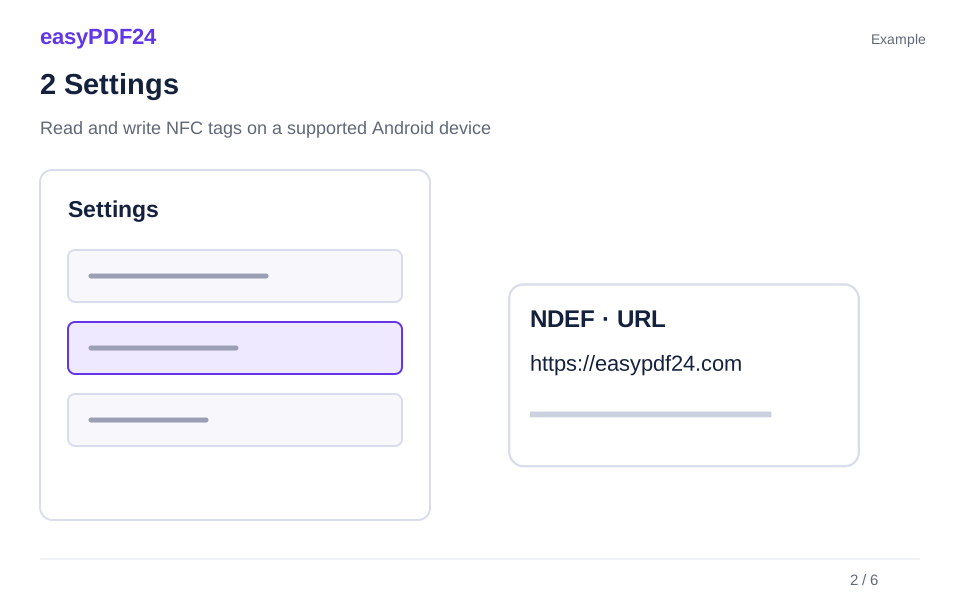
2Settings
Start reading or writing and hold a compatible NDEF tag near the phone when prompted.
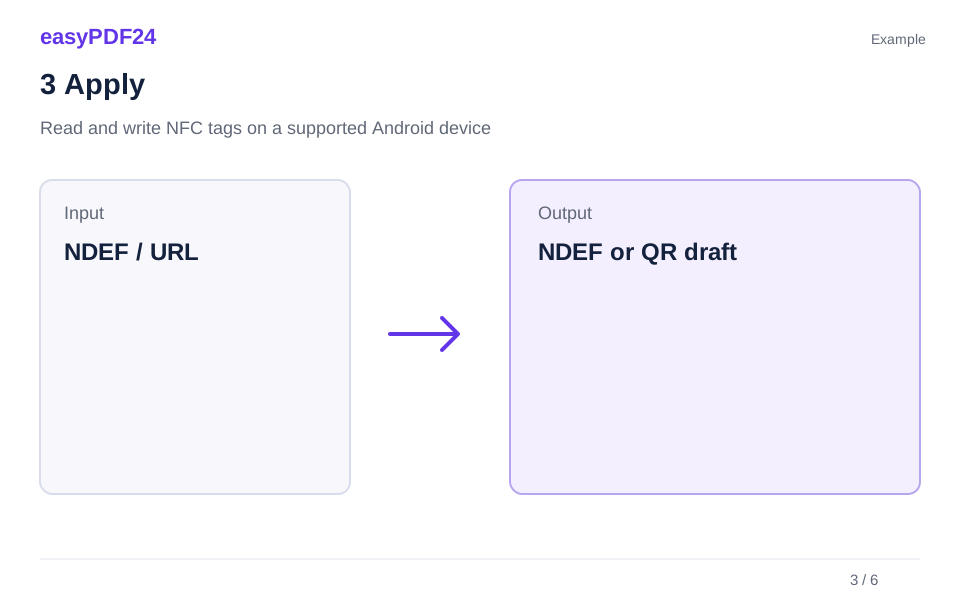
3Apply
NDEF / URL → NDEF or QR draft
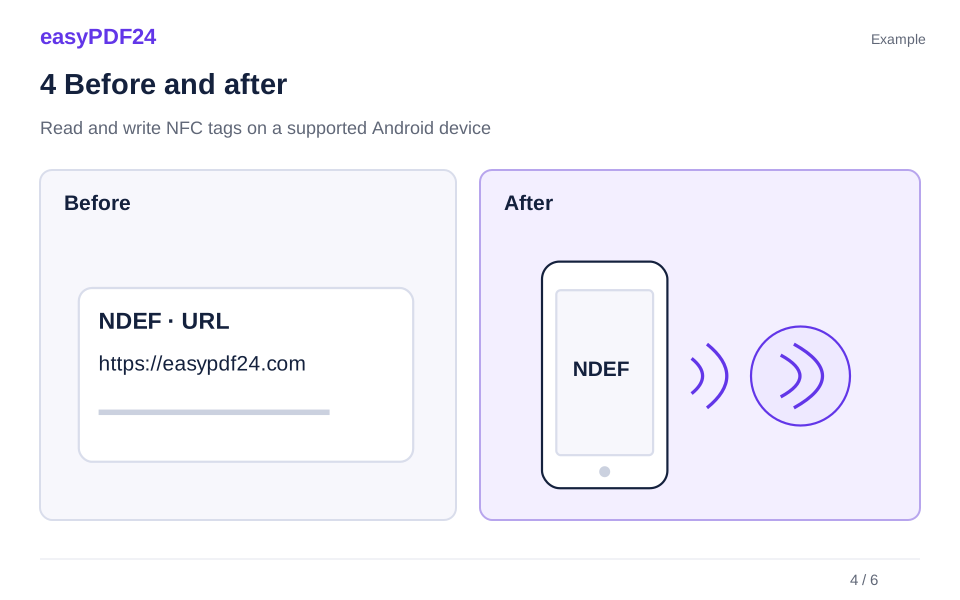
4Before and after
Text or destination address → NDEF record on a compatible tag
5Review
Review the complete text or destination address Read the tag again after writing Read the generated QR code with a device

6Save
Review the read result or verify the written content; use a QR code when hardware access is unavailable.
Example
Before
Text or destination address
After
NDEF record on a compatible tag
Check these details in the result
- Review the complete text or destination address
- Read the tag again after writing
- Read the generated QR code with a device
Check browser and tag compatibility first
This browser workflow uses Web NFC in supported Chrome on Android. It needs suitable NFC hardware, permission and a writable NDEF tag for writing. iPhone browsers and desktop browsers cannot read or write NFC hardware through this tool; they can still prepare content and create a QR code. The tool does not clone payment cards, access cards or a tag's hardware identifier.
Review content before replacing a tag
Writing targets empty tags by default. Replacing existing content requires the overwrite option and removes the previous records. A tag's actual capacity may be smaller than the prepared message, and a locked tag cannot be written. Content is handled locally in the browser. Read links remain visible for inspection rather than opening automatically; suitable complete text and link records can be transferred to the QR tool.
Frequently asked questions
Why does my Android phone still report NFC as unavailable?
Check the browser, device NFC support, NFC settings and permission. Android alone is not enough; the browser must expose Web NFC on that device.
Can I use it from an iPhone?
You can prepare the content and create a QR code. NFC hardware reading and writing are not available through this web tool on iPhone.