
In this guide
How it works
Paste a passage or load the relevant PDF pages and check the 12,000-character limit.
Choose a writing style and add specific instructions if needed.
Compare meaning, figures and qualifications with the source, then download the result as TXT.
Input, result and limits
| Property | Details |
|---|---|
| Input | PDF or typed text |
| Output | TXT |
| Important limitation | At most 12,000 characters per passage; no automatic shortening. |
The workflow in six views
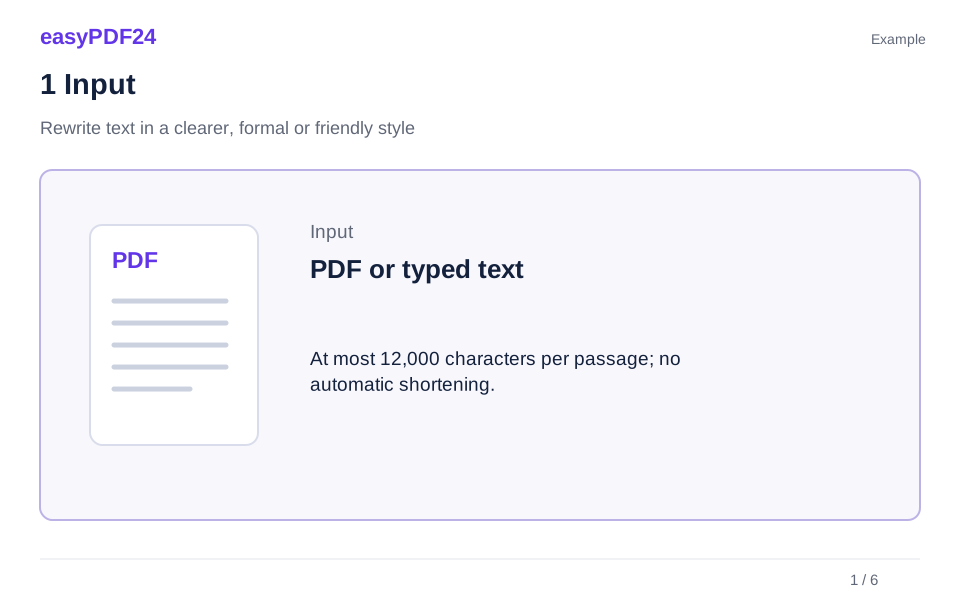
1Input
Paste a passage or load the relevant PDF pages and check the 12,000-character limit.
2Settings
Choose a writing style and add specific instructions if needed.
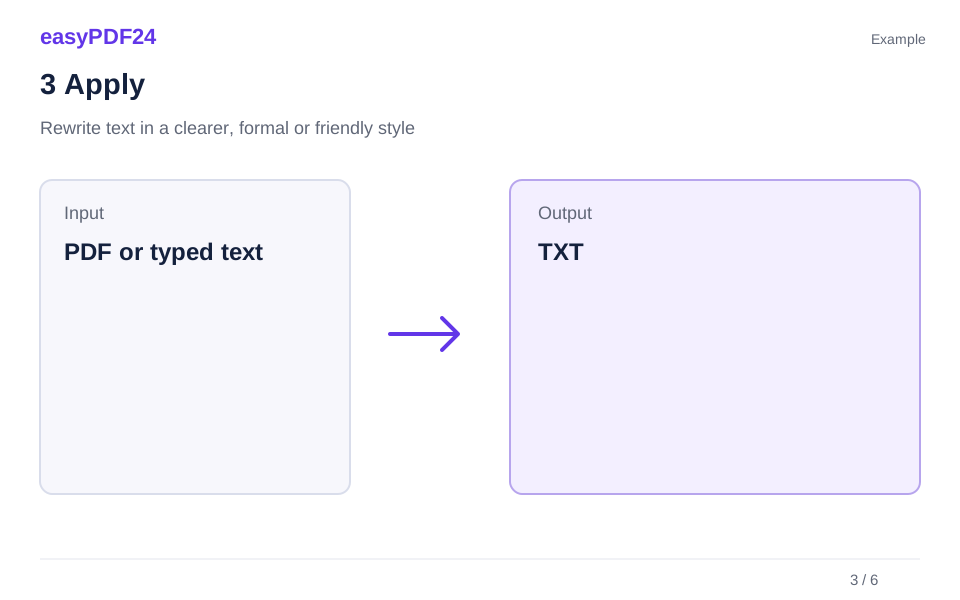
3Apply
PDF or typed text → TXT

4Before and after
Extracted text → Text draft for review
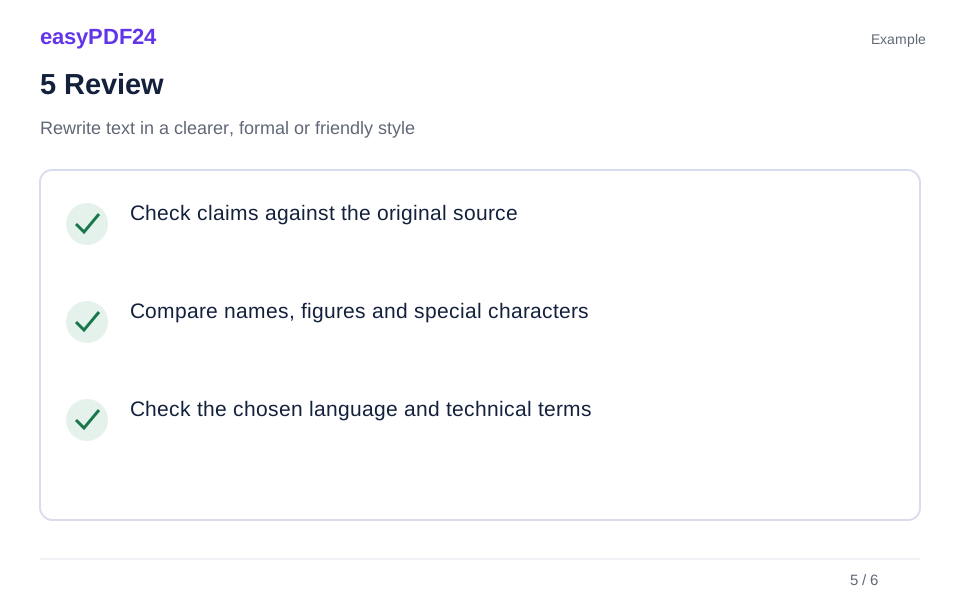
5Review
Check claims against the original source Compare names, figures and special characters Check the chosen language and technical terms

6Save
Compare meaning, figures and qualifications with the source, then download the result as TXT.
Example
Before
Extracted text
After
Text draft for review
Check these details in the result
- Check claims against the original source
- Compare names, figures and special characters
- Check the chosen language and technical terms
Set a goal you can review
For a brief customer message, you might choose a friendly style while asking to preserve technical terms. The target language follows the interface. Check that names, amounts, dates and the strength of a claim remain intact. More fluent wording should not turn a tentative assessment into a firm commitment or remove a condition that matters.
A text draft does not prove authorship
Longer input is never silently shortened. Select a smaller passage yourself when the counter exceeds the limit. This is a language-revision tool, not evidence of human authorship. It provides no reliable AI-detector verdict and makes no promise to bypass detection. Keep the original wording so you can review what changed and decide whether the new phrasing still expresses your intention.
Frequently asked questions
Do I have to upload a PDF first?
No. Enter your own text directly in the section field and revise it without a PDF.
Will the response replace text inside my document?
No. You receive text in the AI panel and as a TXT download. Editing the PDF itself is a separate step.