
In this guide
How it works
Open the PDF, select the relevant pages and check whether the table contains selectable text. Image-only scans need an appropriate OCR step first.
Run PDF to Excel with detection suited to the page: lines for clearly bordered tables or text for borderless tables. Check whether the expected tables were found.
Download and open the XLSX workbook. Compare headings, rows and values with the PDF, correct assignments, and only then convert appropriate text cells into numerical values.
Input, result and limits
| Property | Details |
|---|---|
| Input | |
| Output | XLSX |
| Important limitation | Tables become text cells; original formulas are not reconstructed. |
Choose a source for further data processing
Scroll sideways to see the whole table.
| Approach | Result | Required check |
|---|---|---|
| Extract a PDF table | Detected tables as editable text cells in XLSX | Check column assignments, page boundaries and number formats before calculating. |
| Run OCR on a scan first | Recognised text as a possible basis for table extraction | Check character errors and structure; OCR does not guarantee a complete table. |
| Use the original XLSX | Existing formulas, cell types and worksheets | Verify the intended revision and contents of the workbook. |
The workflow in six views
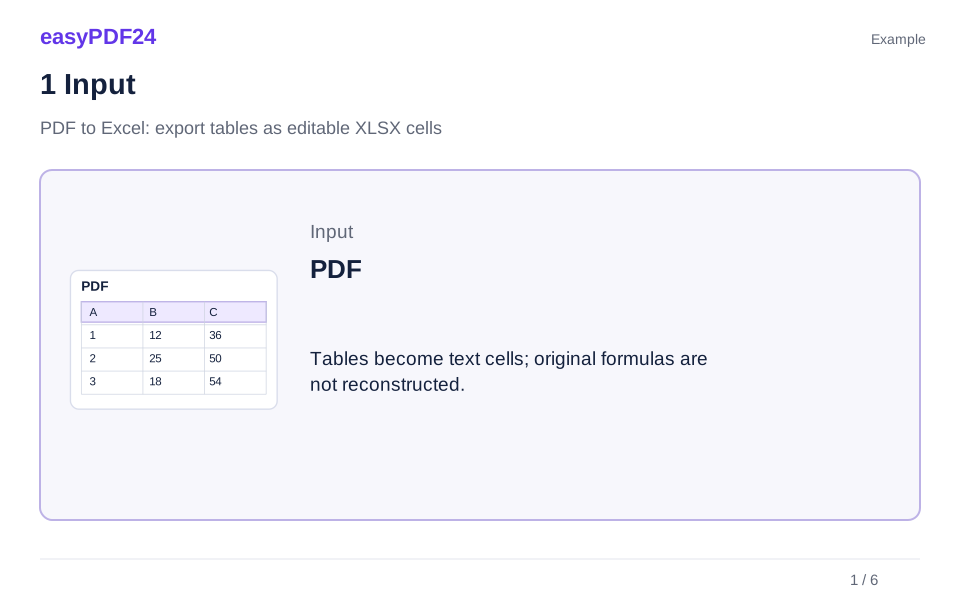
1Input
Open the PDF, select the relevant pages and check whether the table contains selectable text. Image-only scans need an appropriate OCR step first.
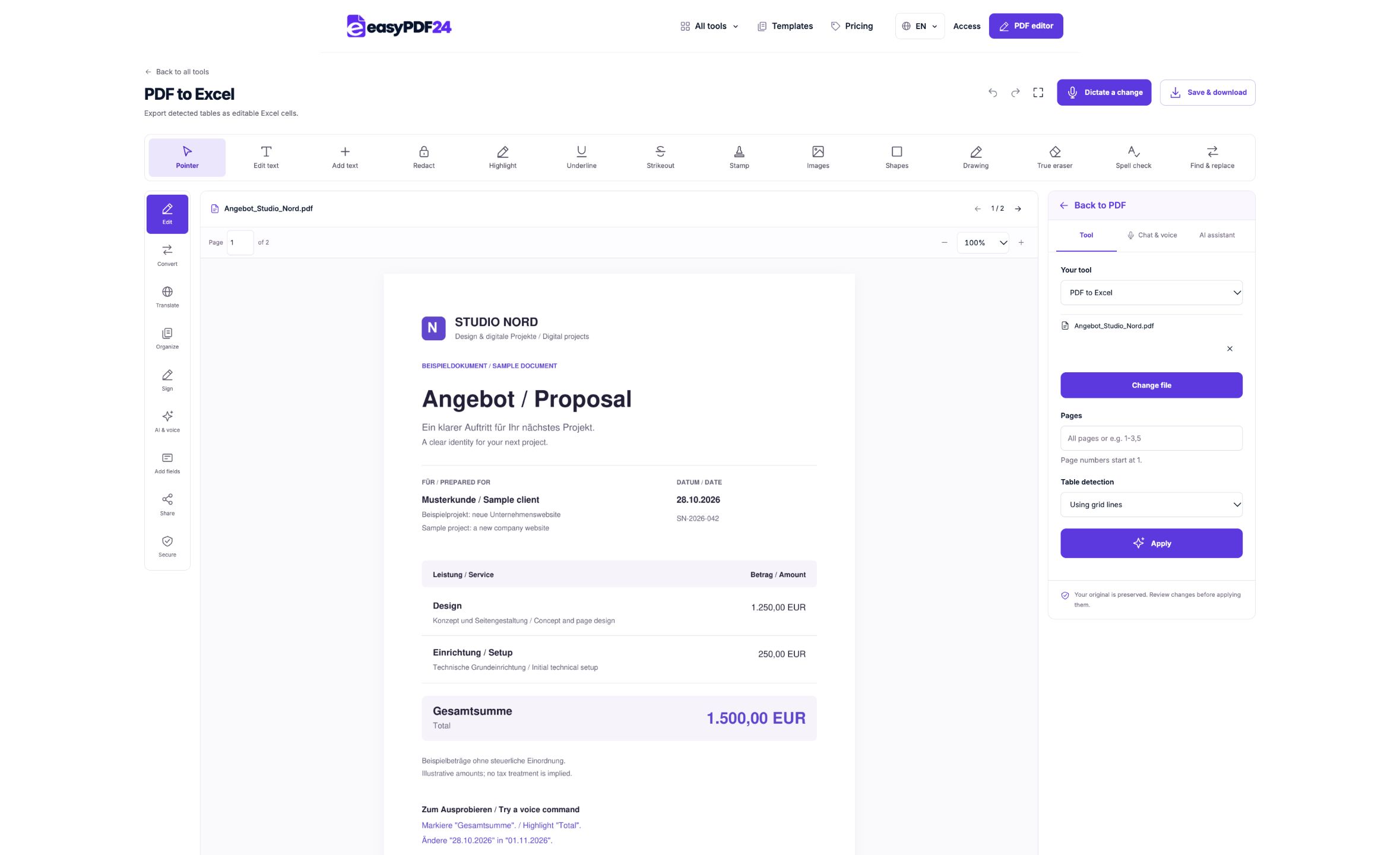
2Settings
Run PDF to Excel with detection suited to the page: lines for clearly bordered tables or text for borderless tables. Check whether the expected tables were found.
3Apply
PDF → XLSX
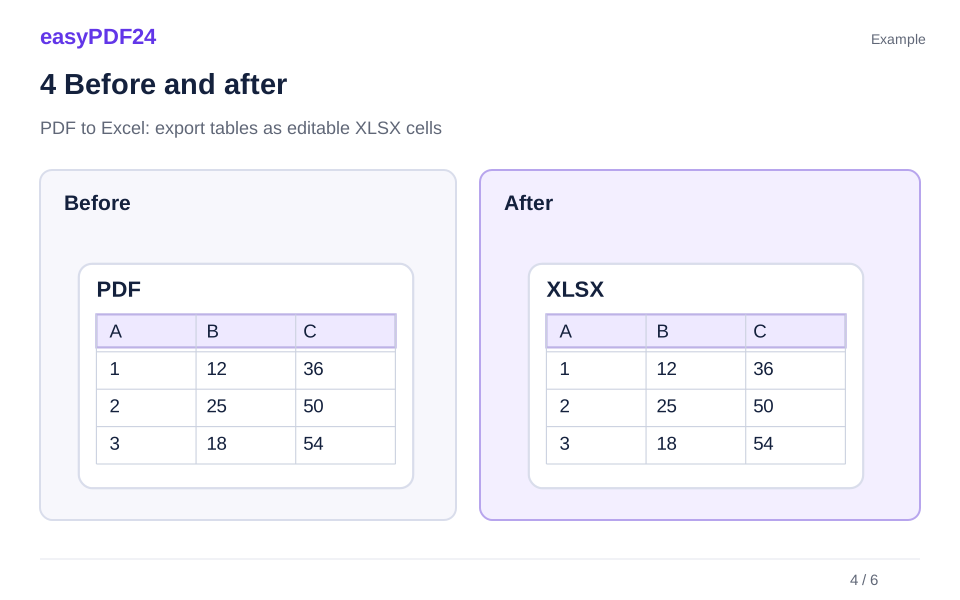
4Before and after
A three-page PDF price list contains item codes such as 00124 and amounts such as 1,250.50, but no editable source workbook is available. → Extracted tables are compared with the PDF. Item identifiers remain text, verified prices are converted to numbers, and new comparison formulas are added only after those checks.

5Review
Compare rows, columns and header cells Compare names, figures and special characters Test editing the objects you need
6Save
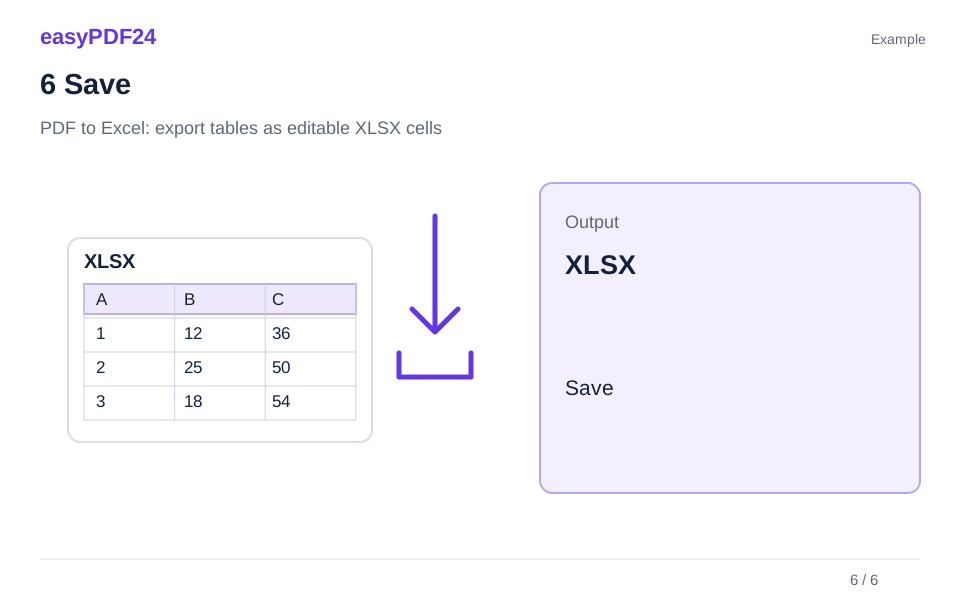
Download and open the XLSX workbook. Compare headings, rows and values with the PDF, correct assignments, and only then convert appropriate text cells into numerical values.
Example
Before
A three-page PDF price list contains item codes such as 00124 and amounts such as 1,250.50, but no editable source workbook is available.
After
Extracted tables are compared with the PDF. Item identifiers remain text, verified prices are converted to numbers, and new comparison formulas are added only after those checks.
Check these details in the result
- Compare rows, columns and header cells
- Compare names, figures and special characters
- Test editing the objects you need
A PDF table is not a saved Excel workbook
A PDF primarily describes a page’s appearance. It can show figures and lines without retaining the original relationships between spreadsheet cells. A table exporter must infer useful rows and columns from text positions and other page features. That differs from opening an existing XLSX file, so it should not be expected to restore every feature of the original workbook.
If the source Excel file is available, use it for calculations and further editing. Its formulas, data types and worksheets already exist. PDF extraction is most useful when only a report, price list or other readable table remains. It gives you a starting point for controlled preparation of the data.
First test whether the PDF contains text by trying to select individual words or values. A photograph initially contains pixels. OCR can add recognised text, but it does not guarantee a correct table structure. Even digitally generated PDFs can position text unusually. Output quality depends on the particular page construction, not simply on the filename ending in .pdf. Review the actual table before choosing the next step.
Match line-based or text-based detection to the table
For tables with clear horizontal and vertical borders, line-based detection is a sensible starting point. It uses those boundaries to identify cells and table regions. After export, check that the visible columns have become distinct spreadsheet columns. Decorative lines, merged headers or several small tables on a page may need closer inspection.
For tables without borders, text-based detection may work better. It relies on the arrangement of the text. Regularly aligned columns make that task easier, while inconsistent spacing, wrapped descriptions or footnotes within the table area can produce unexpected assignments. If no table is found, review the selected pages and try an appropriate alternative method rather than repeatedly submitting the same settings.
Changing methods does not guarantee a perfect result. Compare a sample containing several row types: a simple record, a wrapped description and a total row. This reveals whether the structure is generally useful. For an unusual layout, manually transferring a small amount of data or asking for the original workbook may be more efficient than repairing a heavily misinterpreted export.
Understand how the resulting XLSX file is organised
The exporter creates a separate worksheet for each detected table. Its name identifies the PDF page and the table number, helping you trace a value back to its source. A table continuing across several PDF pages is therefore not automatically rebuilt into one continuous dataset with its original spreadsheet logic.
Cells contain extracted text. Something that resembles a number or a date is initially stored as text too. This preserves a visible character sequence as the starting point, but calculations will not necessarily behave as they would in a carefully typed workbook. Review and clean the data before using it for totals, charts or decisions based on filtering.
The output uses simple readable formatting. It does not reconstruct the original spreadsheet design, merged-cell structure or formulas. Processing also has limits: up to 100 detected tables and 100,000 cells per operation. For very large reports, choose an appropriate page range and inspect manageable sections. A familiar XLSX filename is not evidence that the workbook is ready for analysis without checking its contents.
Handle decimal separators and leading zeros deliberately
The text 1,234.50 can represent a monetary amount in one regional convention. Another convention writes the same amount as 1.234,50. Before converting exported text cells to numbers, establish which notation the source uses. Replacing every comma or period indiscriminately can change values. Also inspect spaces used as grouping separators and currency symbols next to amounts.
Not every string of digits should become a number. Product codes, postal codes and account identifiers may need leading zeros. Text can be the correct type for these fields. If 00124 becomes 124, the identifier has changed even if the spreadsheet looks cleaner. Make type decisions by column and purpose, not merely by whether a value contains digits.
Review negative values, percentages and dates separately. A minus sign near a cell boundary may be assigned differently from its digits. A percentage symbol changes the interpretation of a figure. Dates can swap day and month if the application’s regional setting does not match the source. Perform conversions deliberately and compare a sample against the PDF again afterwards.
Check merged headings, wrapped descriptions and page breaks
A PDF heading can span several columns without the exporter reproducing the exact merged-cell structure of an earlier spreadsheet. Determine which heading belongs to each data column. Add useful repeated column names to your cleaned dataset where appropriate, instead of silently interpreting every blank heading cell as absent information.
Wrapped descriptions are another common exception. A long product name may occupy two lines while its quantity appears once beside it. Check whether the output treats that as one record or creates what looks like an extra row. The first and last rows on a page deserve particular attention because continuations and clipped areas are easier to confuse there.
For a table spanning pages, review the separate worksheets before combining them. Remove repeated headers only after identifying their purpose. Then join records in a traceable order. A report’s final total should not accidentally enter a new calculation as an ordinary data row and be counted twice. Keep the unmodified export alongside your cleaned workbook so that you can investigate later changes.
Example: make a three-page price list usable again
Before extraction, a three-page PDF price list contains item codes, descriptions and amounts with two decimal places. You need to compare selected products but have no original Excel file. Select the relevant pages, choose detection appropriate to the layout and open the generated XLSX workbook. Locate the worksheets corresponding to those tables.
The code 00124 initially remains text, as does an amount such as 1,250.50. This is a useful raw output, not yet a calculation-ready model. Compare several records with the PDF, including a long description and an unusual price. Check whether currency symbols are included in the same cell and whether a page boundary split a record.
After review, your cleaned workbook has deliberate types: an identifier as text, a description as text and a verified price converted to a number. Only then add the comparison formulas you need. Those are new formulas you create; they were not recovered from the PDF. Retain page and table references so that an unexpected result can be traced back to the original document.
Decide between OCR, manual transfer and original data
An image-only PDF needs text recognition before a text-table workflow can use it. Recognition quality depends on factors such as resolution, contrast, skew and readable characters. OCR may confuse zero with the letter O or one with a lowercase l. Such differences are especially significant in figures. Inspect recognised text before trusting a table inferred from it.
For a handful of values, manual transfer with a second check may be quicker. Automatic extraction is more attractive for many consistently arranged rows. Choose according to the expected cleanup effort, not only the number of pages. One complicated table can require more work than ten simple bordered tables.
The original data remains the preferable option when you need formulas, genuine cell types or a complete calculation model. Ask for XLSX, CSV or another suitable source export where possible. Table extraction offers a practical route to editable cells when you already have a PDF, but it should not be described as proof that the original workbook has been fully reconstructed. Its value lies in a useful, checkable starting point.
Start on mobile and review on an appropriate device
On a phone, choose the PDF from a files app, download folder or accessible cloud location. Save an email attachment as a real file first if necessary. Check which pages contain the needed tables and limit the operation sensibly. A screenshot is a different input and may need image handling or OCR before table extraction is possible.
Open the downloaded XLSX in a suitable spreadsheet application. A phone may be enough for an initial look at rows and columns. A larger screen is usually more comfortable for substantial corrections, type conversion and formulas. Compare the PDF and worksheet side by side where possible rather than relying on memory while switching between small views.
Retain three separate states: the original PDF, the unchanged export and the cleaned workbook. This makes it possible to determine whether an issue came from the source, recognition or subsequent editing. Share the version whose structure and values you checked. A polished spreadsheet appearance should follow that review, not disguise uncertainty about which figures belong in which cells.
Frequently asked questions
Are Excel formulas recovered from the PDF?
No. Detected table contents are written as text cells in an XLSX file. Original formulas and workbook logic are not reconstructed. To calculate, review the values, convert appropriate columns deliberately and create your own traceable formulas. Keep the source PDF available when checking the resulting calculations.
Why cannot I immediately add up the amounts?
Exported cells initially contain text. Check decimal and grouping separators, currency symbols and spaces. Convert only genuinely numerical columns in your spreadsheet application. Identifiers with leading zeros often need to remain text. Compare representative values against the PDF again after changing their types.
What if no tables are detected?
Check the page selection and whether the PDF contains selectable text. Text-based detection may suit a borderless table better than line detection. Scans need OCR first. Complex or damaged layouts can still require manual cleanup or obtaining the source data; repeating identical settings is not always useful.
Can I directly export a scanned invoice?
An image-only page does not contain directly extractable text cells. First run appropriate OCR and review the recognised text. Table extraction may then be possible, but figures, columns and row assignments still need checking. OCR does not guarantee that the complete invoice table has been understood correctly.
Are colours and merged cells preserved?
The XLSX output is a simply formatted editable table rather than a reconstruction of the original spreadsheet design. Inspect headings that span columns and descriptions that wrap across lines. Apply any desired formatting after verifying the contents, so that a tidy appearance does not hide assignment errors.
Are there limits for large exports?
Each operation supports up to 100 detected tables and 100,000 cells. For a large report, select appropriate page ranges and process manageable sections. Review each part before combining data. Pay attention to repeated headers, continuations and total rows at the boundaries between pages or tables.