
In this guide
How it works
Open the still image and decide which dimensions you actually need.
Choose JPG or WebP, set the quality and reduce the maximum edge if appropriate.
Download the output and compare file size, text edges and important visual details.
Input, result and limits
| Property | Details |
|---|---|
| Input | JPG / PNG / WebP / HEIC |
| Output | JPG / PNG / WebP |
| Important limitation | Savings depend on the file; there is no fixed compression ratio. |
The workflow in six views
1Input
Open the still image and decide which dimensions you actually need.
2Settings
Choose JPG or WebP, set the quality and reduce the maximum edge if appropriate.
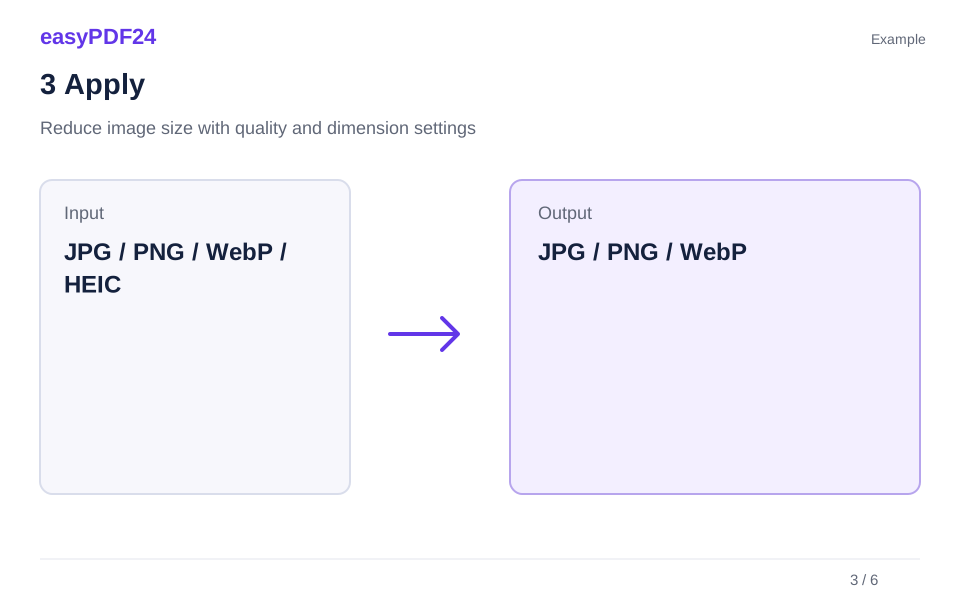
3Apply
JPG / PNG / WebP / HEIC → JPG / PNG / WebP

4Before and after
Original file → Edited copy
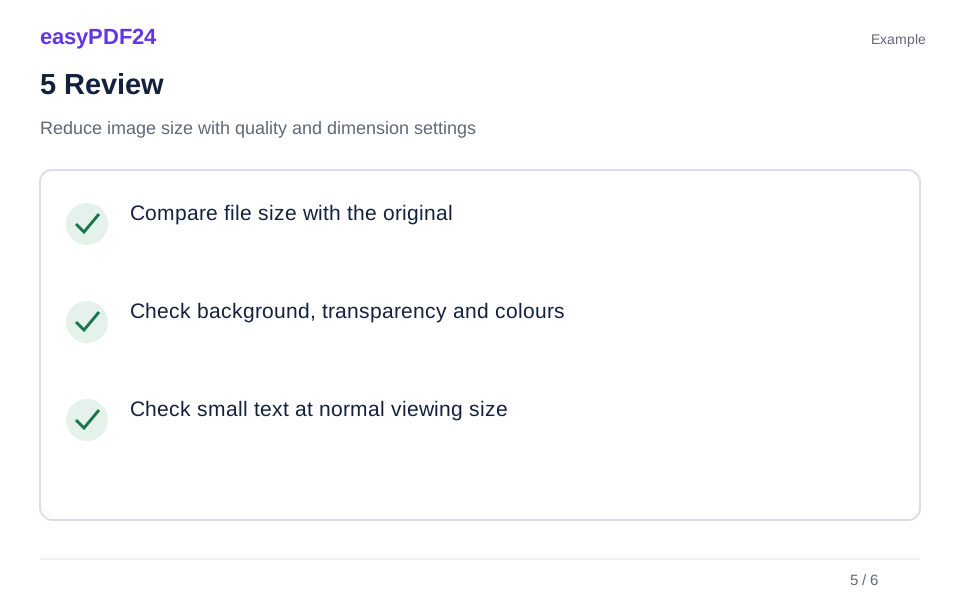
5Review
Compare file size with the original Check background, transparency and colours Check small text at normal viewing size
6Save
Download the output and compare file size, text edges and important visual details.
Example
Before
Original file
After
Edited copy
Check these details in the result
- Compare file size with the original
- Check background, transparency and colours
- Check small text at normal viewing size
Keep only the resolution the task needs
A large camera photograph often needs fewer pixels when used as a small preview. The edge limit scales proportionally and never enlarges a smaller image. Text, logos and fine lines may deserve a higher quality setting than an unimportant thumbnail. Judge the output at its intended display size as well as checking a close view of critical details.
Changing format can change appearance
JPG is lossy and places transparent areas on white. WebP can retain transparency. PNG gives a lossless output but does not guarantee a smaller file. A notice indicates when the generated image is larger than the input. Keep your original and avoid unnecessary repeated JPG saving if you want to preserve detail for future edits.
Frequently asked questions
Will every image become smaller?
No. Subject matter, previous compression, format and chosen dimensions determine the resulting file size.
Does lowering quality help with PNG too?
The quality control affects JPG and WebP. For PNG, choosing suitable dimensions is the more relevant way to reduce size.