
In this guide
How it works
Choose the content type and enter the details, or switch to reading a code from an image or camera.
Generate the code and verify the encoded content; inspect read results before opening any link.
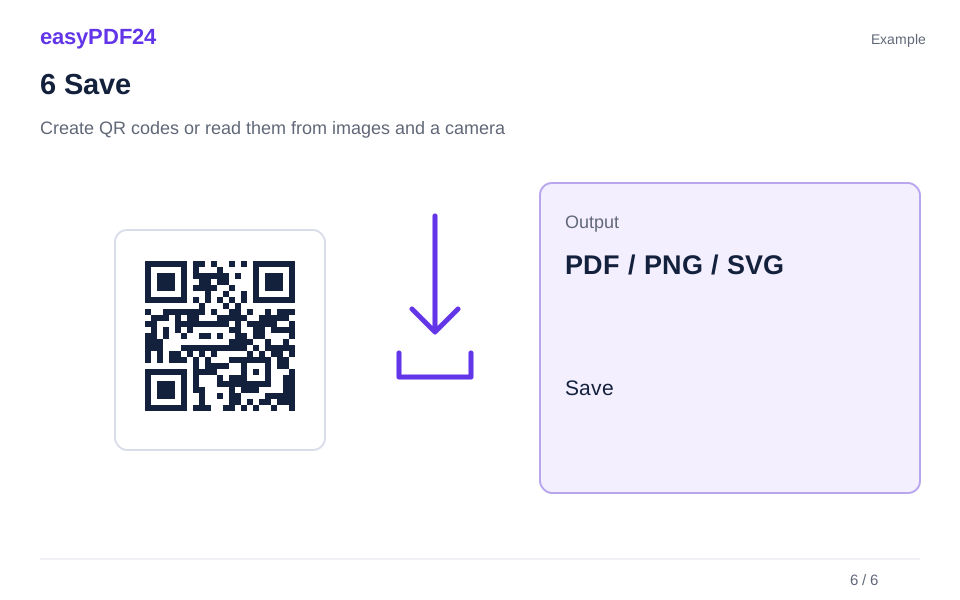
Download PDF, PNG or SVG and test the code at the size you intend to print or display.
Input, result and limits
| Property | Details |
|---|---|
| Input | Text, URL or QR image |
| Output | PDF / PNG / SVG |
| Important limitation | Check QR content locally; a QR code does not establish that a link is trustworthy. |
The workflow in six views
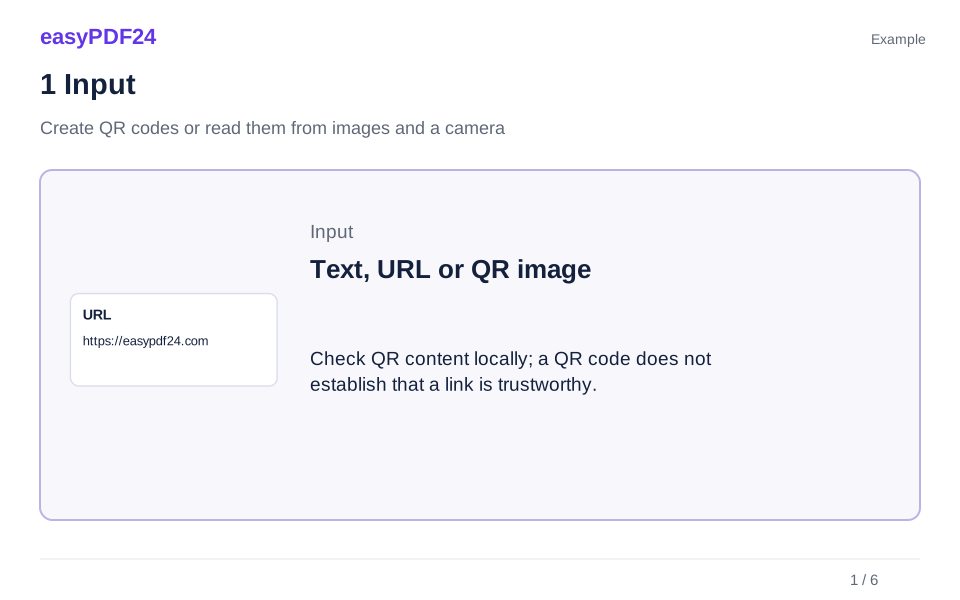
1Input
Choose the content type and enter the details, or switch to reading a code from an image or camera.
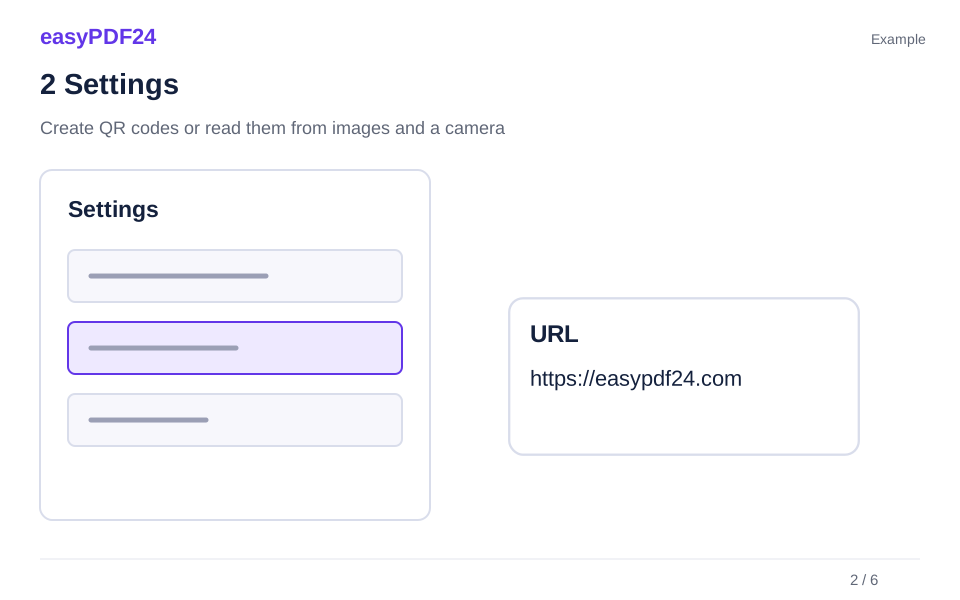
2Settings
Generate the code and verify the encoded content; inspect read results before opening any link.
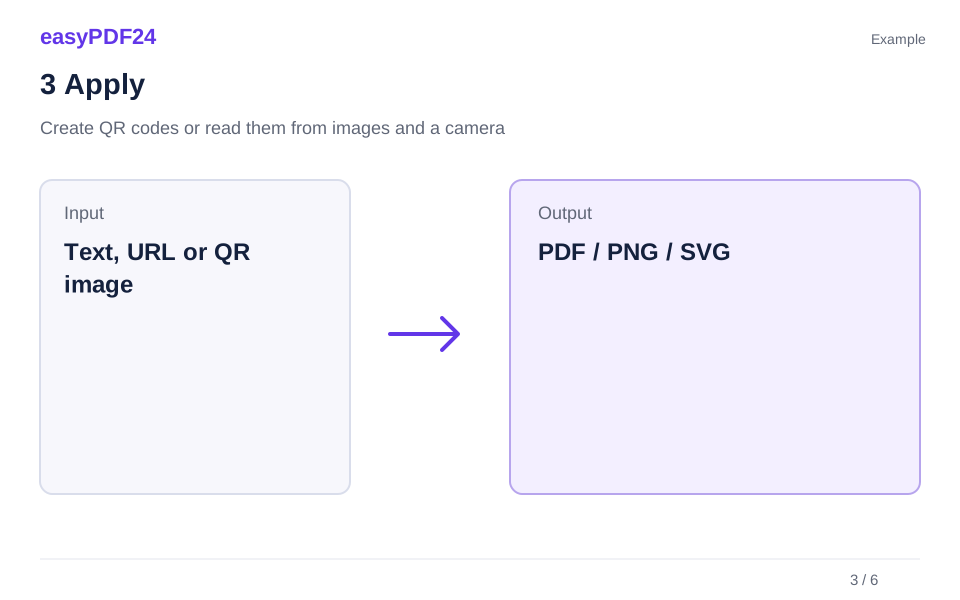
3Apply
Text, URL or QR image → PDF / PNG / SVG
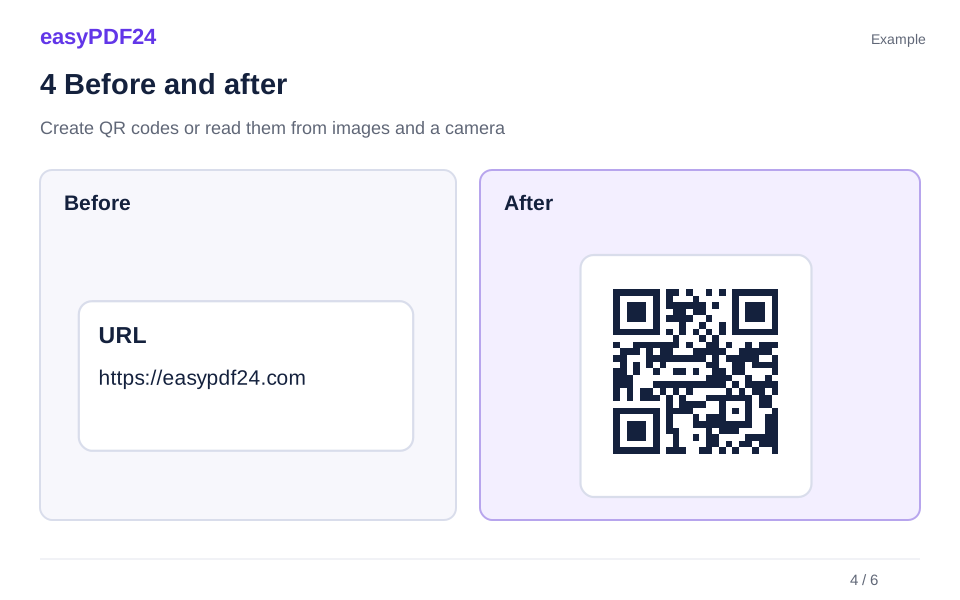
4Before and after
Text or destination address → Readable QR code
5Review
Review the complete text or destination address Read the generated QR code with a device Check small text at normal viewing size
6Save
Download PDF, PNG or SVG and test the code at the size you intend to print or display.
Example
Before
Text or destination address
After
Readable QR code
Check these details in the result
- Review the complete text or destination address
- Read the generated QR code with a device
- Check small text at normal viewing size
Choose content and an output format
Use a web address for a destination that already exists, or encode text, Wi-Fi details, a contact, email or phone information. Shorter content usually creates a less dense code. PDF suits a printable sheet, PNG works as an image, and SVG stays sharp when resized. Keep a clear light margin around the code and avoid stretching it when placing it in another document.
Read the result before using it
Generation and image or camera decoding happen locally in the browser. Camera use requires a compatible device and permission; an image file is an alternative. A decoded address is displayed for review and is not opened automatically. The generator creates a static code: changing its encoded destination later requires a new code, unless you control the destination behind the original address.
Frequently asked questions
Does encoding Wi-Fi details hide the password?
No. A QR code stores readable data. Anyone who can scan the code can obtain the information encoded in it, including a Wi-Fi password.
Why should I test the downloaded code?
Printing size, contrast and nearby graphics affect readability. Scan the actual print or displayed version and confirm the content before distributing it.