
In this guide
How it works
Choose the PDFs you want to combine. You can add up to 20 files with a combined size of 25 MB.
Check the file list and use the up and down arrows to put the PDFs in the order you want.
Run Merge PDFs and check the page order, especially where one source document ends and the next begins.
Input, result and limits
| Property | Details |
|---|---|
| Input | PDF × 2–20 |
| Output | |
| Important limitation | Up to 80 PDF pages; inputs up to 25 MB combined. |
The workflow in six views

1Input
Choose the PDFs you want to combine. You can add up to 20 files with a combined size of 25 MB.

2Settings
Check the file list and use the up and down arrows to put the PDFs in the order you want.

3Apply
PDF × 2–20 → PDF
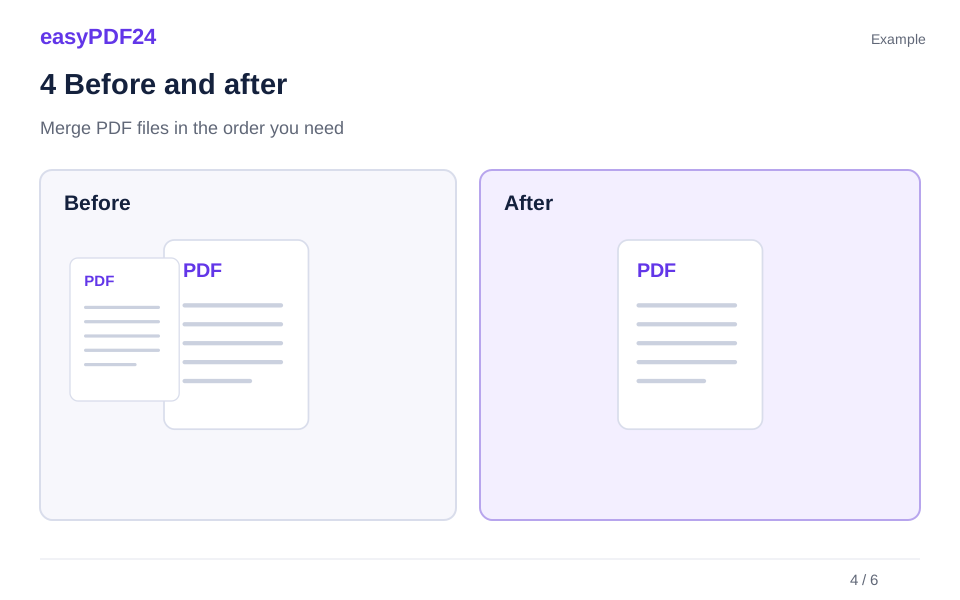
4Before and after
Separate files → One file in the chosen order
5Review
Check page count and order Check spacing, overlaps and line breaks Reopen the downloaded file
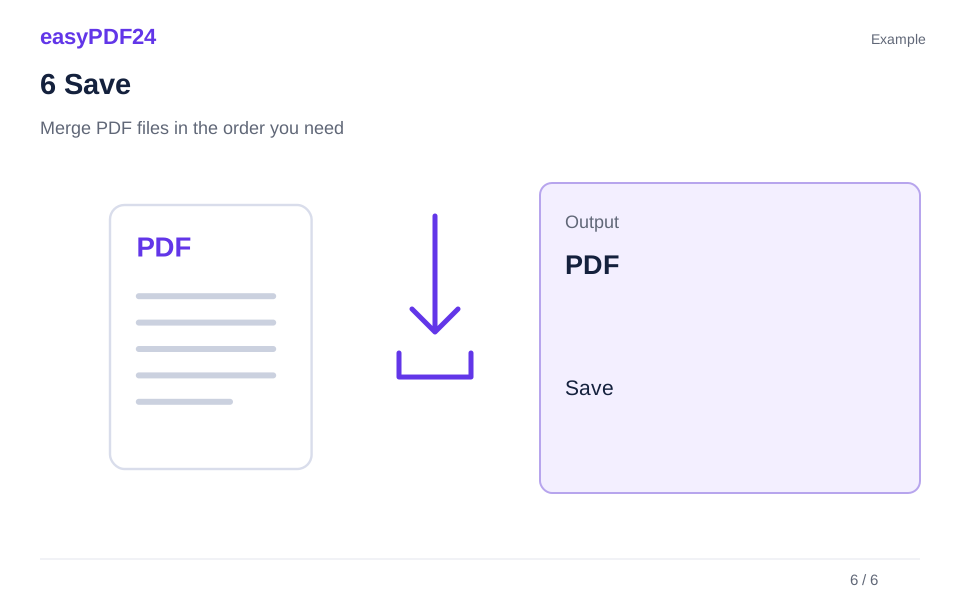
6Save
Run Merge PDFs and check the page order, especially where one source document ends and the next begins.
Example
Before
Separate files
After
One file in the chosen order
Check these details in the result
- Check page count and order
- Check spacing, overlaps and line breaks
- Reopen the downloaded file
Plan the document as a single reading sequence
Merging PDFs is useful when several files belong to one task: a cover letter and supporting documents, a report and its appendix, or meeting notes and reference material. The benefit is not simply fewer attachments. A well-ordered combined file helps the recipient understand what to read first and how the later pages support it. Before uploading, decide on that sequence. The most important document usually comes first, followed by the evidence or background information needed to understand it.
Write down a short order if the filenames are similar. For example, a project handover might contain an overview, an equipment list and operating instructions. Check the contents of each source file rather than relying only on its name. Two files called report-final and report-approved may contain different revisions of the same material. Including both can create confusion even if the merge itself succeeds. Remove duplicate versions from your intended selection before starting. The merge tool joins the files you provide; it does not determine which version is authoritative or whether an attachment is still relevant.
Prepare compatible files before merging
The merge operation accepts PDF files. If one part of the package is a Word document, spreadsheet or presentation, convert it to PDF first and review the result. The Office to PDF tool provides a route for supported Office formats. If the material consists of photographs or screenshots, use Images to PDF to create a document from those images. Preparing each source separately lets you catch conversion issues before they become buried inside a larger combined file.
Open the source PDFs and confirm that their pages are readable. Check whether a scan is sideways, whether a spreadsheet was cut across several pages and whether an exported presentation contains unexpectedly small labels. Fix those problems at the source or with the appropriate page tool before assembling the final package. A merge does not automatically repair a bad scan, normalize page sizes or improve image quality. It preserves the page content as part of the combined document, so the quality of the individual inputs remains important. Keep the original files available until you have checked the finished output and confirmed that no pages are missing.
Change file order with the arrows
Add the PDFs and check their order in the file list. Use the up and down arrows to move a file to the required position. easyPDF24 merges the PDFs in the displayed order, so you do not need to remove and upload them again to rearrange them. Review the whole list before starting: the operating system’s file picker may return a different sequence from your intended reading order.
Pages from each source PDF initially stay together. If a four-page overview is followed by a six-page appendix, the combined output should contain the overview's four pages and then the appendix's six pages. If you need to interleave individual pages from different sources, first decide whether splitting or extracting the relevant pages would make the task clearer. You can also continue editing the merged result with page organization tools. Check the boundaries between source documents particularly carefully: those transitions are where an incorrect selection order or a duplicate cover page is easiest to notice.
Understand size and page limits before starting
easyPDF24 can combine up to 20 files with a total upload size of 25 MB. The combined PDF must stay within the 80-page limit. Count the pages before assembling a large package, especially when several scanned attachments are involved. A collection of small files can still exceed the page limit, while a few high-resolution scans can exceed the size limit even with relatively few pages. Both measurements matter when planning the merge.
If the set is too large, reconsider which material the recipient needs in the same document. Extract a relevant section from a long appendix instead of including the entire file, or split the package into clearly named parts. Compression can sometimes reduce inefficient PDF structure, but easyPDF24 does not aggressively downsample images and cannot guarantee a particular size reduction. Avoid relying on a final compression step to make an oversized source collection acceptable. A smaller, purposeful package is often easier to navigate and verify than a single document containing every available attachment, including material that is not needed for the task.
Review page sizes, orientation and blank pages
Different page sizes can coexist in one PDF. A portrait letter, a landscape table and a scanned receipt may all remain in their original proportions after merging. That can be entirely appropriate, but it deserves a visual check. Scroll through the output and look for pages that appear unusually small, sideways or difficult to read. If the document will be printed, the printer's scaling settings may affect how these mixed pages fit onto paper. Check a representative page before distributing a print-ready package.
Blank pages also need context. A blank reverse side in a scan may be unnecessary, while a deliberately blank page can preserve the layout of a booklet or separate sections. Do not remove every page that looks empty without considering the intended use. If you delete pages after merging, review the page count and the transitions again. Printed numbers inside the document are not automatically rewritten by page deletion or merging. A contents page that refers to page 12 in a source file may no longer match the twelfth page of the combined PDF.
Use a handover example to verify completeness
Imagine combining a two-page cover note, a twelve-page report and a three-page appendix. The expected total is seventeen pages. That simple calculation gives you an immediate check after the merge. Then inspect the first page, the last page of the cover note, the start of the report and the start of the appendix. Finally, check the last page of the output. These checkpoints help confirm that the files appeared in the intended sequence and that the package did not stop before the final attachment.
The page count alone is not enough. A duplicated three-page appendix could replace another three-page attachment while leaving the total unchanged. Compare section titles, dates and version labels as well. If the combined document contains forms, links or other interactive elements, test the behavior that your recipient needs in a compatible PDF viewer. Do not assume that every special feature will behave identically after document processing. When a source contains a digital signature or a workflow that depends on document integrity, consult the requirements of that workflow before altering the file by merging it with other material.
Fix common assembly mistakes efficiently
If a file appears in the wrong place, correct the selection order and create a fresh merge from the source files rather than repeatedly rearranging an already confused package. If a source itself contains unwanted pages, use Delete pages or Extract pages to prepare a clean input first. For one sideways attachment, rotate the affected pages and review the corrected copy before merging again. Working on the specific problem usually produces a clearer result than treating every issue as part of the merge operation.
If an input cannot be processed, verify that it is a genuine, readable PDF rather than a different file renamed with a PDF extension. Open it in a viewer and confirm that it is not damaged or subject to restrictions that prevent the intended operation. Use an authorized, accessible copy when required. Keep source filenames meaningful during this process, so you can identify exactly which prepared version belongs in the final merge. It is easy to accidentally select the original sideways scan instead of the corrected copy when both are stored next to each other with almost identical names.
Download a clean package and keep a usable archive
Open the merged PDF after downloading and review it as one continuous document. Confirm the sequence, page count and key content, then give it a filename that explains the package rather than listing every source file. A project name, document purpose and version date are often enough. Store the source files separately if you may need to update one section later. Rebuilding the package from known source versions is easier than trying to reconstruct which attachment was included in an old combined file.
easyPDF24 creates a new output; your original files on the device remain available. Once the package is complete, use another tool only if it addresses a remaining need: rotation for orientation, deletion for unwanted pages, or extraction for a shorter audience-specific version. Keep the final review focused on what the recipient needs to read and use.
Decide what should remain separate
A single PDF is convenient when all pages belong to the same audience and purpose. It is less useful when different recipients need different attachments, or when one document is updated far more often than the others. For example, a stable product manual and a weekly price sheet may be easier to maintain as separate files. Combining them for a particular handover can still make sense, but keep the sources separate so that the price sheet can be replaced without confusing it with the manual's revision history.
Think about navigation as well as file count. A long combined package should have an understandable sequence and clear section openings. The merge operation does not write an explanatory introduction or revise a table of contents for you. If the reader needs a guide to the material, prepare that page in a source application and include its PDF as part of the selected inputs. Avoid adding a cover merely for decoration when the first page already explains the document. The right package is the one that makes the task clearer, whether that is one combined PDF or a small set of deliberately organized files.
Update an existing package without losing track of revisions
When an attachment changes, rebuild the package from the correct source versions or carefully replace the affected section. Begin by identifying the old section's start and end pages. If its length has changed, later page positions may shift, which can invalidate a previously prepared contents page or a reference in the cover note. Record the expected page count again before generating the new result. Do not rely on the old package's final page number as proof that the updated one is complete.
A practical folder arrangement keeps the approved inputs together and stores the assembled output separately. You can then see which files were used without opening several nearly identical merged PDFs. After updating, inspect the changed section and the pages immediately before and after it. Also check any summary that refers to figures or dates inside the replacement attachment. Merging is a document assembly operation, so consistency between the parts still requires editorial attention. This small review is especially useful for recurring submissions, where the structure stays familiar but one stale appendix can make an otherwise current package misleading.
Frequently asked questions
Can I select a Word file and a PDF together?
The merge tool processes PDF files. Convert the Word file to PDF first, then add the converted file to the list.
Will all pages become the same size?
Merging does not automatically standardize page sizes. Review the result if you are combining scans with documents exported from other applications.
Does merging create a new table of contents?
The merge operation joins the selected PDFs; it does not write a new table of contents or update printed page references inside them. If your package needs an index, prepare it using the final intended section order and verify its page references after assembling the result. An index prepared before you remove blank pages or add an extra cover may become inaccurate. For a short package, clear section opening pages may be enough, while a longer handover can benefit from a carefully checked introductory guide.