
In this guide
How it works
Save a separate copy, record the message and check whether a known PDF opens in the same reader.
Check that the transfer finished, that the item is a real PDF and whether the sender requires access or a password.
For a readable but structurally inconsistent file, try a repair on a copy, then compare the resulting pages with the source.
Input, result and limits
| Property | Details |
|---|---|
| Input | |
| Output | Appropriate next step |
| Important limitation | An empty file contains no pages to recover. |
Which observation points to which next step?
Scroll sideways to see the whole table.
| Observation | Likely area to check | Next action |
|---|---|---|
| File has zero bytes | Transfer or source download | Obtain another copy and compare its size |
| Document asks for a password | Document protection | Request the correct password from the owner |
| One page fails in multiple readers | Source or internal structure | Compare a fresh copy and try a rewrite only when appropriate |
The workflow in six views
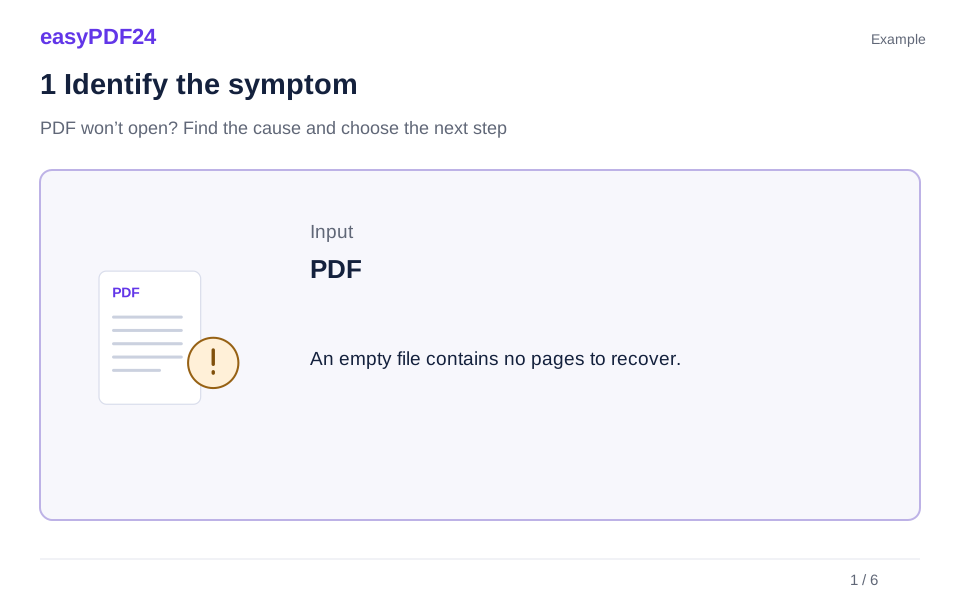
1Identify the symptom
Save a separate copy, record the message and check whether a known PDF opens in the same reader.
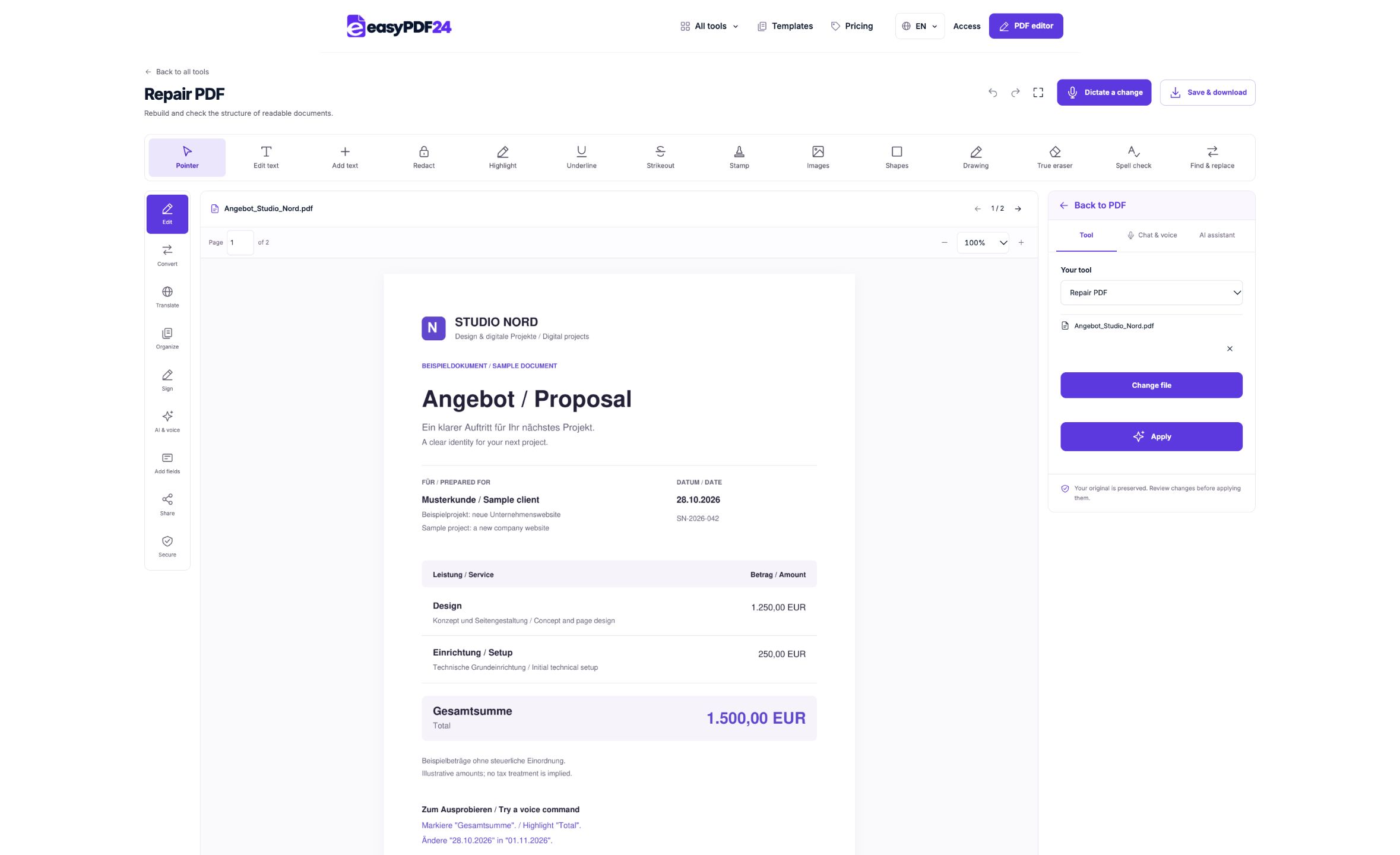
2Repair workspace
The repair workspace is an option for a readable copy with structural damage.
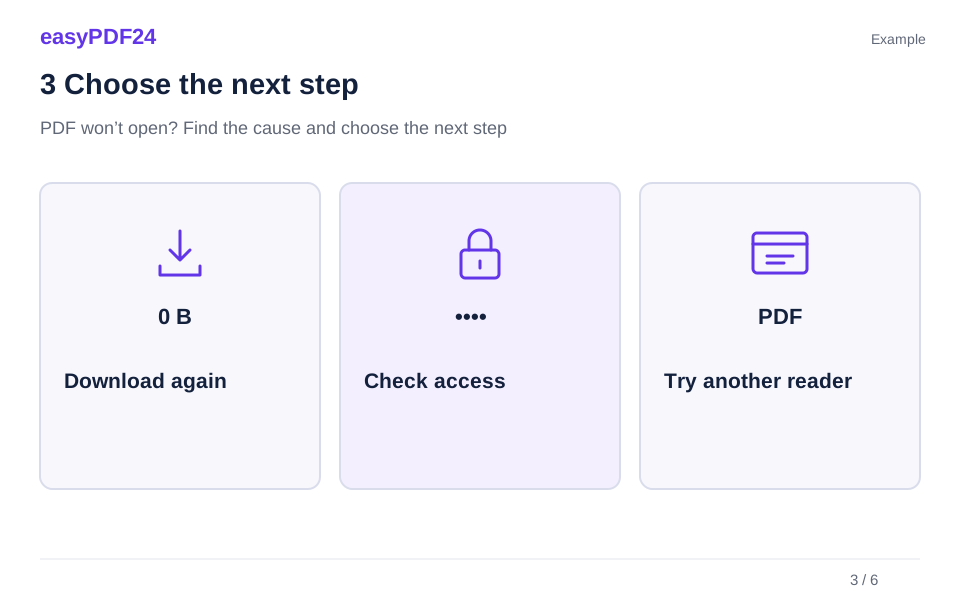
3Choose the next step
PDF → Appropriate next step
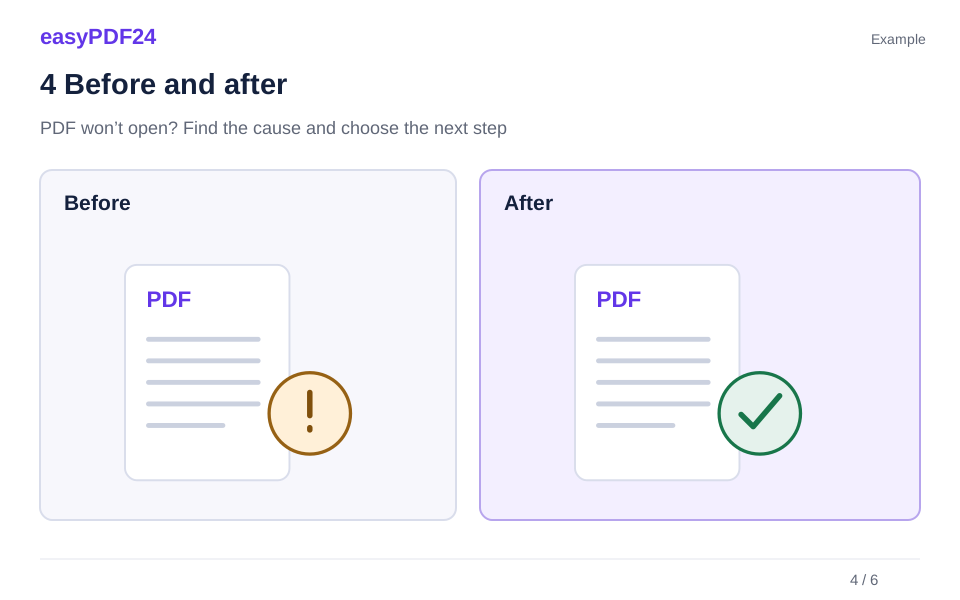
4Before and after
A ten-page maintenance manual opens at the cover but fails when the workshop tablet reaches the parts diagram. The team initially suspects the tablet. → A second viewer fails on the same page. The supplier sends the approved source, and the team checks the diagram, revision date and final page before replacing the local copy.
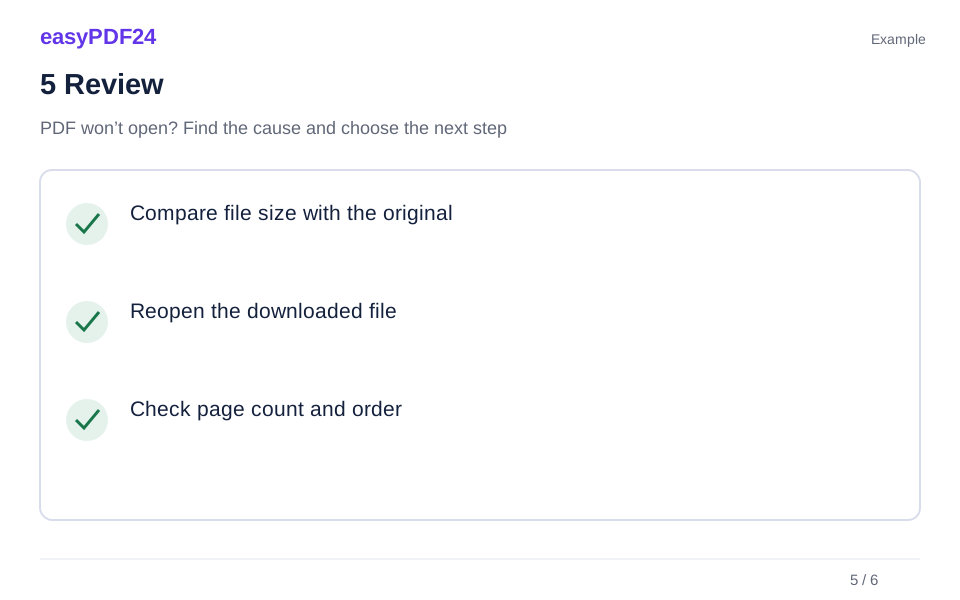
5Review
Compare file size with the original Reopen the downloaded file Check page count and order
6Check the copy
For a readable but structurally inconsistent file, try a repair on a copy, then compare the resulting pages with the source.
Example
Before
A ten-page maintenance manual opens at the cover but fails when the workshop tablet reaches the parts diagram. The team initially suspects the tablet.
After
A second viewer fails on the same page. The supplier sends the approved source, and the team checks the diagram, revision date and final page before replacing the local copy.
Check these details in the result
- Compare file size with the original
- Reopen the downloaded file
- Check page count and order
Identify where the opening process stops
Consider a workshop supervisor expecting a ten-page equipment manual. A link in an email opens an empty browser tab. A downloaded file has the expected name, yet a PDF reader calls it an unsupported format. These observations describe different points in the delivery process. The link might require a current session, the saved item might be a sign-in page, or the PDF itself might have a problem. Record what you clicked, whether a file appeared in Downloads and the wording of any prompt. Knowing that the browser requested access before downloading is already a valuable clue.
Try a different, previously working PDF in the same reader. If that document also fails, investigate the reader or device before spending time modifying the manual. If other files open normally, focus on the source and the copy you received. Use a known example that you already have on the device. Repeating the test with several files downloaded from the same broken portal can give a misleading impression that the entire reader has stopped working.
Check whether you received the entire document
Look at the file information on the saved attachment. A file of zero bytes contains no pages for a reader to display. A very small file deserves investigation when the sender describes a manual full of photographs, although file size by itself cannot prove the format or number of pages. Check whether the transfer has finished. A progress circle in a cloud folder or a temporary download extension can mean you are opening an item before the device has obtained all its contents.
Download the document again from its original source into a separate folder. Compare the two copies without overwriting the first one. If the sender can tell you the exact size of the approved file, compare like units in the file information rather than a rounded size shown by a messaging app. Open the newly retrieved file locally. A complete second copy that displays every expected page resolves the immediate job. It also gives you a better explanation for the initial failure than assuming the document needed repair merely because the first download did not open.
Distinguish a document from a link or another file type
A filename ending in .pdf is a label. It can remain on a download even when the server sent an error message or a sign-in page. Return to the service where the document was shared and check what appears after opening the link. A request to sign in, a message that the link has expired or an access-denied screen calls for action at the source. Use your normal route into the service or ask the sender for a current link with the appropriate permissions.
A different possibility is an archive that contains the actual manual. Look at the full filename, including its last extension. When the item is a ZIP supplied by a known sender, extract it with the device’s archive function and locate the PDF inside. Renaming an archive, a photograph or a word-processing file to end in .pdf changes only its name. Ask for the original format if you cannot identify it. If the material is a document you own and can open in its authoring application, exporting a fresh PDF there may give you the most reliable replacement.
Interpret password prompts and permission messages
A prompt requesting the document password indicates that the reader has recognised a protection feature. Obtain the correct password through the agreed channel and check that it applies to this particular version. Look for accidental spaces copied along with the password and distinguish characters that look similar. A collection of manuals can contain both public documents and restricted service instructions, so a password that worked yesterday on another file may be irrelevant here.
An inability to print or edit a document you can already read is a separate problem from an inability to open it. Record exactly which operation failed. Likewise, a cloud service denying permission to download a file is dealing with access to the shared item, before your local PDF reader has anything to process. Contact the person who controls the document or sharing permissions. A structural repair cannot supply a missing password, grant access to someone else’s folder or decide whether you are allowed to distribute the manual outside your organisation.
Compare local viewing with the browser preview
Save the verified attachment locally and open it with a trusted PDF viewer already available on the device. Compare the same saved copy in a second suitable reader if the first one shows blank pages. A mail preview, a browser tab and a dedicated document viewer can handle interactive forms, embedded features and very large drawings differently. Note whether the difference affects every page, a particular diagram or only fields that should display values.
If a different viewer shows the document correctly, check it against the purpose of the task. Reading a static list of maintenance intervals and submitting an interactive inspection form require different features. Use the viewer specified by the sender for forms or signatures when instructions are provided. A screenshot or printed copy may let you read a serial number while discarding form controls and other document properties. Before adopting a workaround for the whole organisation, make sure it preserves the parts of the document people actually need.
Treat partially readable files as a separate case
Sometimes the cover appears immediately while turning to page eight produces an error. Write down the last readable page and what should appear next. Try the same page position in another viewer and compare the result with a known source. A missing image, a blank signature block and a completely absent page require different follow-up. Where the file still opens, check the page count and one piece of content near the end before assuming that a displayed cover proves the transfer succeeded.
A partially readable document may benefit from a structural rewrite. easyPDF24 attempts to read the source, render its pages, write a new PDF and check that the result can be opened with the same page count and rendered again. This is a useful technical check when the internal structure is inconsistent. It does not establish that a missing photograph was recovered, that amounts are correct or that a document with a digital signature remains valid. Use a copy for the attempt and keep the original for comparison and for any required signature verification.
Understand why a working source can still be rejected
An application may refuse a perfectly readable PDF because the file exceeds an upload limit or contains more pages than that service accepts. Read the error message and compare it with the file size and page count. easyPDF24’s ordinary PDF workflow has a limit of 25 MB and 80 pages. A large, detailed manual that opens locally can exceed those limits while remaining structurally sound. Changing its extension or resending the same bytes will not reduce its size.
If you have the original authoring file, create an appropriately sized export or ask the publisher for a smaller edition. If only one part is needed, request that approved section with its page references intact. A portal may also require a particular type of form, a valid signature or a document issued by a particular organisation. When the file opens but a submission site rejects it, the site’s instructions matter more than a generic repair command. Record the exact rejection and check the requested document type before changing a file that is otherwise usable.
Verify a replacement before relying on it
Use the checklist that follows from the original failure. For the workshop manual, compare its revision date, number of pages and the table on the page that previously failed. Read a value at the end of the table, a drawing label and the last page. Test the recovered file in the reader that the workshop actually uses. A document that opens on your laptop may still present a problem on the tablet installed at the workstation.
If a repair attempt fails or a critical section is absent, request a fresh export from the person who owns the source. Send useful diagnostic facts such as the document version, saved file size, affected page and the observed error through your usual support channel. Share only the material necessary for that request. Store the verified replacement separately and give it a clear filename. Where the original contained a signature, use the relevant verification process on the original signed file and obtain an authorised replacement if one is needed. A visible signature graphic alone cannot answer that question.
Frequently asked questions
My download is zero bytes. What can I recover?
Download again or request another copy. A zero-byte file contains no PDF page data to reconstruct. Check the new file size and open the last expected page so you can verify that the second transfer delivered the complete document.
Why does the same PDF open on my laptop but not on my phone?
Check that both devices hold the same downloaded version. A phone may be showing a preview or a cloud placeholder while the laptop has a complete file. Compare their sizes, then try a suitable local reader on the phone.
Will changing the file extension fix the problem?
An extension can help the device choose an application, but changing the name does not convert the contents. Identify the original format and use the correct reader or export function. For a ZIP, extract the document inside it.
How do I handle an expired sharing link?
Request renewed access or a new link from the owner through the usual channel. Once you have permission, download the PDF and check it locally. Trying to repair a saved copy of the expired-link message cannot retrieve the underlying document.
What if only a form looks empty?
Compare the same file in the viewer recommended by its issuer. Check whether the form fields contain saved values and whether a different device shows them. Retain the original if you must return a form that can still be filled in.
Can a successful repair confirm my document is complete?
It confirms technical checks on the rewritten copy. Compare all relevant content with an approved reference, especially figures, drawings and signatures. If you do not have a reference, ask the publisher to confirm the expected page count and the critical sections.