
In this guide
How it works
Open the workbook and prepare the intended sheets, print ranges, page orientation and scaling in your spreadsheet application. Save this source version before uploading it.
Upload one XLS, XLSX or ODS file and run Office to PDF. Compare the resulting PDF pages with the print preview of the saved workbook.
Check the first and last columns, totals, decimal places and page transitions. Correct problems in the workbook, convert again if necessary and download the checked version.
Input, result and limits
| Property | Details |
|---|---|
| Input | XLS / XLSX / ODS |
| Output | |
| Important limitation | Fonts and page breaks may change during conversion. |
Choose the output according to the spreadsheet task
Scroll sideways to see the whole table.
| Output | Useful for | Limit |
|---|---|---|
| PDF from a prepared workbook | Reading, sharing and printing a checked report state | No working Excel formulas; prepare the print layout in the source. |
| Direct export from the spreadsheet application | Application-specific selection and output requirements | Options vary by version and device; review the resulting pages too. |
| XLSX working file | Filtering, adding records and editing formulas | Requires a suitable spreadsheet application and deliberate sharing contents. |
The workflow in six views
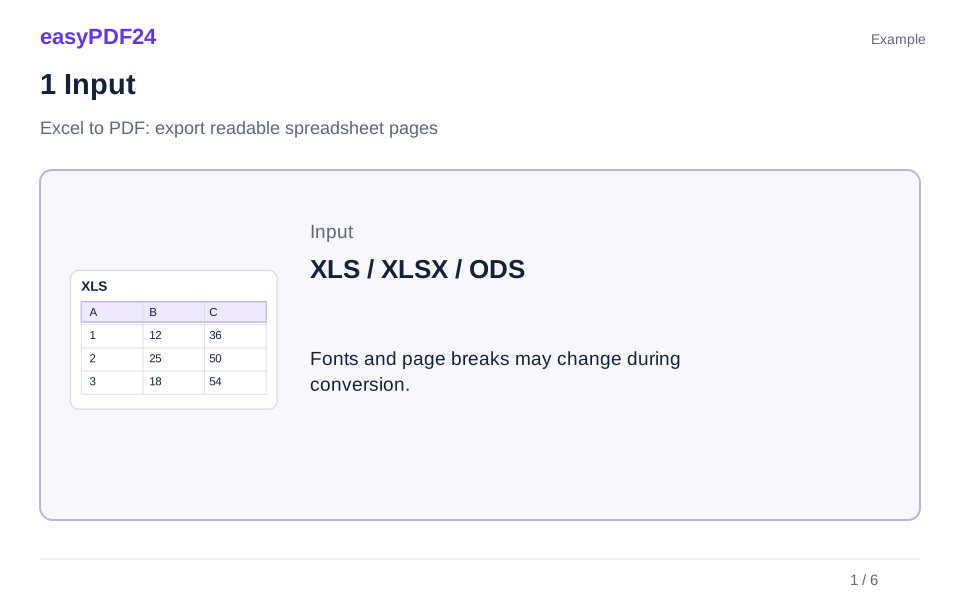
1Input
Open the workbook and prepare the intended sheets, print ranges, page orientation and scaling in your spreadsheet application. Save this source version before uploading it.
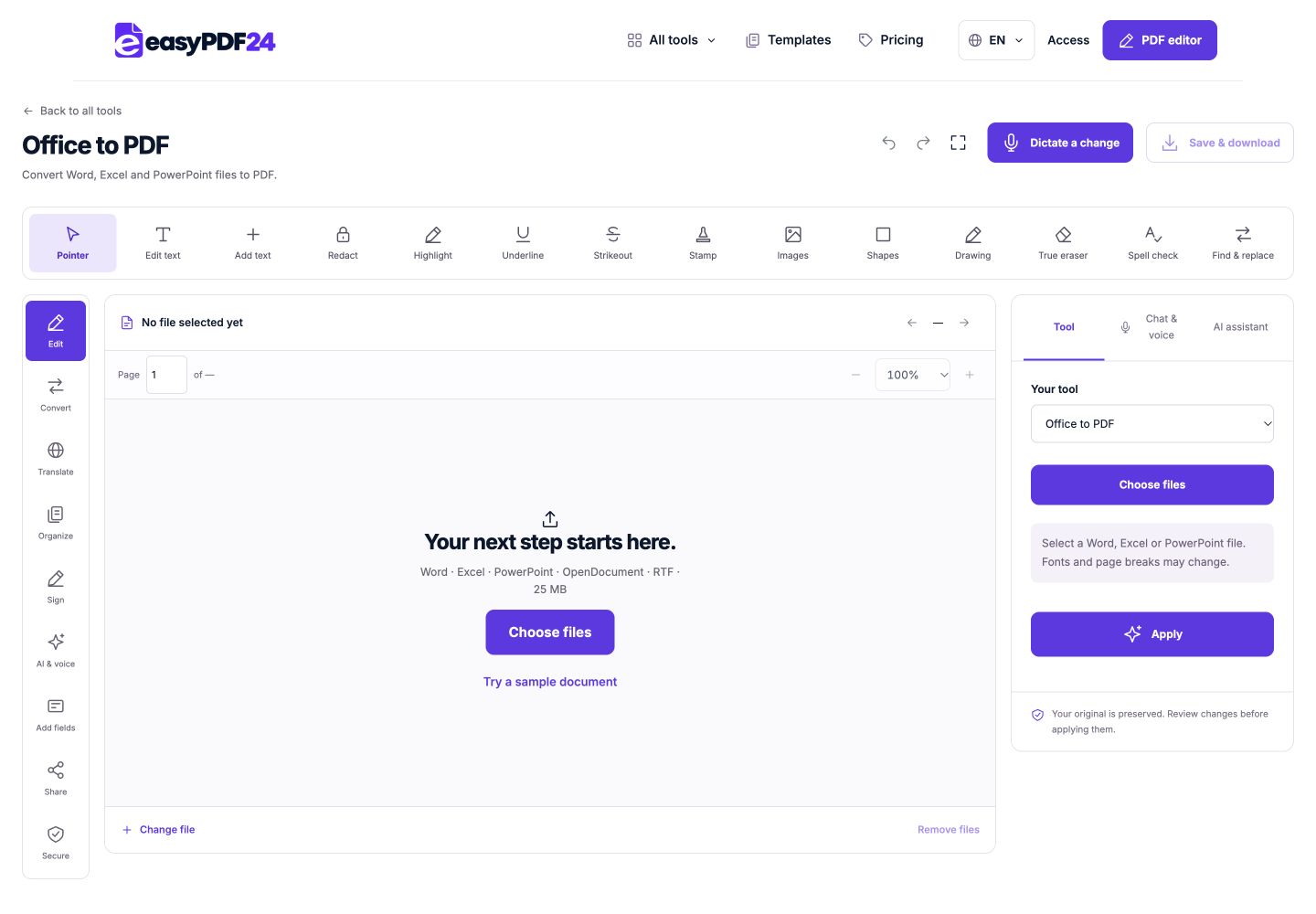
2Settings
Upload one XLS, XLSX or ODS file and run Office to PDF. Compare the resulting PDF pages with the print preview of the saved workbook.
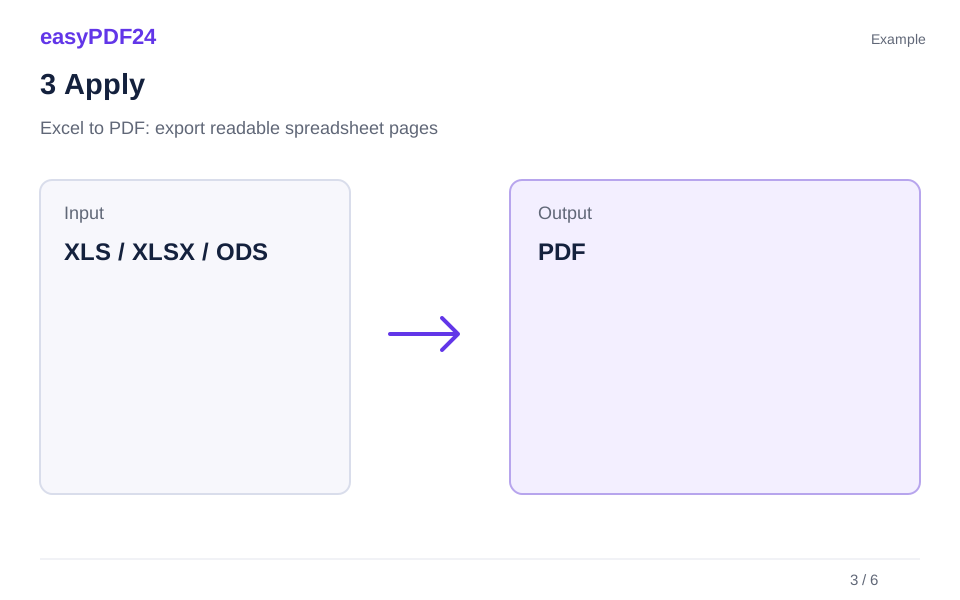
3Apply
XLS / XLSX / ODS → PDF
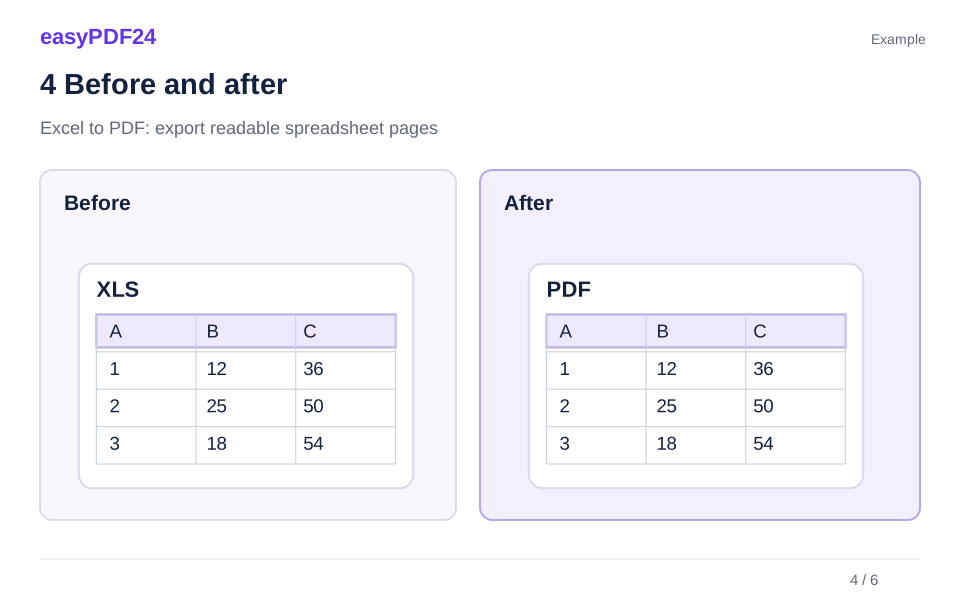
4Before and after
Twelve monthly columns exceed the prepared print width. December and the yearly total appear separately on a narrow continuation page. → After reviewing print area, landscape orientation and moderate scaling, the PDF contains a clear yearly overview and readable detail pages, with values checked against the source.
5Review
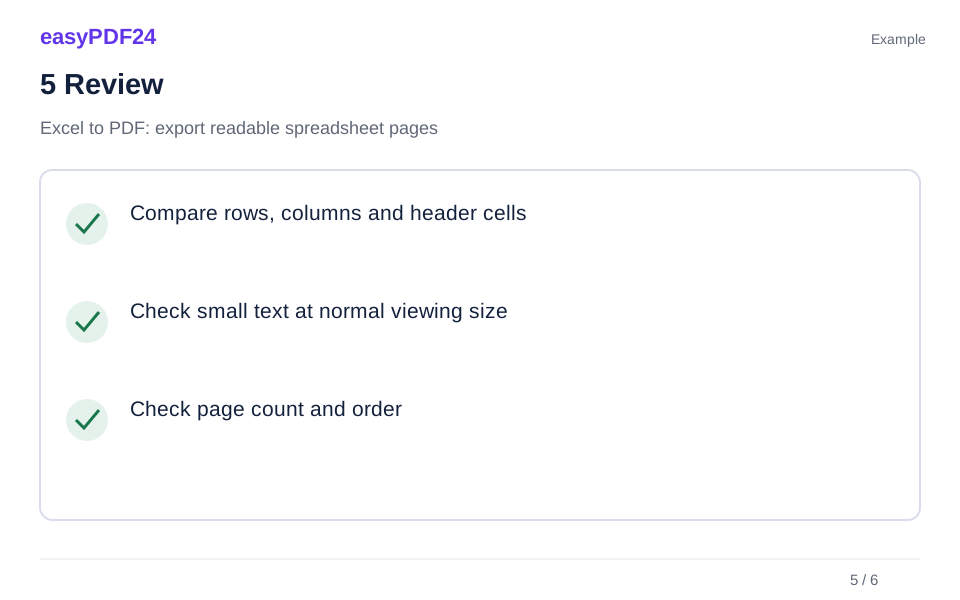
Compare rows, columns and header cells Check small text at normal viewing size Check page count and order
6Save
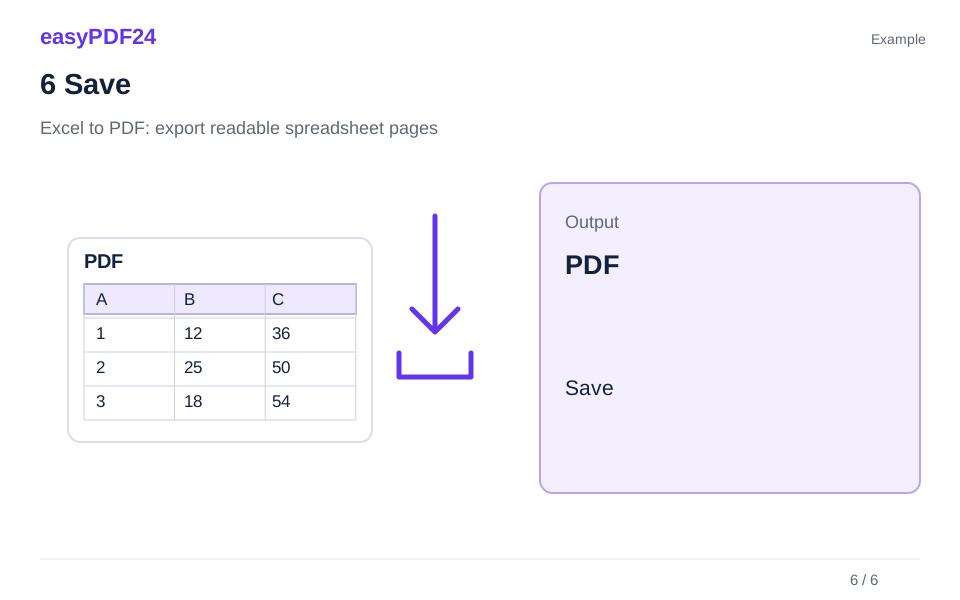
Check the first and last columns, totals, decimal places and page transitions. Correct problems in the workbook, convert again if necessary and download the checked version.
Example
Before
Twelve monthly columns exceed the prepared print width. December and the yearly total appear separately on a narrow continuation page.
After
After reviewing print area, landscape orientation and moderate scaling, the PDF contains a clear yearly overview and readable detail pages, with values checked against the source.
Check these details in the result
- Compare rows, columns and header cells
- Check small text at normal viewing size
- Check page count and order
Decide whether the recipient needs pages or working cells
PDF is useful when someone needs to read, print or archive a particular report state. It does not turn the spreadsheet into another fully functional workbook. The recipient sees the displayed values on pages. If they need to filter records, change formulas or enter new figures, the XLSX source may be the more appropriate format. Sometimes both are useful: a PDF reading version and a separately supplied workbook.
Choose the information that belongs in the report before conversion. A workbook often contains helper sheets, intermediate calculations and working notes. Do not treat a hidden sheet or a range outside the print area as a general confidentiality guarantee. Prepare a deliberate sharing copy and review what it contains and what the final PDF actually displays.
Use an identifiable filename and report date. Similar workbook names make it easy to export the wrong month. Update necessary values in the original application and save the intended state. The converter does not establish that an external link contains current data or that a calculation is correct. Those decisions remain part of preparing a trustworthy source.
Arrange multiple sheets and long tables deliberately
One worksheet does not necessarily become one PDF page. A long table can span many pages, while a short summary may fill only part of one page. Decide in the spreadsheet application which sheets belong in the output and their intended order. The Office converter does not provide a separate interface for selecting worksheets inside the uploaded workbook. Prepare the source and inspect what was actually generated.
Long lists need orientation across page breaks. Repeated column headings, meaningful subtotals and a clear report title help readers understand a continuation page. Configure relevant print settings in Excel or your spreadsheet application. Then check the transitions in the PDF: does page two identify its columns, or does it begin with a block of unexplained numbers?
Avoid forcing an entire large workbook onto a single sheet of paper. A summary followed by readable detail pages is often more useful than an extremely reduced table. Inspect the full PDF in page overview before checking individual values. Extra blank or nearly empty pages may point to an oversized print area or formatting far beyond the intended data range.
Set print area and scaling before uploading
A workbook may contain calculations, intermediate results and distant helper cells alongside the intended report. Define the output range in your spreadsheet application. Include the first and last relevant rows and every necessary column. An oversized range can create additional nearly empty pages, while an undersized range can exclude totals or explanatory notes.
Choose an appropriate paper size and orientation next. Landscape pages provide more width but do not solve every crowded table. Scaling to a suitable width may help while allowing the height to continue across multiple pages. The availability and behaviour of those settings depend on the application and version you use. The online converter does not provide a separate dialog for them.
Inspect the print preview at a realistic reading scale. If a figure only becomes readable with extreme zooming, the table has been reduced too far. Divide it into understandable report sections instead. Check repeated headings and the order of continuation pages. Then save the source and compare that prepared print view with the converted PDF. The useful standard is whether a reader can associate the right value with the right row and column, not simply whether every cell fits somewhere on one sheet.
Verify decimal places, dates and identifiers
A cell’s displayed value can differ from its underlying stored value. It may contain more decimal places than are visible or use a custom number format. Decide how much precision the report should show in the source workbook. A PDF reader cannot open the cell-formatting dialog to inspect hidden decimal places.
After export, compare negative signs, percentages and currency labels. A value written as 1,250.50 in one convention may appear as 1.250,50 in another. Conversion should not replace a deliberate decision about the intended notation. Include different examples in your review: a negative amount, a small decimal, a percentage and an identifier with a leading zero. Item code 00124 is not interchangeable with the number 124.
Dates also require care. A short numerical date can be ambiguous for an international audience, whereas an agreed unambiguous format or a written month can help. Check narrow cells and visible placeholder marks before conversion. A PDF preserves a page output; it does not repair a source column that is too narrow to display its value properly.
Prepare formulas, linked data and charts in the source
A PDF presents the visible results of a spreadsheet. It does not supply editable Excel formulas or a functioning pivot-table model. Open the workbook in the application used to maintain it, inspect calculations and external links, and deal with visible errors. Save the intended state before selecting the file for conversion.
Charts need their own review. A bar chart can look polished while an axis is missing its unit or currency. Check that the title matches the reporting period and that the legend remains understandable at normal reading size. Conversion does not make tiny labels more legible. Enlarge or simplify the chart in the source if its message otherwise becomes difficult to understand.
Do not assume that specialist spreadsheet features behave identically in every Office environment. Server-side conversion may use different software from your laptop. For a complex model, the original application’s direct PDF export may be a better fit. Compare both outputs against the same saved workbook and focus on the cells and charts that matter, rather than judging reliability from the cover page alone.
Example: the December column has moved to another page
Before conversion, a monthly report has a description column, twelve month columns and an annual total. The first PDF places January through November on a series of pages, while December and the annual total appear on separate narrow continuation pages. The reader can no longer easily associate those values with their corresponding records. Conversion completed, but the report is not yet useful.
Return to the workbook and check the print area and orientation. Landscape pages may provide more width. Decide whether moderate scaling is enough or whether the report needs to be split into understandable sections. Do not choose “fit everything to one page” without checking the resulting text size. Review the preview at a realistic reading scale.
Afterwards, the PDF might contain a yearly overview followed by clearly labelled detail pages. Compare the first and last records, the December column and the annual total with the workbook. Count the expected report sheets too. This before-and-after check focuses on the actual transformation from a large spreadsheet canvas into bounded pages, rather than treating a successful export message as proof that every value remains easy to interpret.
Compare browser conversion with direct export and printing
Online conversion is a way to process a prepared workbook without editing it inside a local Office application. It is especially straightforward when the print layout is already sensible. The browser does not redesign worksheets interactively. Changes to column widths, print ranges and scaling still belong in the source application.
Direct PDF export from Excel or another spreadsheet application may offer more control over the output range. The available options depend on the version and device. Check those options if you need precise selection of individual sheets or a particular print arrangement. A print-to-PDF dialog can also be useful, but its paper and scaling settings determine its result.
For a fair comparison, use one saved workbook to create the different outputs. Inspect the same rows, totals and charts in each. Choose readability and completeness rather than the smallest page count. A four-page report with clear figures is more useful than a one-page file that requires constant heavy zooming. Keep the workbook for future data changes; the PDF remains a checked reading state of that source.
Check the output on a phone and a desktop
On a desktop, place the workbook and PDF side by side. Start with the page overview, then inspect representative table regions at normal reading size. A wide monitor makes comparison easier, but it can also disguise text that will be too small in print. Consider the intended paper size if the report will be read on physical pages.
On a phone, upload the actual XLSX, XLS or ODS file through the file picker. A messenger preview or screenshot does not contain the same workbook structure. Save the attachment into an accessible folder if necessary. For cloud files, allow the transfer to finish before starting another conversion or assuming that the first attempt stalled.
Landscape orientation can make broad tables easier to inspect on a phone. Zoom into figures and labels, then return to whole-page view to check margins and missing columns. Reopen the downloaded PDF separately. Extensive changes to print areas are usually easier on a larger display; a phone can still work well for uploading a prepared source and checking a few important output locations.
Frequently asked questions
Which spreadsheet formats can I upload?
This workflow accepts XLS, XLSX and ODS, one Office file at a time up to 25 MB. A renamed CSV or screenshot is not a workbook. Use the appropriate tool for other source types, or save a genuine supported version in the application that created the file.
Can I choose individual worksheets in the converter?
There is no separate worksheet-selection interface inside the uploaded workbook. Prepare the intended output in the spreadsheet application and inspect the generated pages. If you need detailed control over which sheets are exported, compare the original application’s own PDF output options before choosing a workflow.
Why is the text in my PDF so small?
A broad or long table may have been scaled into too little space. Check the source print area, paper size and scaling. Divide information across readable pages rather than shrinking everything as far as possible. Successful conversion does not by itself mean the figures are comfortable to read.
Are my Excel formulas preserved?
The PDF is a visible page output, not an editable Excel workbook. Keep the XLSX source if formulas, filters or chart data will be needed later. Review calculation results in the original application before conversion; the converter does not verify the underlying business or mathematical assumptions.
Can I convert a password-protected workbook?
Use an accessible copy that you are authorised to process. Office conversion is not a way to bypass access restrictions. If the current protection prevents processing, open the file in its original application and prepare an appropriate source version there rather than repeatedly retrying the same locked file.
How do I check that the table is complete?
Compare sheet order, first and last columns, the beginning and end of long lists, and total rows. Also inspect units, negative signs and decimal places. Look beyond the first page: displaced columns, empty continuation pages and missing headings are easy to miss in a quick preview.